About 10 minutes
Annotate Zotero PDFs in Obsidian
Highlight the PDF in Obsidian to add a card to your literature note.
You need Lesson 1 (Completed literature note)Zotero 10 (Open on this computer)
You end with
A new highlight and comment in your note
Step 1 of 6Open the paper's PDF
You should see
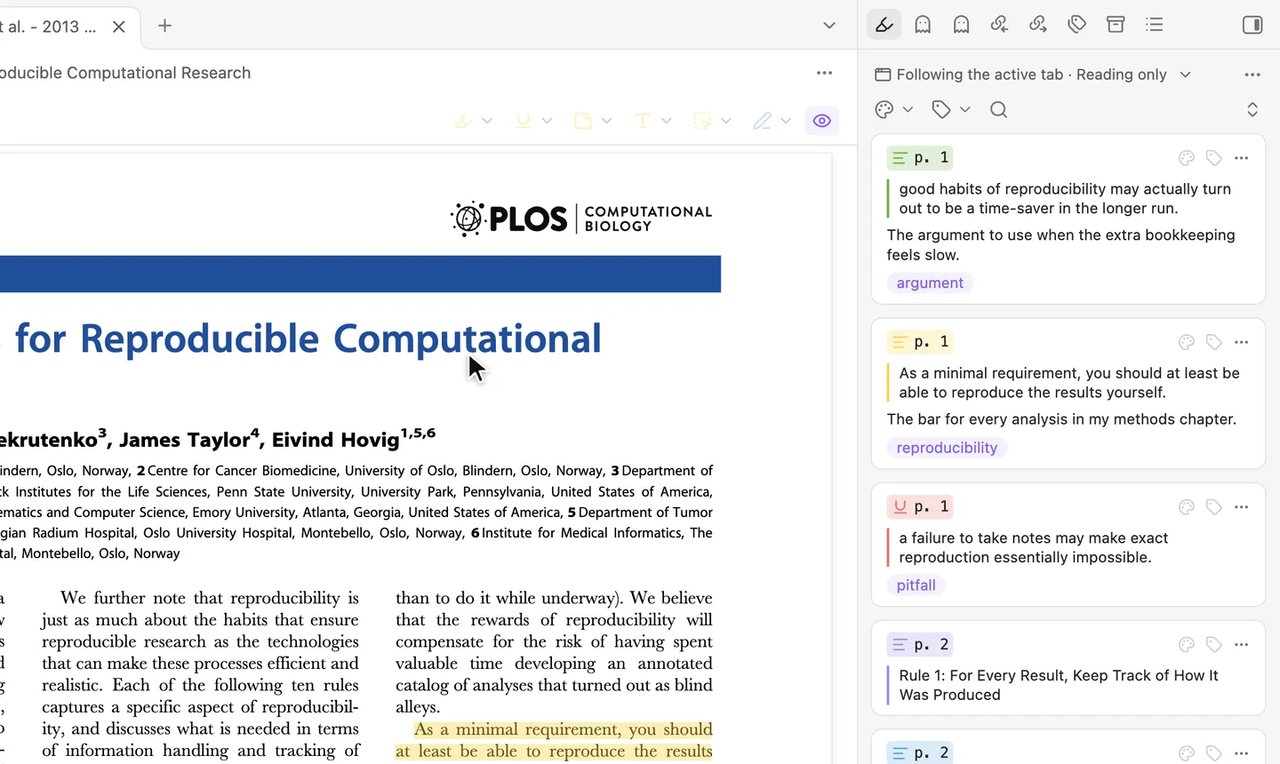
The PDF opens with dimmed annotation tools, and the sidebar reads Following the active tab · Reading only.
If you see something else
Step 2 of 6Allow editing in Zotero
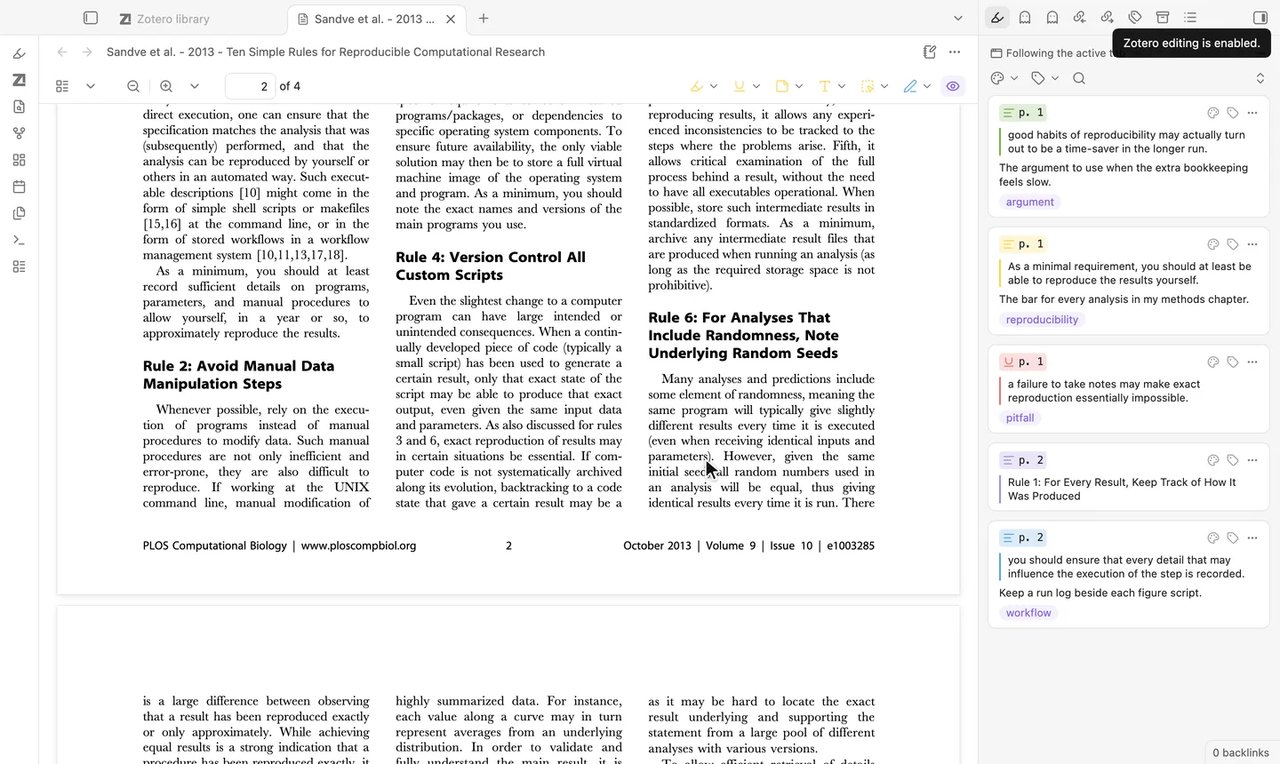
You should see
Back in Obsidian, the notice appears: Zotero editing is enabled. The tools appear in colour.
If you see something else
The tools stay dimmed
Do this step again and select Always Allow.
Step 3 of 6Select a passage
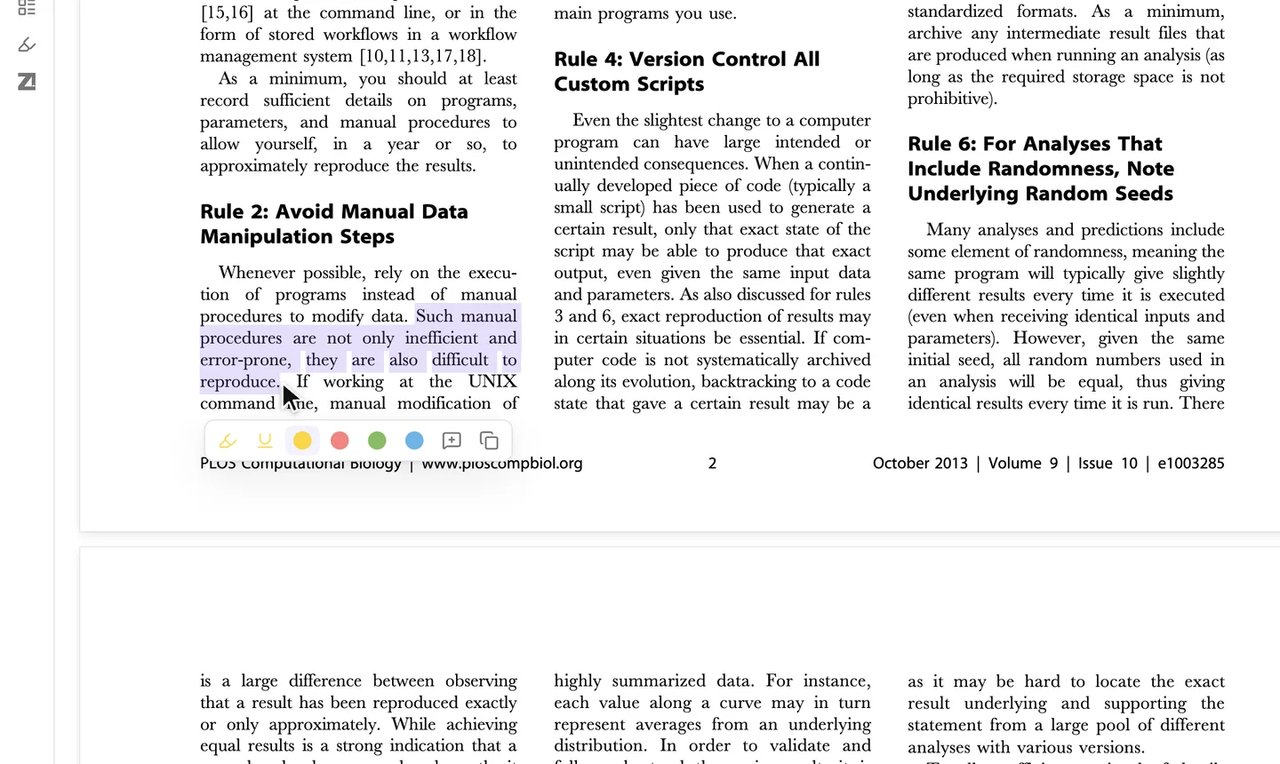
You should see
A toolbar appears under the selection with Highlight, Underline, four colours, and Add comment.
If you see something else
Step 4 of 6Add a comment and highlight
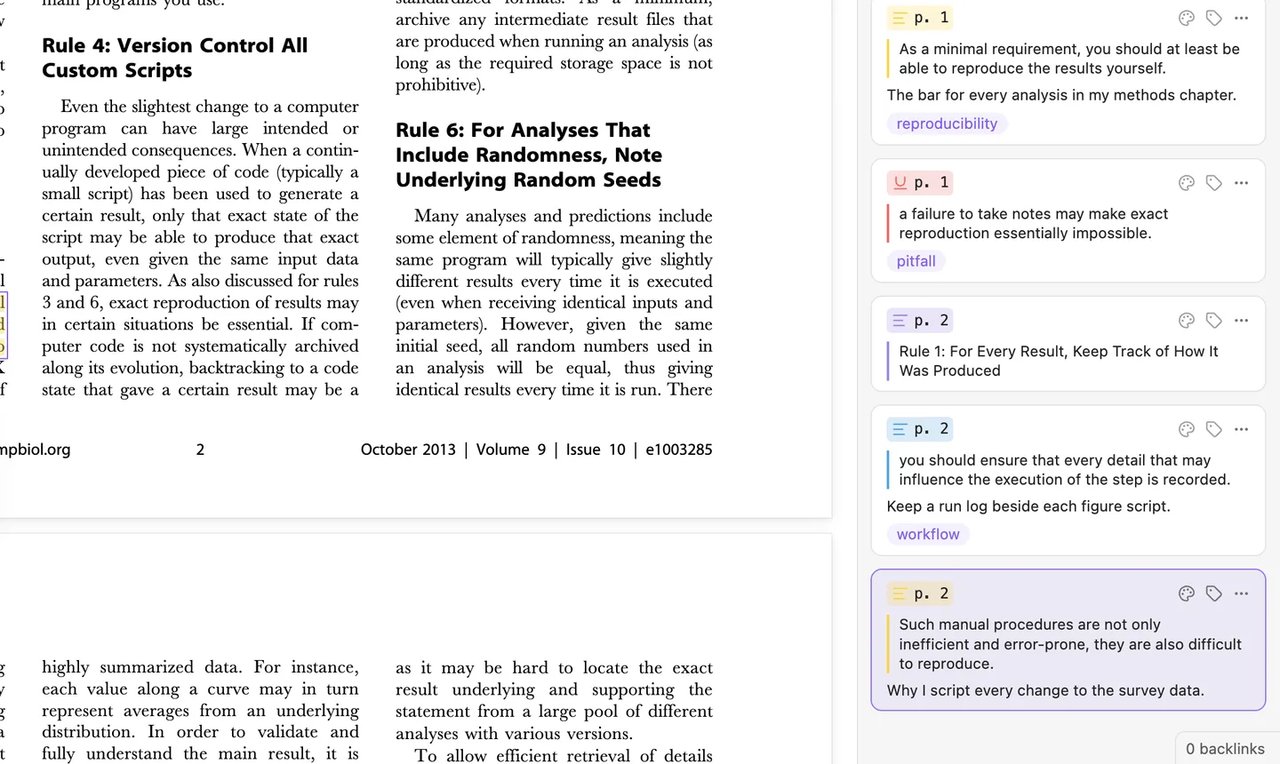
You should see
The passage turns yellow, and a card showing the page, excerpt, and comment appears in the sidebar.
If you see something else
Step 5 of 6See it in Zotero
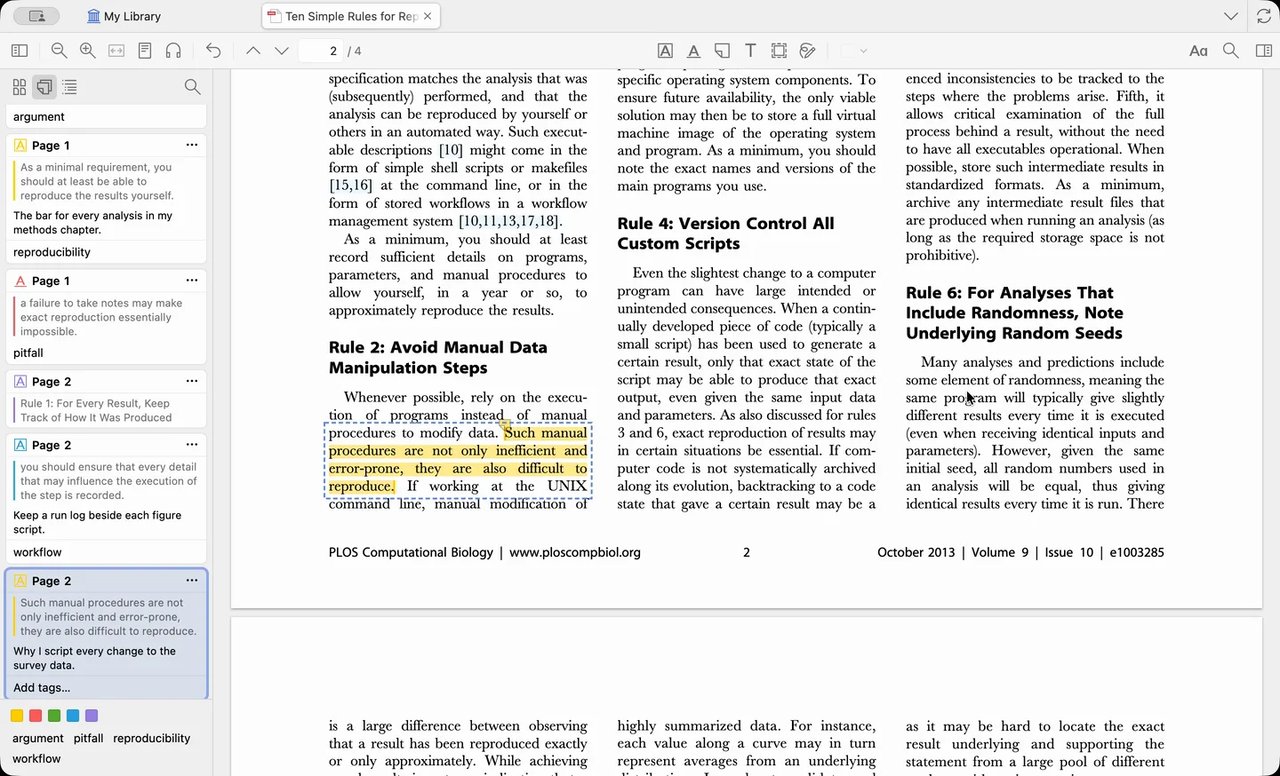
You should see
The PDF in Zotero shows the same yellow highlight and comment.If you see something else
Step 6 of 6See it in your note
You should see
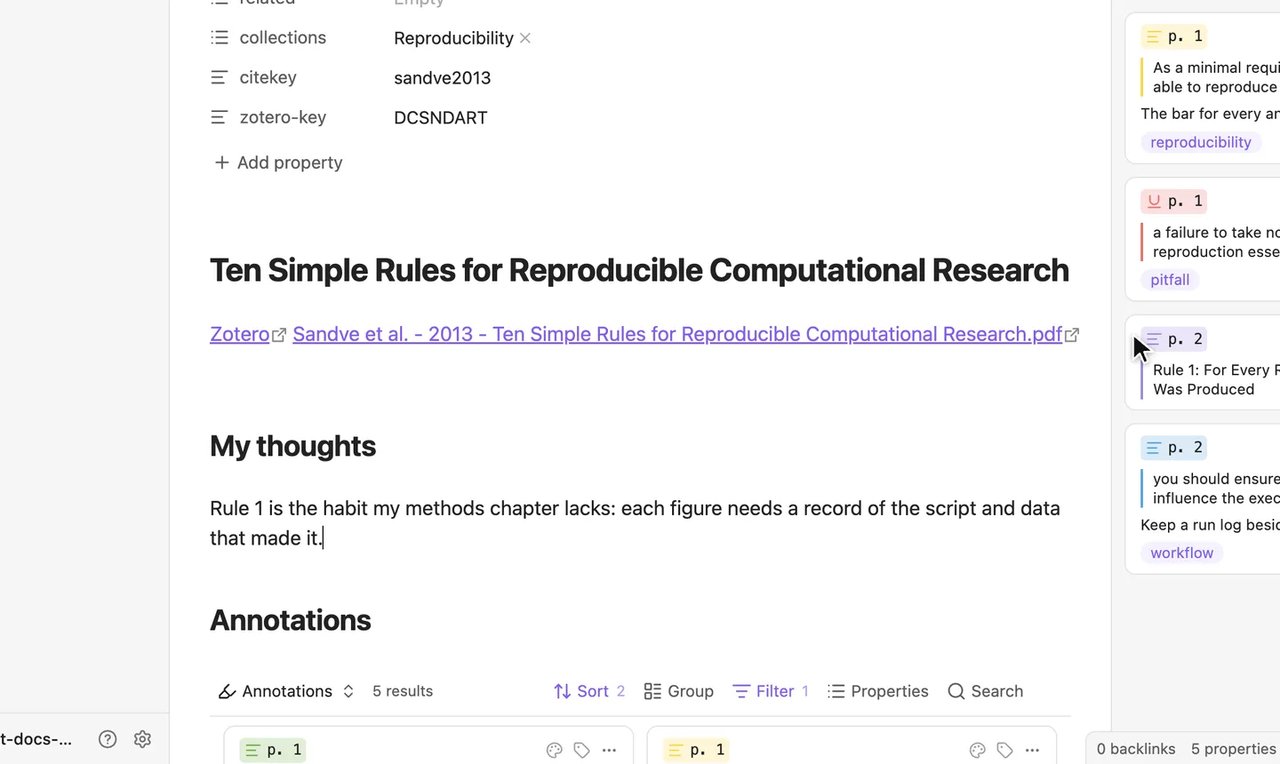
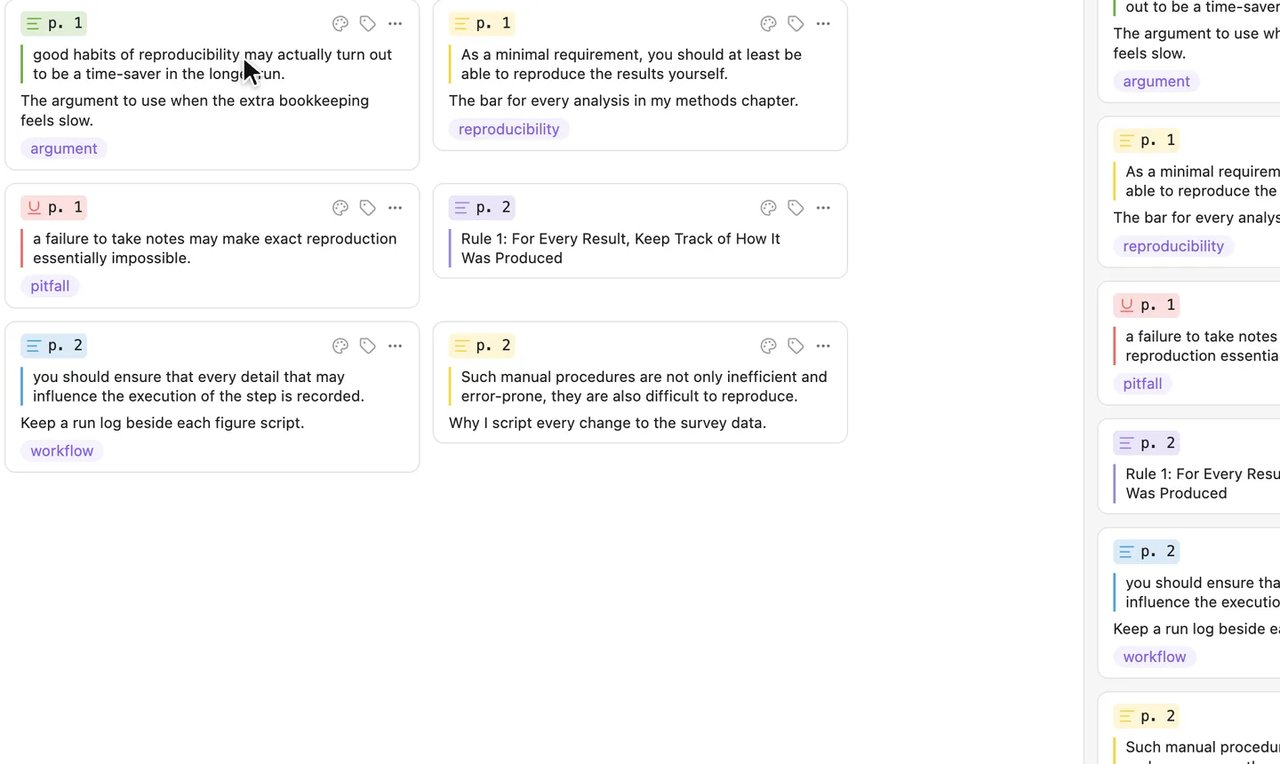
The Annotations section shows a new card for the highlight.If you see something else
Lesson 2 complete
You can now highlight PDFs in Obsidian and see annotations in your literature note.