About 12 minutes
Connect Zotero to Obsidian: your first literature note
Select Write literature note at the top right of the PDF.
You need Obsidian (1.15.1 or later, desktop)Zotero (Version 10, same computer)Zotero paper (One paper with a highlighted PDF)
ZotLit reads your Zotero library on this computer and changes nothing in it.
You end with
A connected library and your first literature note
Step 1 of 7Install ZotLit
You should see
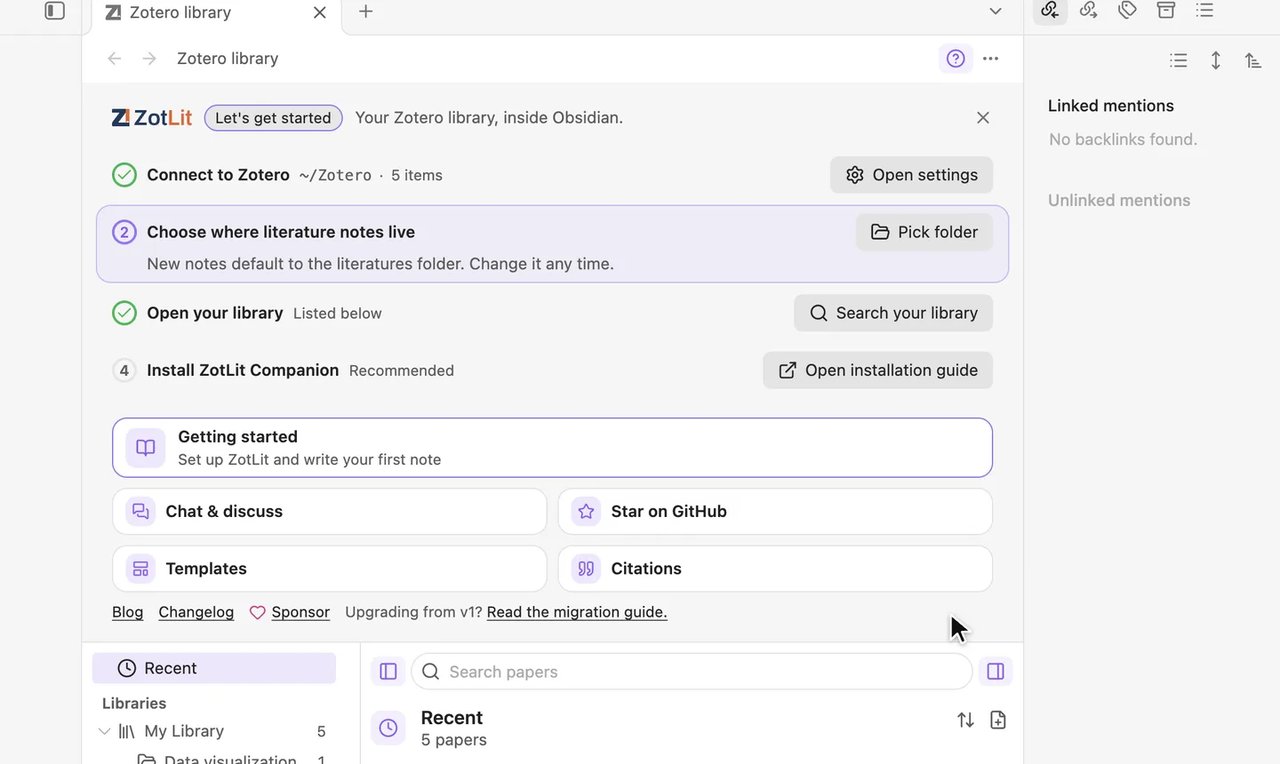
A tab named Zotero library opens with the badge Let's get started and four setup steps above your papers.
If you see something else
Obsidian opens on Restricted mode
Select Exit Restricted mode, then select the link again.
The link does not open Obsidian
Open Obsidian Settings > Community plugins > Browse, search
ZotLit, choose the ZotLit card by Aiden Liu, then Install and Enable.Obsidian’s installer is too old
Install Obsidian from obsidian.md/download, then enable ZotLit.
No tab opened
Select the ZotLit icon in the left ribbon.Step 2 of 7Check that ZotLit found Zotero
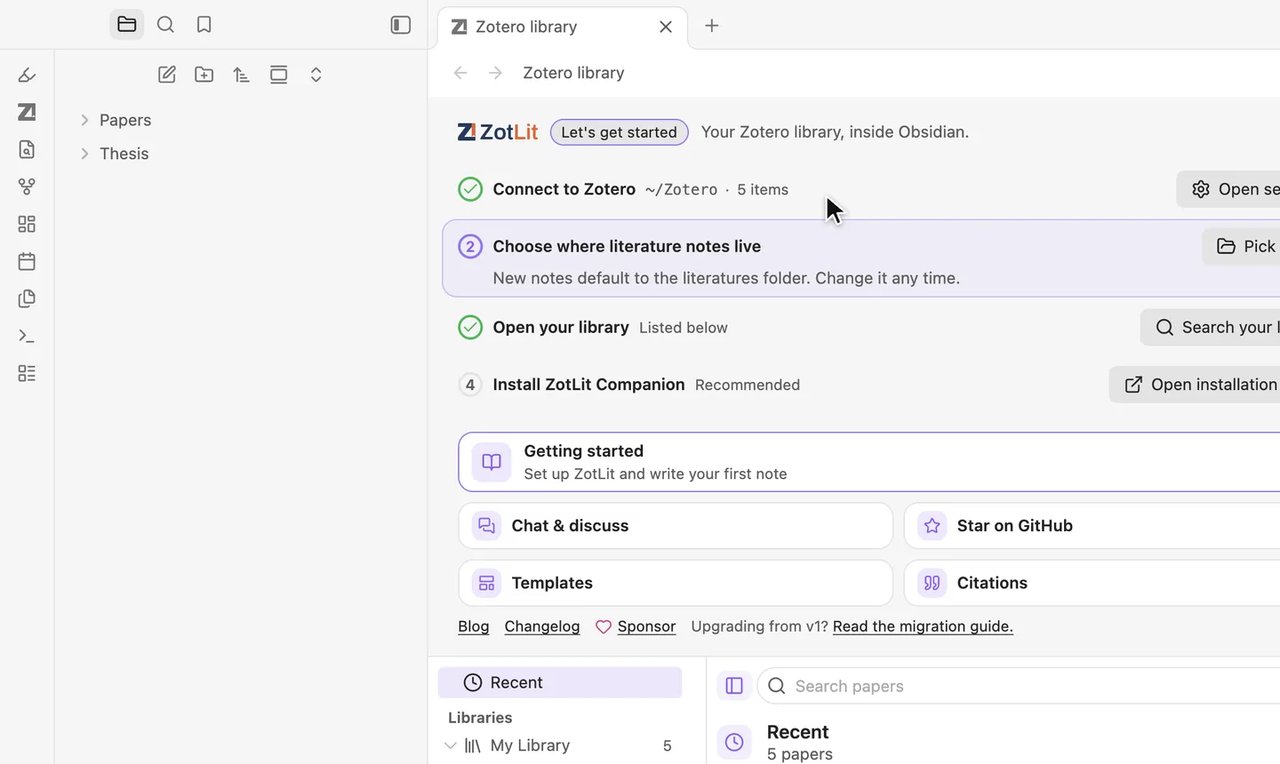
You should see
Connect to Zotero shows a green check, the Zotero data folder, and the item count.
If you see something else
The tab reads Zotero not found
In Zotero, check Settings > Advanced > Data Directory Location. In Obsidian, select Locate data folder and choose that folder.
Step 3 of 7Install the Zotero add-on
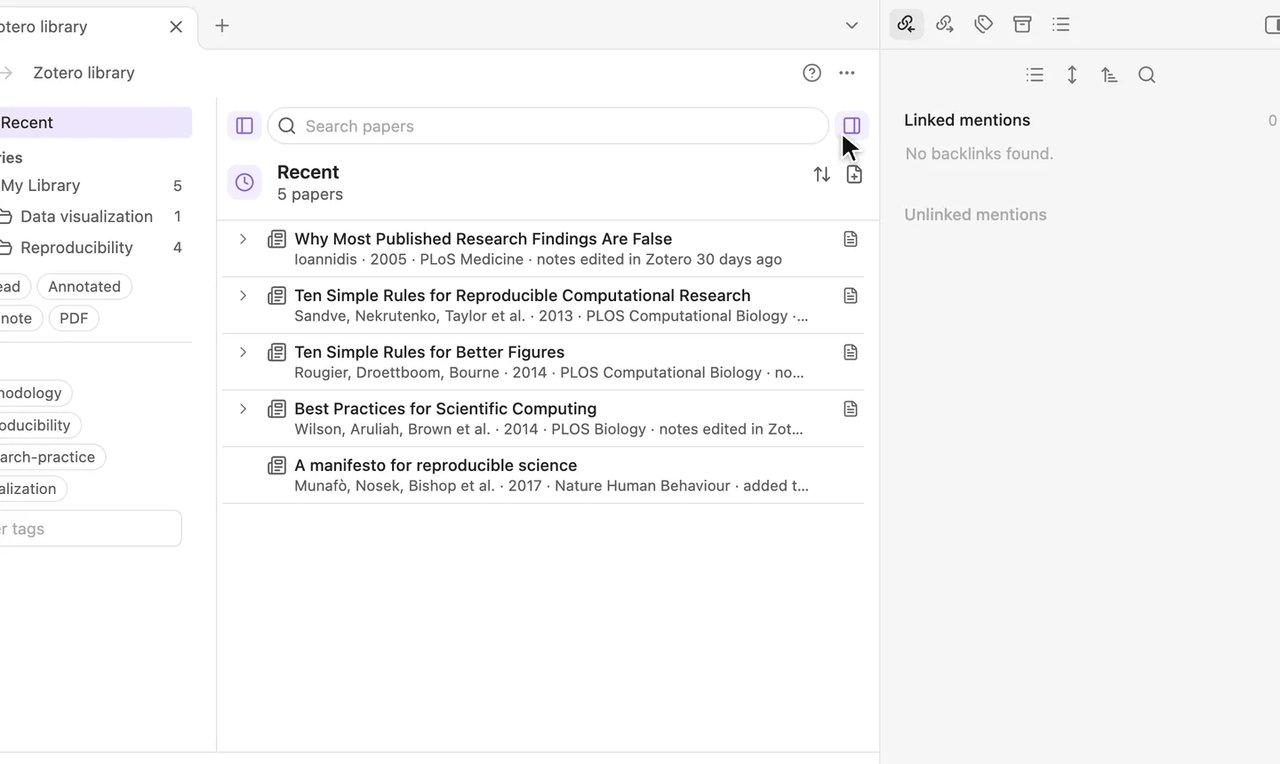
You should see
ZotLit appears in Zotero’s plugin list. Install ZotLit Companion reads Installed, and papers fill the tab.
If you see something else
Firefox opens the file instead of saving it
Right-click the link, select Save Link As…, then install the file in Zotero.
Step 4 of 7Find a paper
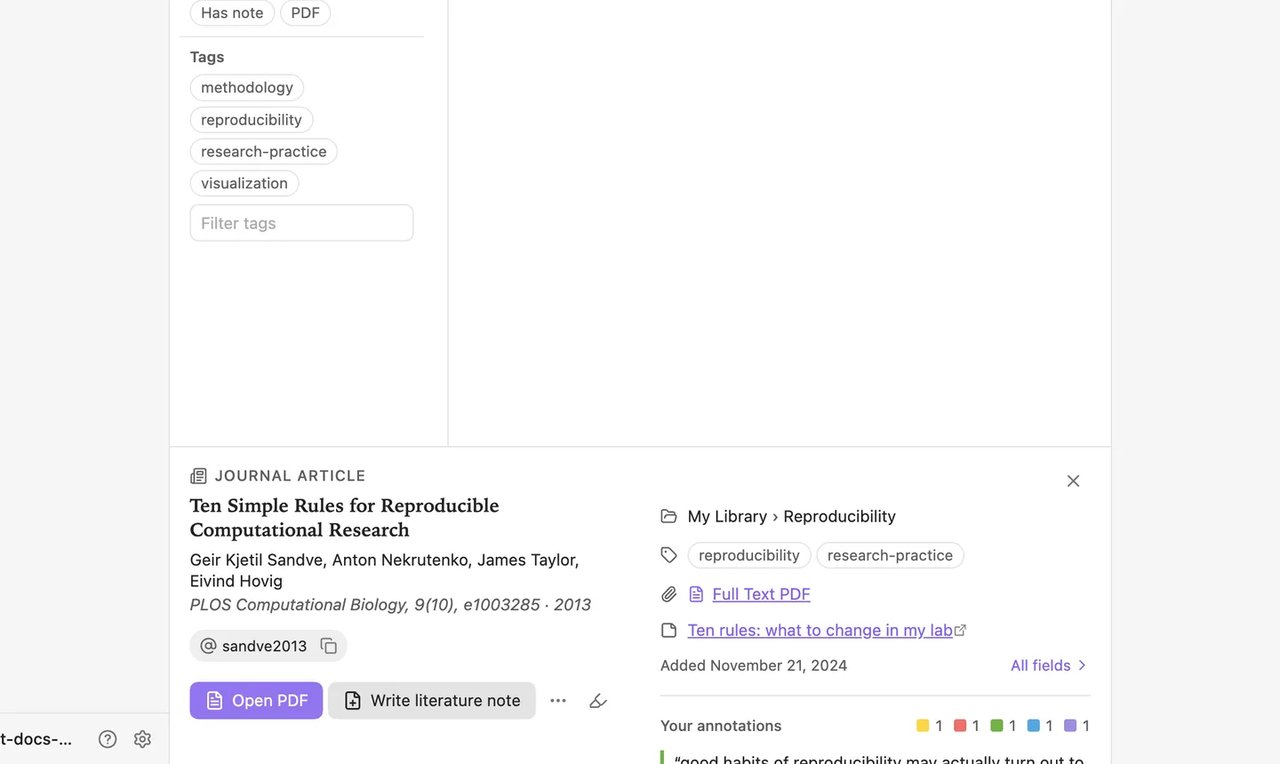
You should see
A card below the list shows the paper details, Open PDF, and Write literature note.
If you see something else
The list is empty
Check that Connect to Zotero has a green check.
Step 5 of 7Open the PDF
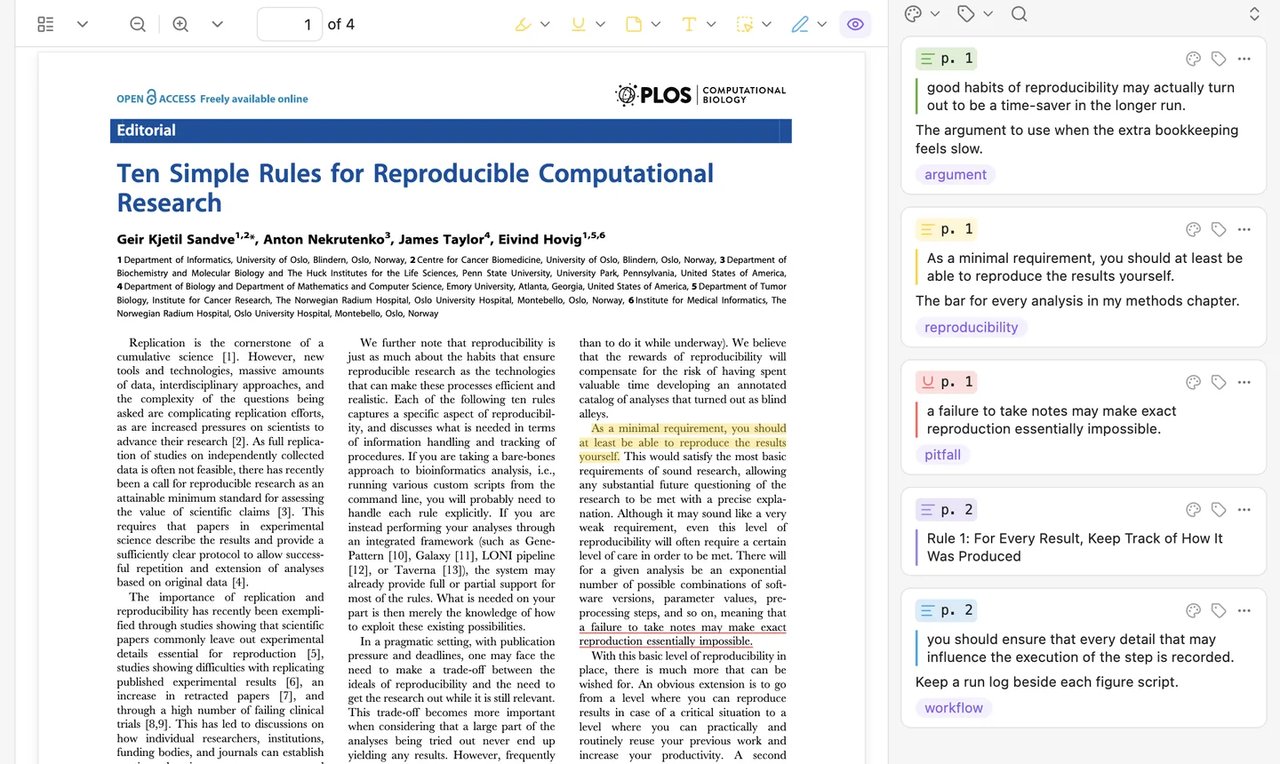
You should see
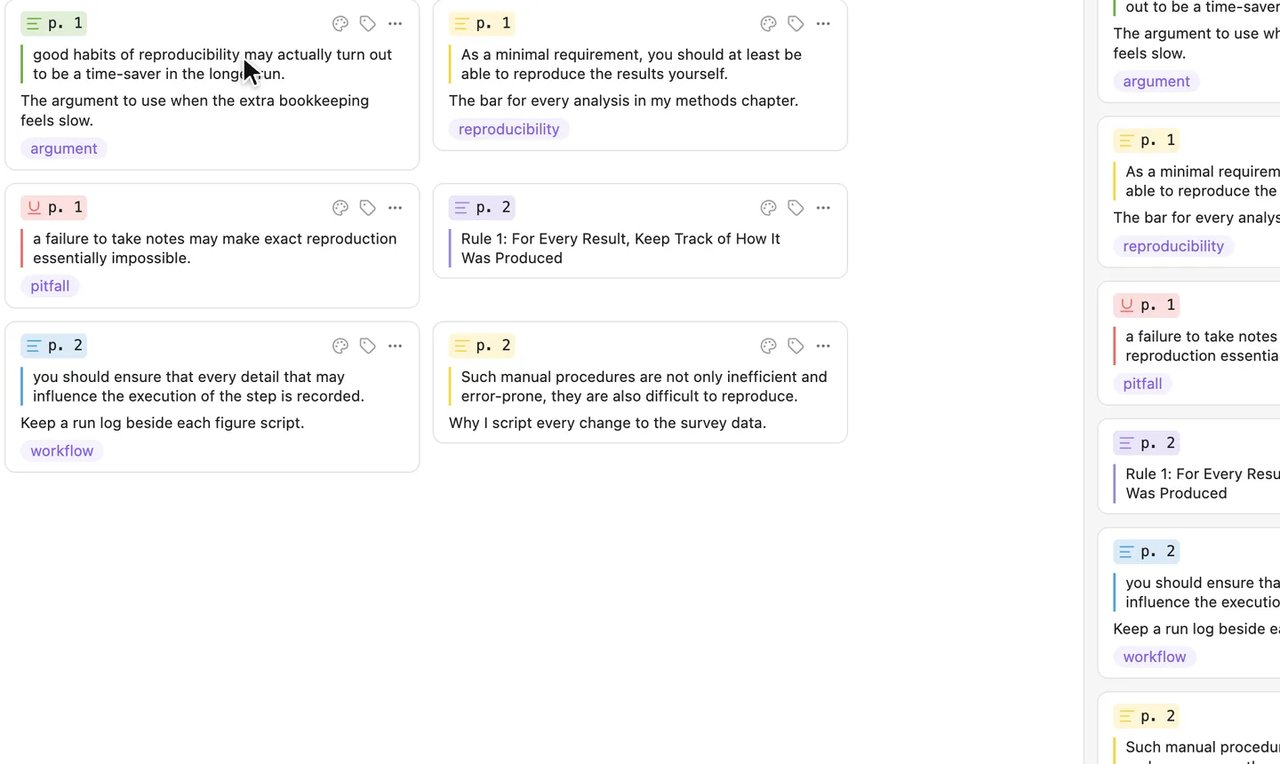
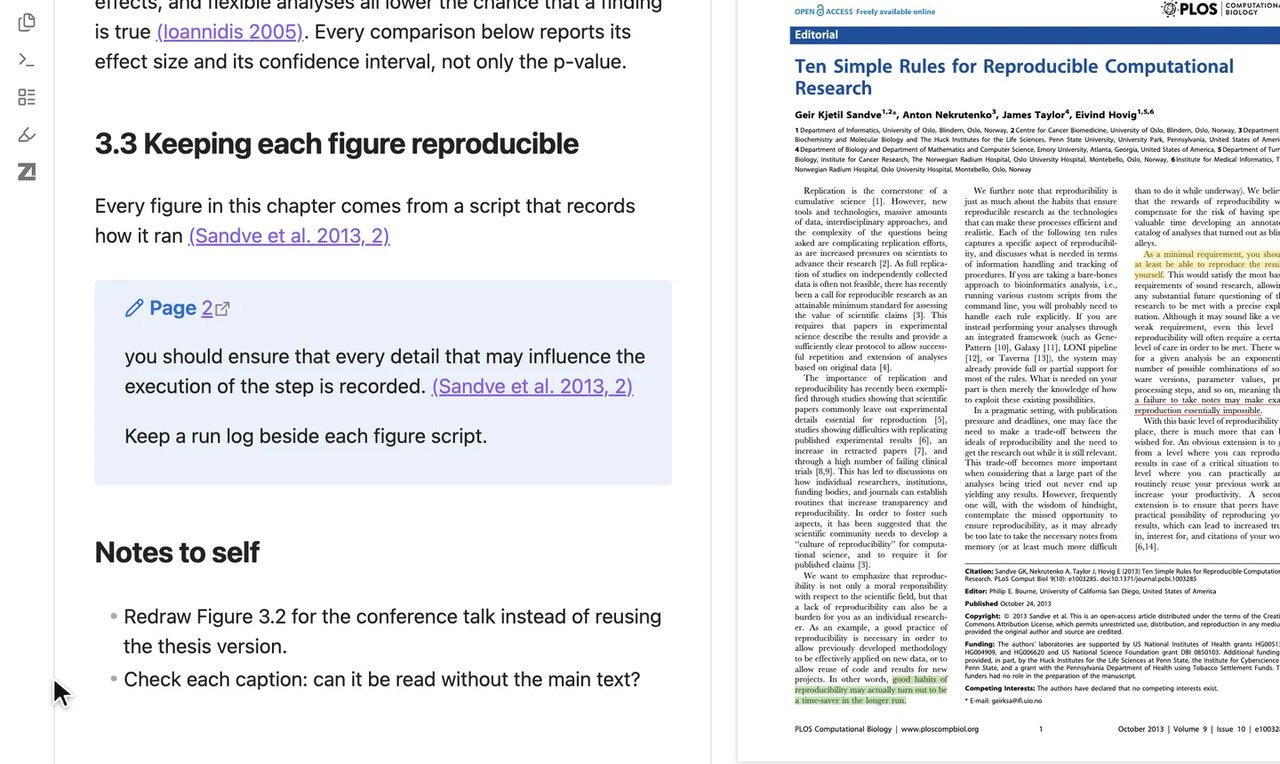
The PDF opens with highlights and a sidebar listing each highlight, comment, and tag.
If you see something else
No highlights show
Scroll to a page with highlights, or continue to Step 6.
Step 6 of 7Write the literature note
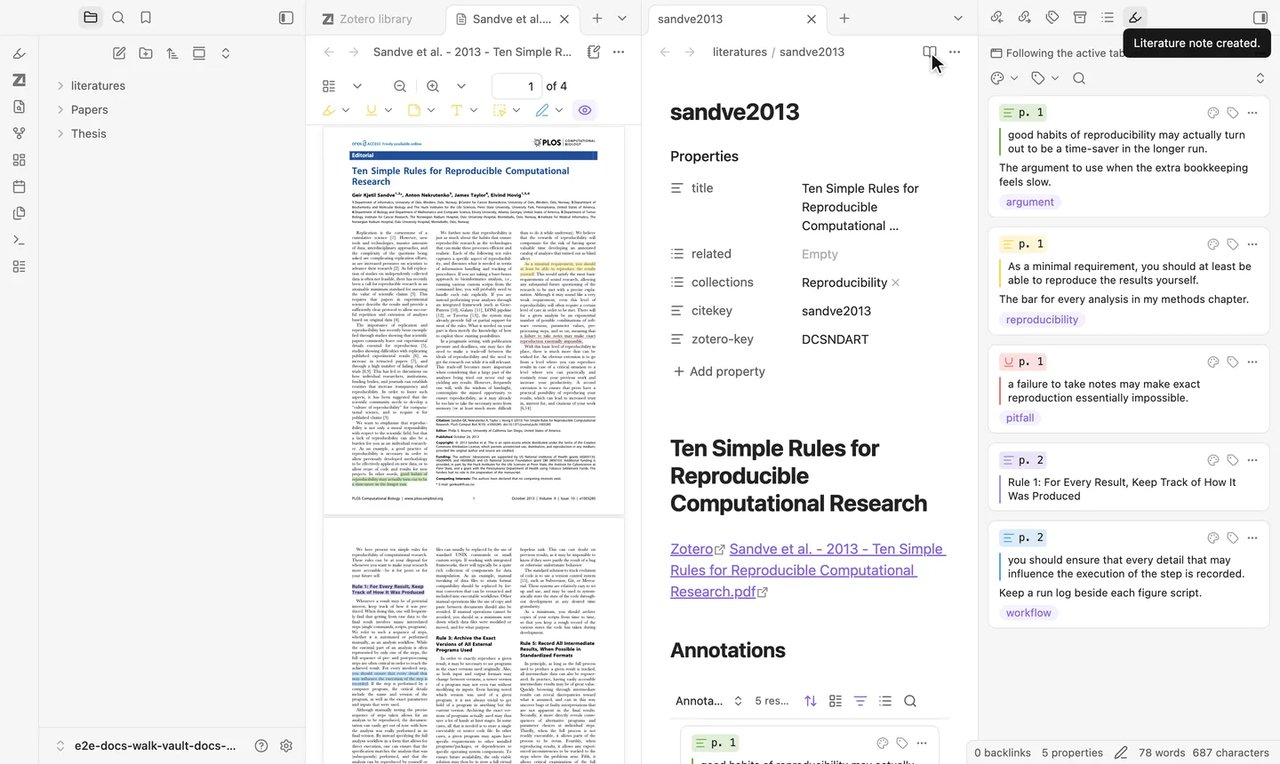
You should see
The notice appears: Literature note created. The note for your paper (here
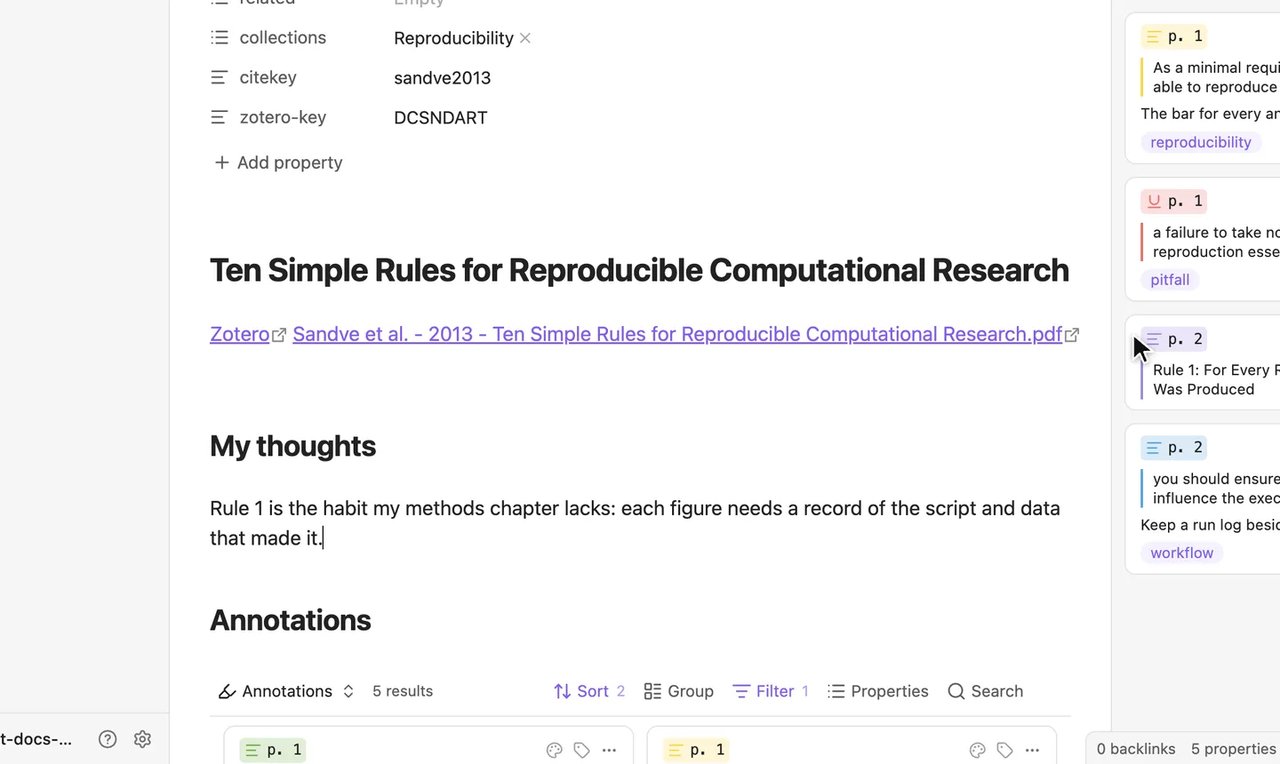
sandve2013) opens inliteraturesbeside the PDF, with links to Zotero and the PDF, and an Annotations section.If you see something else
The tooltip reads Open literature note
The note exists already. Select the button to open it.
Step 7 of 7Add your own thoughts
You should see
Your text appears above the Annotations section.If you see something else
There are no highlight cards
Highlights appear here once you add them in Zotero or in Lesson 2.
Lesson 1 complete
You can now open Zotero papers in Obsidian and create literature notes.