ZotLitLearn

About 10 minutes

Make a literature review table in Obsidian from Zotero

Open the table file to read the latest collection from Zotero.

You need Lesson 1 (Completed)Zotero collection (One of your collections with your papers, such as Reproducibility)Obsidian folder (A folder of your choice, such as Thesis)

The copy pasted into your draft does not update automatically, so copy it again before you send the draft.

You end with

A literature review table in your chapter
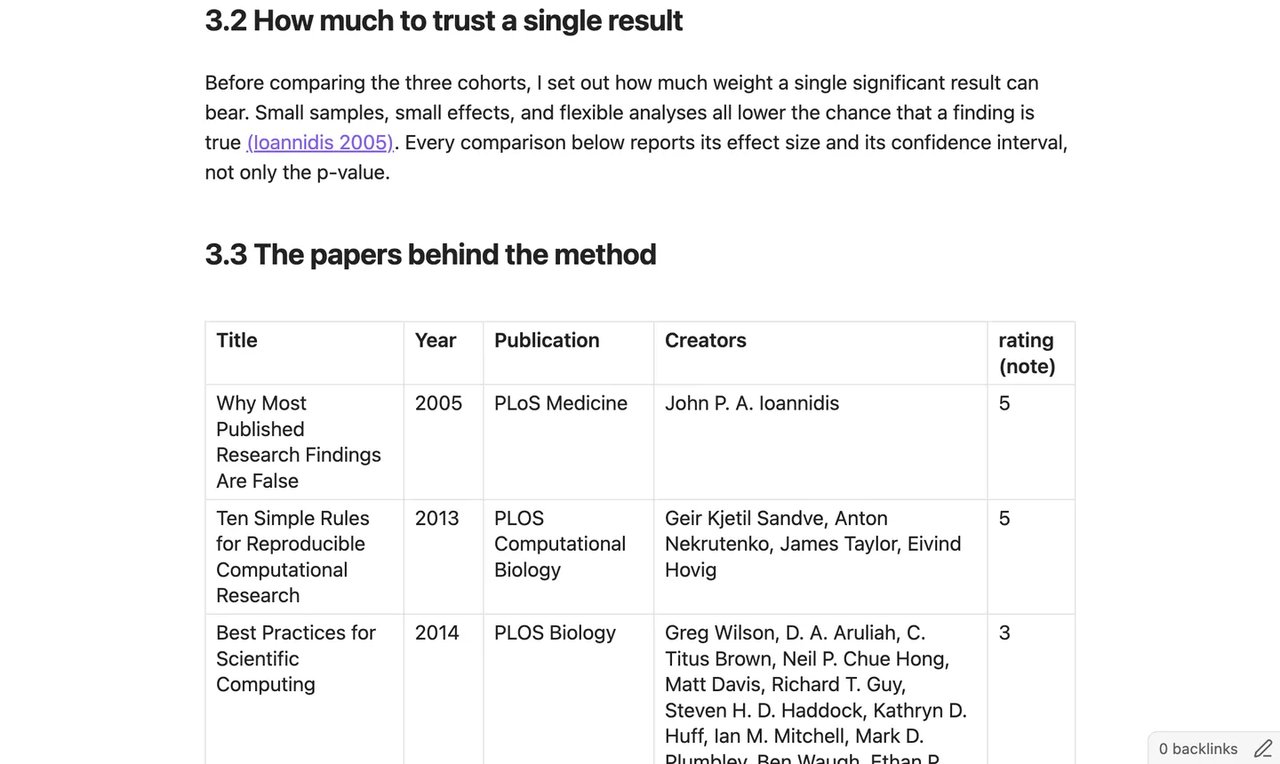
The literature review table is pasted into the chapter note with all columns preserved.

0 of 6 done

  1. Step 1 of 6Save the collection as a table file
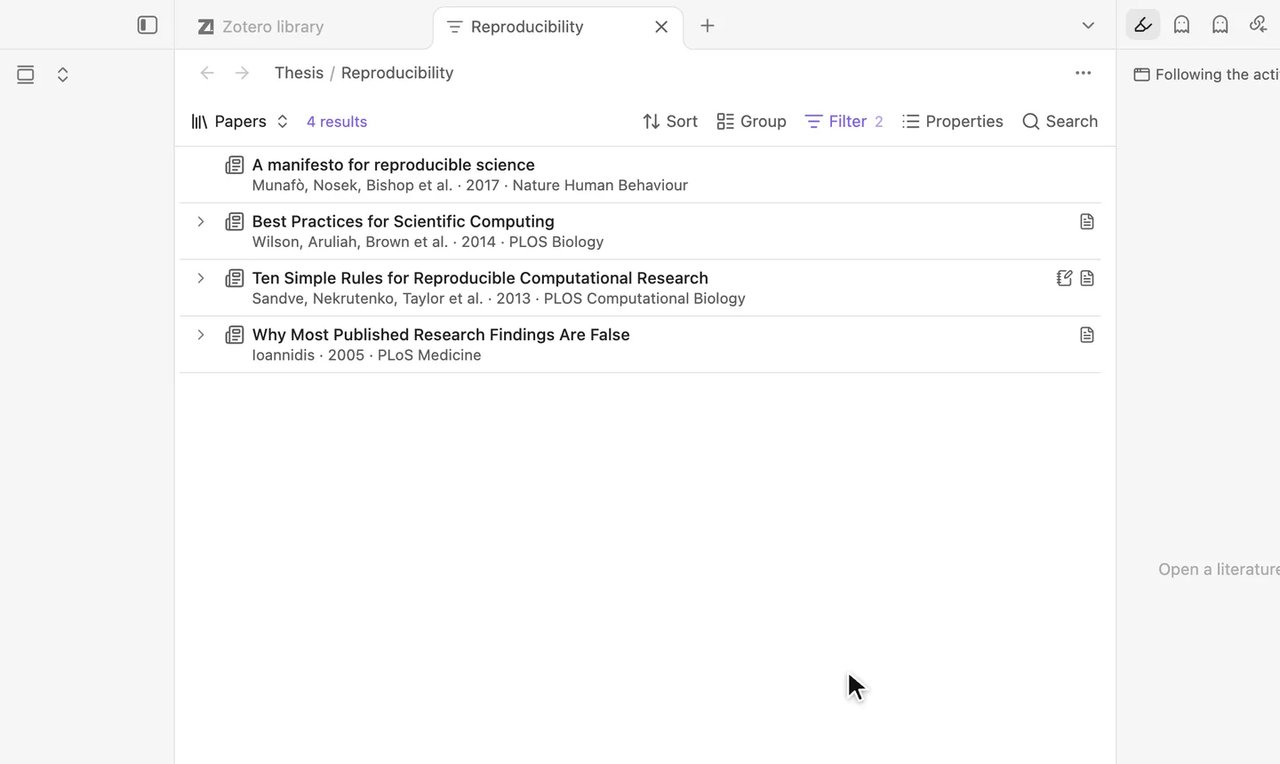
    In Zotero library, select a collection of yours, such as Reproducibility, then Save as query file… (page-plus icon, top right of the list). Type a folder of your choice, such as Thesis, and select Save.

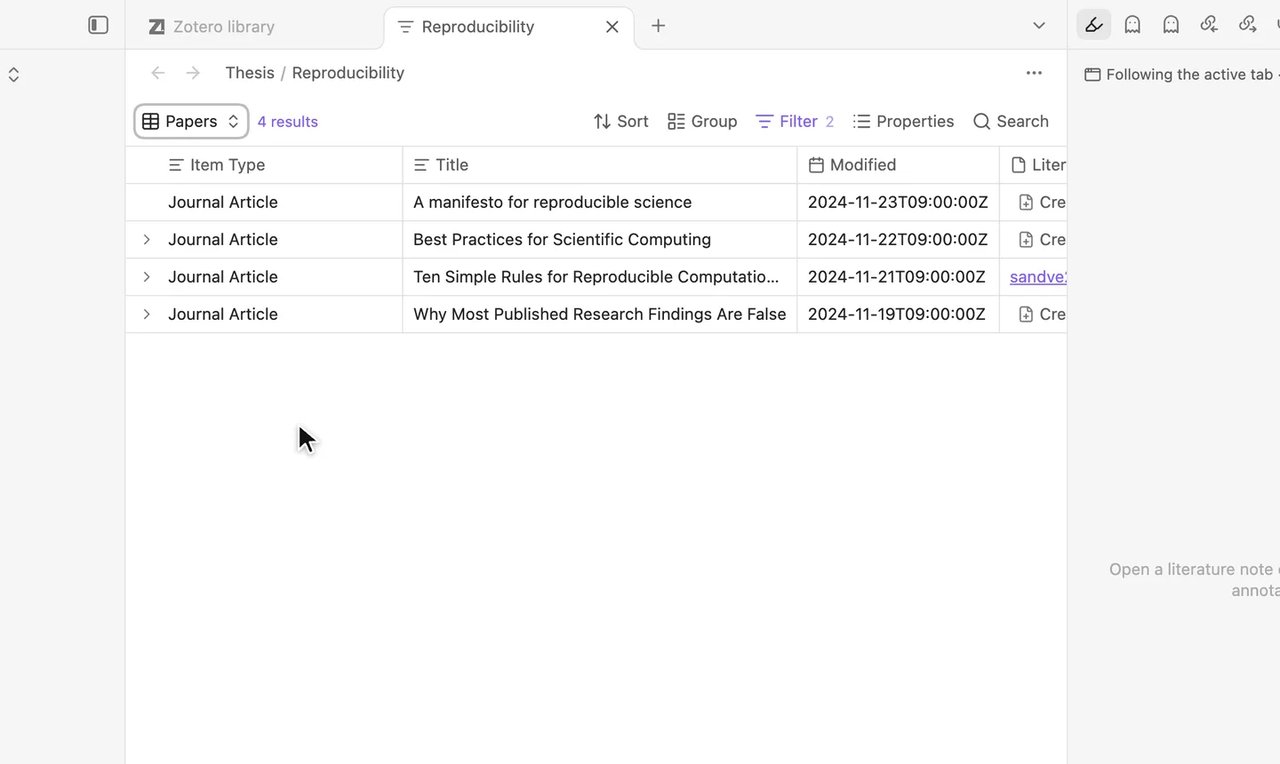
    The new tab Reproducibility.zotquery opens in Obsidian, listing papers from the collection.

    You should see

    The dialog shows the file it creates from your folder and collection (here

    Creates Thesis/Reproducibility.zotquery

    ), and the file opens in a new tab listing your papers.

    If you see something else

    Ask in the community →

  2. Step 2 of 6Switch to a table

    Select Views at the top left, then the arrow at the end of the row (Configure view). Set Layout to Table.

    A table view displays the papers with columns Item Type, Title, Modified, and Literature note.

    You should see

    The papers appear as rows with columns Item Type, Title, Modified, and Literature note.

    If you see something else

    Ask in the community →

  3. Step 3 of 6Choose the columns to compare
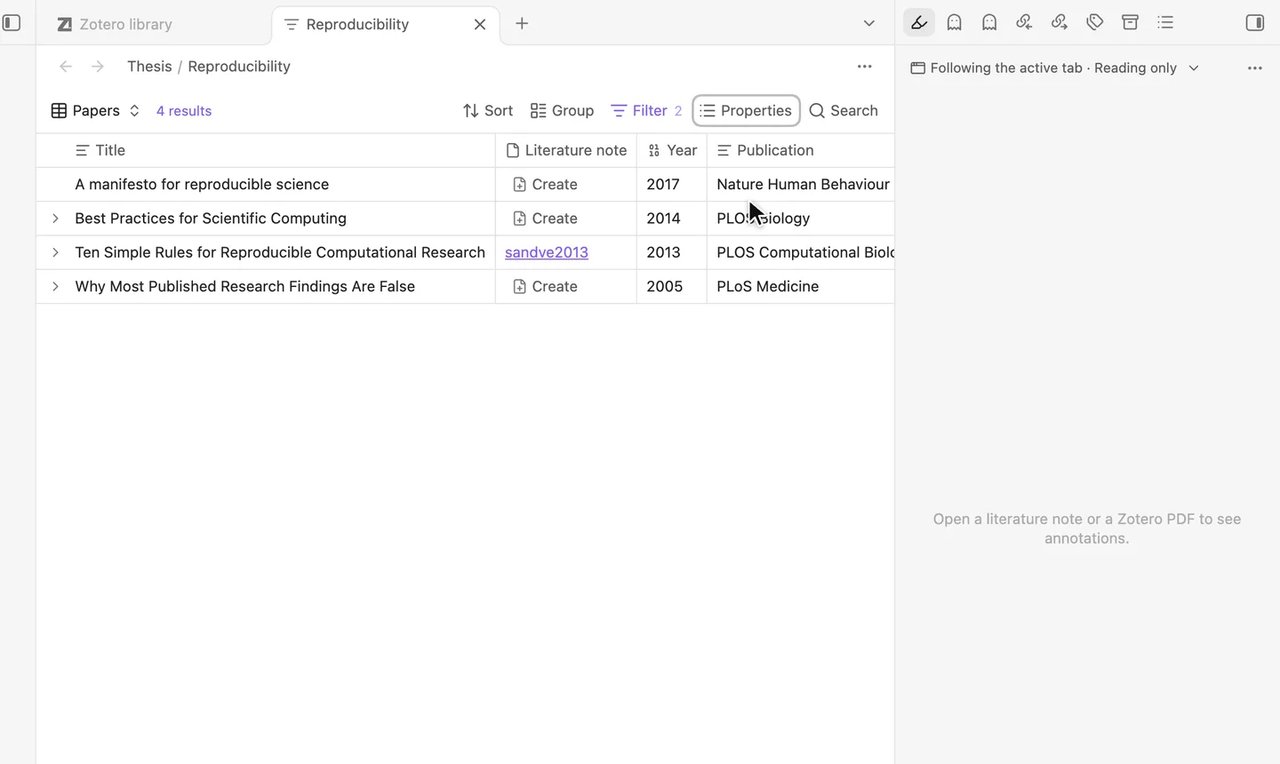
    Select Properties and clear the boxes for Item Type and Modified. Type and select each entry: year for Year, publication for Publication, and creators for Add "creators" property.

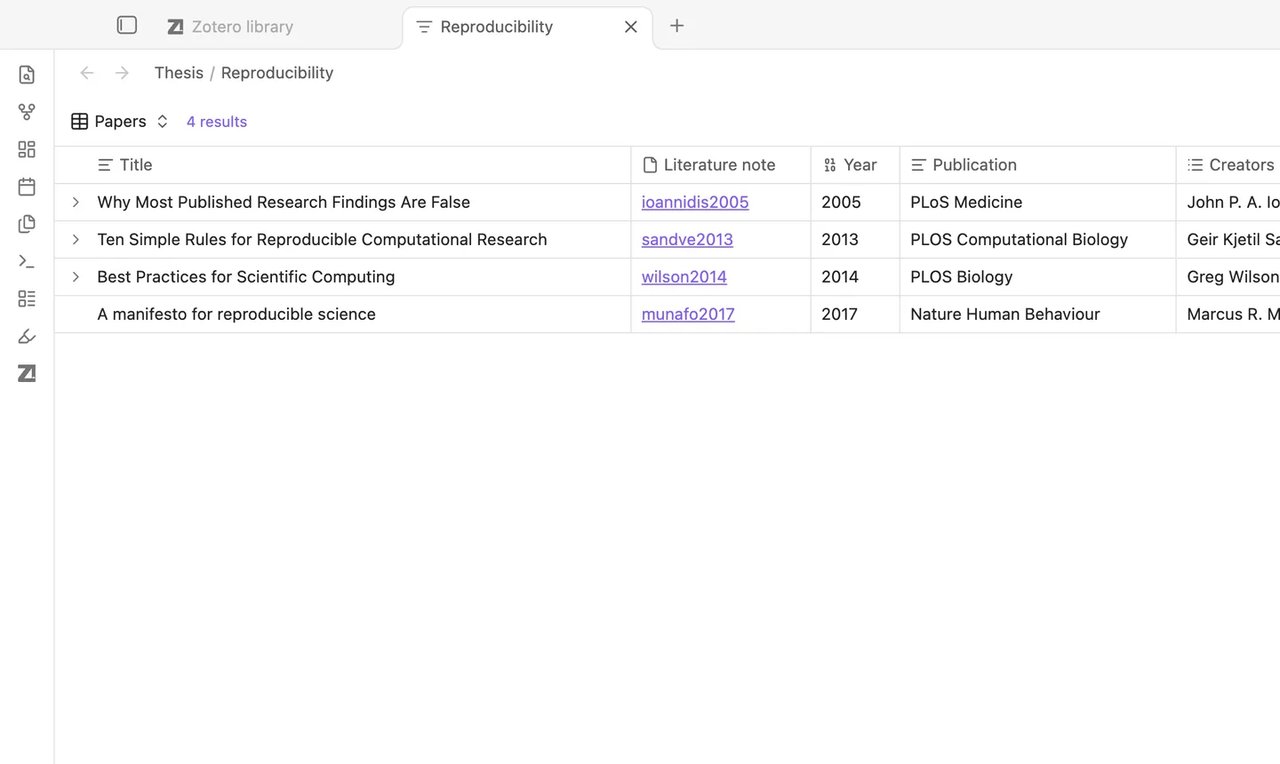
    The table displays columns for Title, Literature note, Year, Publication, and Creators.

    You should see

    The visible columns are Title, Literature note, Year, Publication, and Creators.

    If you see something else

    Ask in the community →

  4. Step 4 of 6Add your own rating

    Select Properties, type rating, and select Add "rating" vault property. In each cell under the new column, type a rating such as 5 and press Enter.

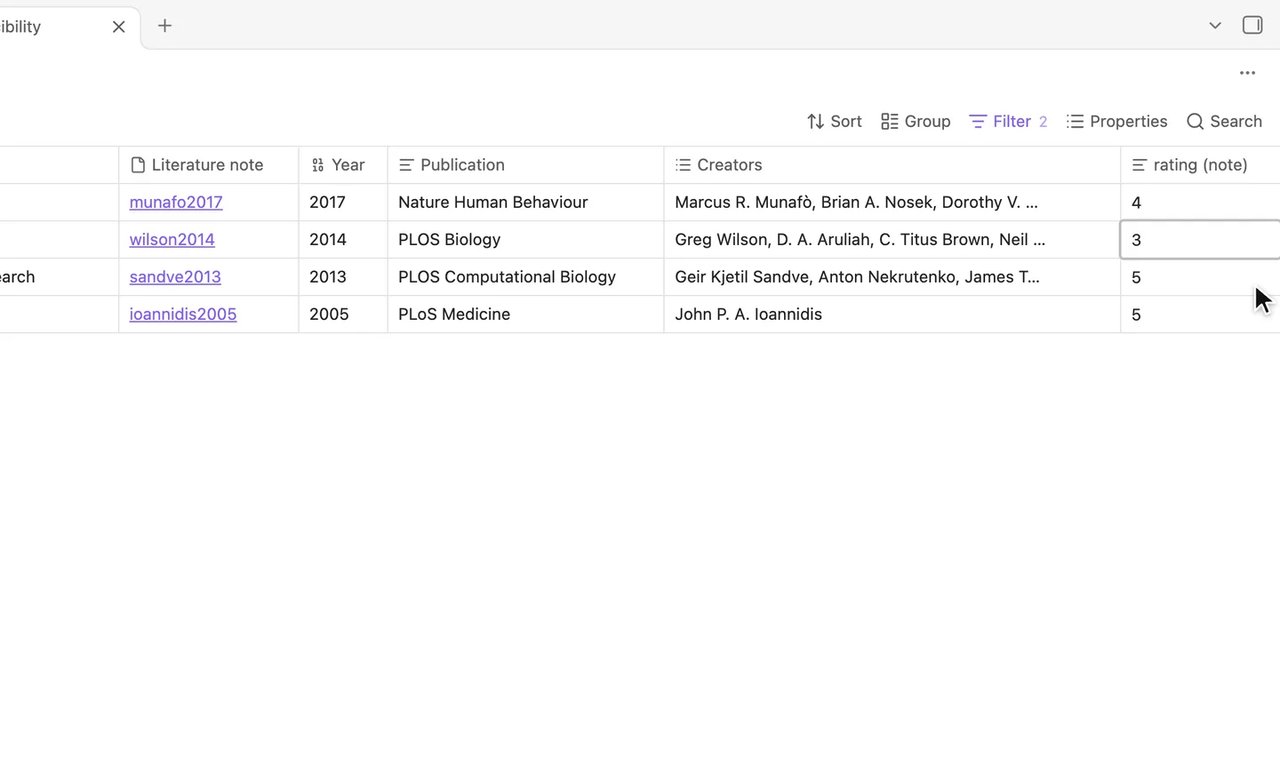
    The column rating (note) shows ratings for each paper alongside a Literature note created notice.

    You should see

    The column rating (note) shows your ratings, and entering a rating displays Literature note created.

    If you see something else

    Ask in the community →

  5. Step 5 of 6Sort by year

    Select Sort > Add sort, set the first box to Date and the second to Old to new.

    The table displays the papers sorted by Date from Old to new.

    You should see

    The table displays the papers sorted by date from old to new.

    If you see something else

    Ask in the community →

  6. Step 6 of 6Copy the table into your chapter

    Select the result count, such as 4 results, then Copy to clipboard. Paste the table into your draft.

    The literature review table is pasted into the chapter note with all columns preserved.

    You should see

    The table appears in the draft with all its columns.

    If you see something else

    Ask in the community →

Lesson 6 complete

You can now compare papers from a Zotero collection in a table and paste the table into your draft.
Two more chores

See all chores