ZotLit v2.1
A complete citation workflow: write, browse, and export with Zotero-backed references.
August 24, 2026 · by aidenlx
v2.1 delivers the citation workflow. It covers the full path from inserting a citation to exporting a finished document with a formatted bibliography, and it adds multi-library support and Zotero 10 compatibility along the way.
TL;DR
v2.1 adds in-text citation rendering, the References Sidebar, the Citation Popover, the Cited By Sidebar, note export with formatted bibliographies, and multi-library scope. Zotero 10 is now supported alongside Zotero 9.
Install ZotLit
Requires Obsidian 1.13.4+ desktop and the ZotLit Companion for Zotero.
Write with citations
Type @ anywhere in a note to open the citation suggester and insert a Pandoc citation key. For a full citation cluster with locators and prefixes, type [@ to open the bracket trigger. Shift+Enter picks the alternate format.
Literal Pandoc citation clusters (e.g. [see @wang2020, p. 3; @lee2019]) render as formatted citation text in Live Preview and Reading view, using the CSL style you select from Zotero's installed styles. Literature Note wikilinks can render the same way when you turn on Wikilink citations in settings. Both share the same formatted display and numbering. The rendering uses a built-in Pandoc engine, so no external installation is needed.
Citation keys in the editor are styled as links. An unresolved key (one that names no item in Zotero) is visually distinct from a resolved one. Click a citation key to open its Literature Note. Hover to see a preview.
Insert citations
How Citation Key Links work
See your references
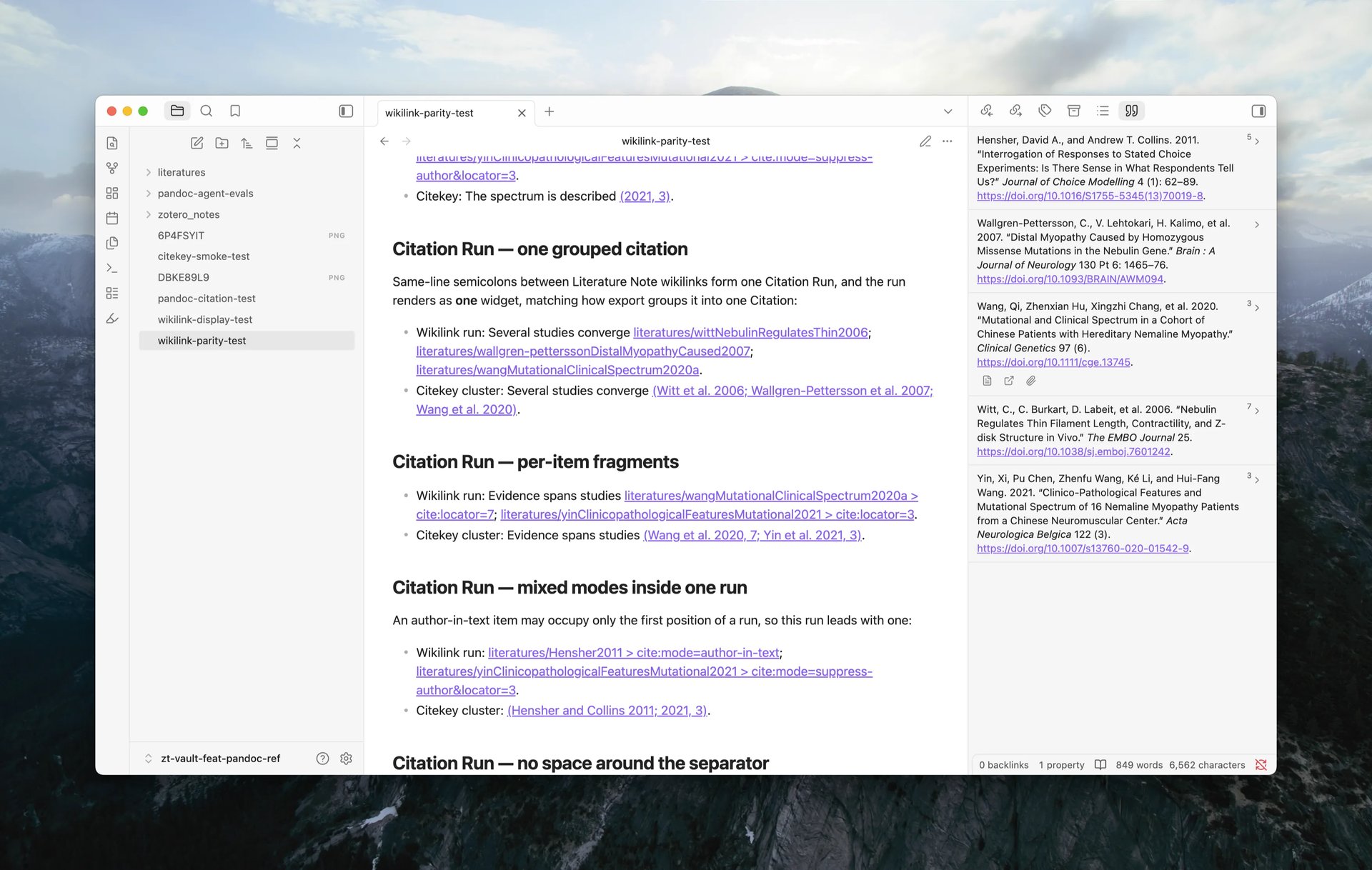
References Sidebar
A sidebar view lists the active note's citations as a formatted bibliography. Each entry shows the reference number and formatted text in the selected CSL style. Action buttons open the Literature Note, open the item in Zotero, or open the attached PDF. Click an entry's text to walk through its occurrences in the document.
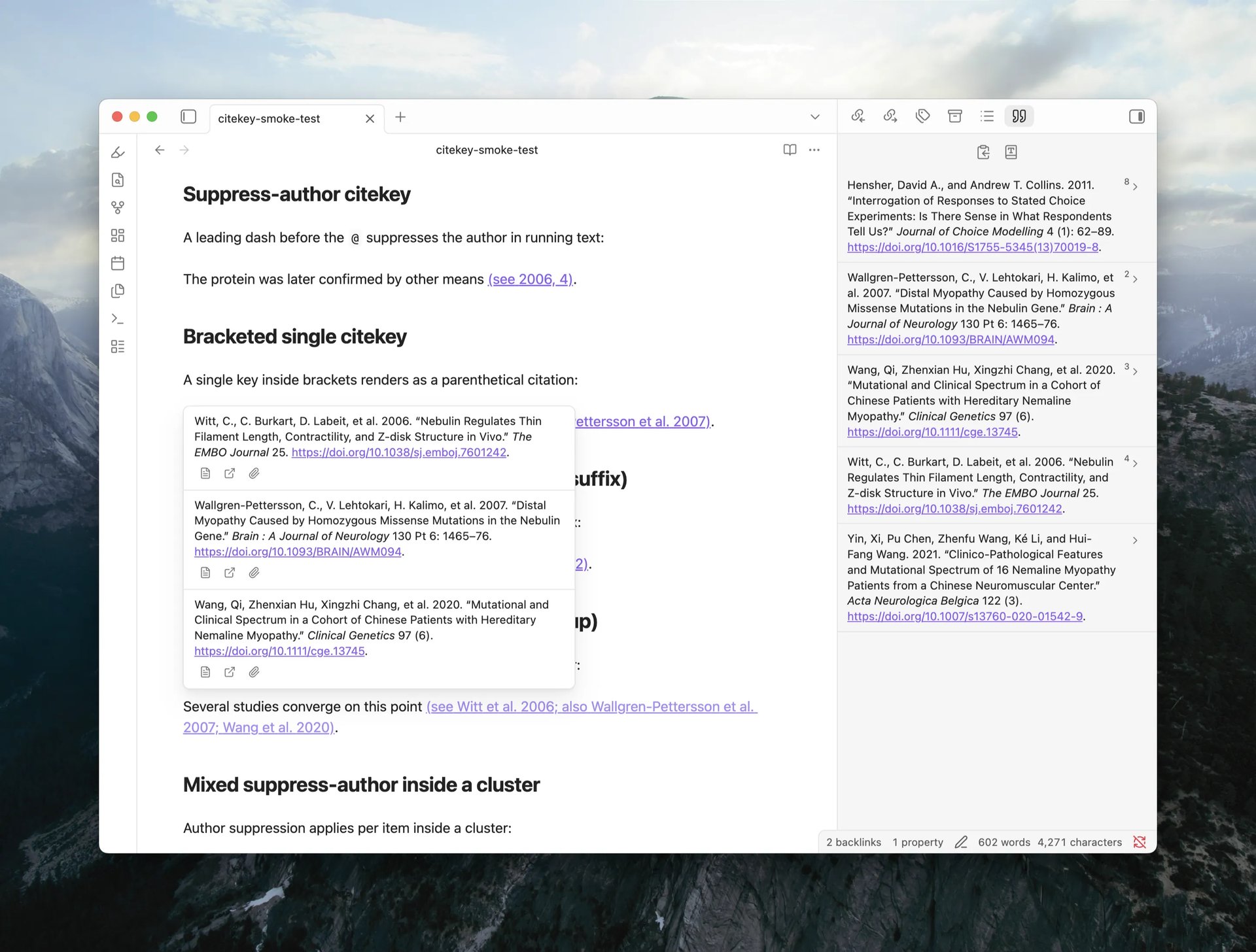
Citation Popover
Hover a citation to see each cited item's full formatted bibliography entry in a popover, stacked in citation order for multi-item citations. Each entry carries action buttons to open the Literature Note, open the item in Zotero, or open its attachment. The popover works on literal Pandoc citations in Live Preview, Reading view, and Source mode, and on Literature Note wikilinks when wikilink citations are enabled.
The Hover action setting under Settings > ZotLit > Citations > Hover controls what citation hover shows: Citation Popover (default), Page preview (the Literature Note page preview), or Off.
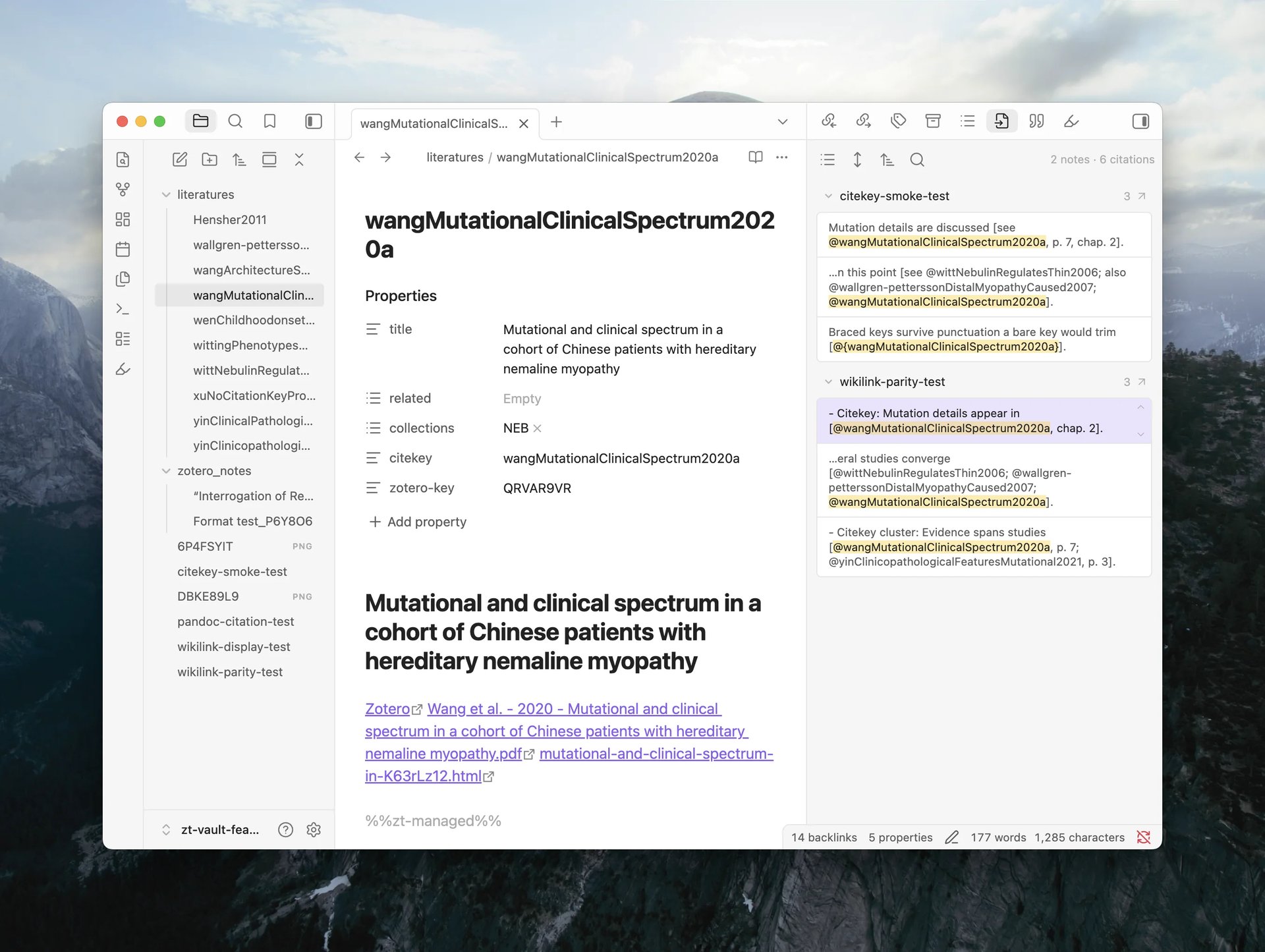
Cited By Sidebar
A reverse-lookup view shows which vault notes cite the active Literature Note. Results are grouped by source file, each with an occurrence count. Every occurrence displays a search-result-style excerpt card. Click any occurrence to jump to its location in the editor.
The toolbar offers a search filter, a context toggle (compact excerpt or full enclosing block), six sort modes, and collapse-all. The controls match the Backlinks panel.
Review, copy, and troubleshoot references
Export and share
Export note with citations
The command ZotLit: Export note with citations converts the active note to DOCX or HTML with a formatted bibliography. Choose the output format, CSL style, and destination in the export dialog. Citations resolve from the note's own links. No external Pandoc installation is required. The built-in engine handles everything.
Export note with citations
Copy bibliography
The References Sidebar toolbar offers a Copy bibliography action. One click copies the full reference list as rich text and plain text. Emphasis, superscript, small caps, and DOI links survive a paste into Word or Google Docs. A destination that takes only plain text falls back to the text version.
Native Pandoc CLI workflow
If you have Pandoc installed locally, ZotLit generates a Lua filter and a Pandoc defaults file matched to the installed plugin version. This path supports the full Pandoc pipeline: custom templates, multiple output formats, and Literature Note wikilinks that convert to proper citations.
Export with native Pandoc
Write and export a cited note
Pandoc citation workflow
Multi-library and Zotero 10
Library scope
ZotLit now works across several Zotero libraries at once. A new Library scope setting replaces the old Default library setting with two modes: All libraries follows your Zotero database, so a group library you join later is in scope at once; Selected libraries stays exactly as you set it. Search, citation key resolution, and library-wide commands all span the scope.
When a citation key matches items in more than one library, ZotLit surfaces the ambiguity instead of silently picking the first match. Opening the citation asks which item you mean. The References Sidebar reports a Reference Error listing the candidates. To resolve it, give one of the items a different citation key in Zotero, or narrow your library scope.
Settings: Library scope
Zotero 10 support
ZotLit supports Zotero 10 alongside Zotero 9. Zotero 10 changed how it stores recent edits, so the Companion now keeps the database current for ZotLit automatically. When you switch from Zotero to Obsidian, your changes are already there. A new Database Status panel on the Zotero sidebar confirms that recent changes have reached the database.
Fix Zotero changes that do not appear
And more
- Filename author fields.
authorsandauthorsShortare now available in filename templates, consistent with the note template data. - Citation locale. A new Citation locale setting sets the language for citation terms, dates, and sorting across the vault. It takes a language tag such as
en-US,de, orzh-CN. - Citation style and language per note. The command ZotLit: Set citation presentation lets a note override the vault-wide CSL style and language via frontmatter properties.
- Entry Serials. Footnote-based citation styles (e.g. Chicago full-note) show numbered Entry Serials inline and in the References Sidebar gutter.
- Theme hooks. New CSS classes on citation elements let theme authors style resolved, unresolved, pending, and rendered citation states. See Theme hooks.
- Colored note-import highlights. An opt-in setting converts highlights from Zotero note imports into emoji-based colored highlight syntax, covering six highlight colors.
Coming from Pandoc Reference List
Pandoc Reference List (PRL) pioneered live reference lists from Pandoc citations in Obsidian, and it informed several of the design decisions behind ZotLit's citation workflow. If you used PRL, you will recognize the territory.
ZotLit covers much of the same ground but approaches it differently. PRL reads .bib and other bibliography files; ZotLit reads Zotero directly. This means ZotLit does not support standalone bibliography files, and some PRL features have no ZotLit equivalent. ZotLit is not a drop-in replacement.
The PRL repository is now hosted at the Obsidian Community Archive. A migration guide walks through the differences and the steps to switch. Credits are on the credits page.
How to migrate from Pandoc Reference List
Feedback
Questions, ideas, and bug reports go through the community page.
Community