How queries work
How query files and query blocks show live views of your Zotero library, and how ZotLit Query reads papers, files, and marks.
A query file shows a live, filtered view of your Zotero library in Obsidian. A query block shows the same kind of view inside one note.
Use them to keep a set of annotations in front of you while you write. For example, collect every highlight tagged figure across your thesis sources, or list the papers in a Collection as a table.
Query files and query blocks
A query file is a vault file with the extension .zotquery. It displays a live, interactive view of items, files, or annotations from your Zotero library. If you are familiar with Obsidian Bases (.base), a query file uses a similar structure and toolbar controls, but queries your Zotero library directly. You can open it in a tab, or embed it in any note:
![[Figures.zotquery]]
![[Figures.zotquery#Yellow highlights]]
The second line shows one named view of the file. Without a view name, the embed shows the first view, which is the default view.
A query block is a code block with the language zotquery in a note. It holds the same text as a query file, so you can keep a one-off view in the note that uses it:
```zotquery
views:
  - type: annotations
    name: Annotations
    from: annotations
    filters: item == this.item
```
A new query file opens on a Table of your papers, so it shows something useful before you have any highlights. Its second view shows your annotations.
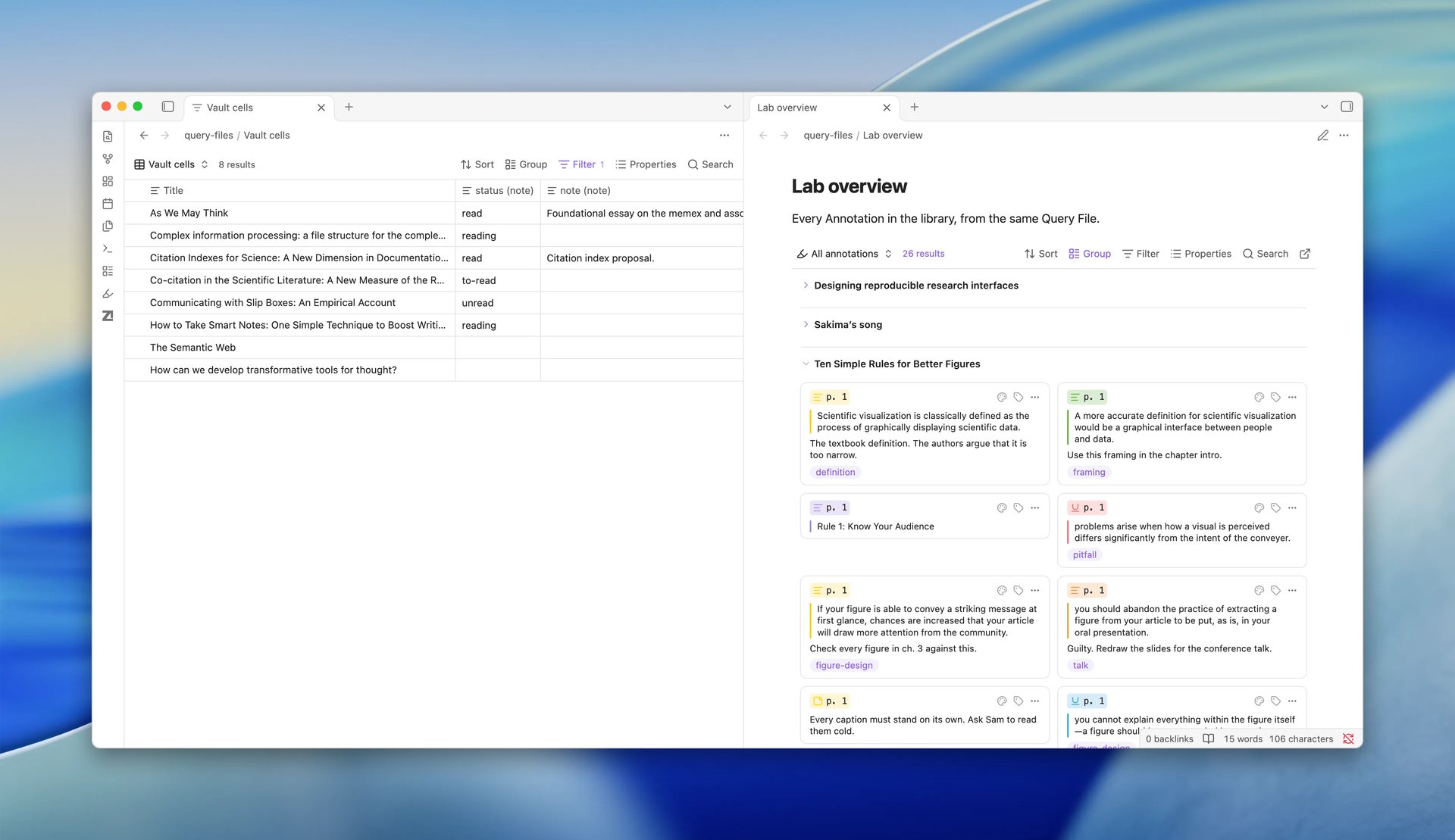
The sidebar Zotero annotations is the same kind of view. It shows the annotations of the attachment that it follows.
Views, records, and layouts
A query file or query block holds one or more views. Each view has a name and these parts:
| Part | What it decides |
|---|---|
| Rows | Which Zotero records each row shows: annotations, attachments (files and links), or items (papers). |
| Layout | How the view draws the rows: Annotations, Table, List, or Cards. |
| Filters | Which records the view shows, such as one color, one Tag, or the papers of one Collection. |
| Sort | The order of the rows. |
| Group | One property that collects related rows under a heading, such as the paper that each annotation is on. |
| Properties | The values that each row shows, in order. |
Each layout shows some kinds of records:
| Layout | Rows | What you see |
|---|---|---|
| Annotations | Annotations | Annotation cards, the same as in the sidebar. You can edit a comment or tags on a card. |
| Table | Items | One row per paper, as in Zotero's item list. A row expands into its files, annotations, and notes. Attachment titles and annotation text are clickable links that open the source PDF. |
| List | Annotations, attachments, or items | One line per record with its properties. |
| Cards | Annotations, attachments, or items | One card per record. The first property is the card's title. |
Filters come in two kinds. The filters for all views apply to every view of the file that reads the same records as the first view. The filters for this view apply to one view only. Put a rule that every view shares, such as one Collection, in the filters for all views.
Changes save where the view lives
Every view has a toolbar. A change in the toolbar, such as a new sort, saves at once:
- In a query file tab or embed, the change saves to the query file. Every tab and embed of that file then shows the change.
- In a query block, the change rewrites the block text in the note. This also works when the block shows through a section embed or a hover popover: the change saves to the note that holds the block.
- In the sidebar, the change stays with the sidebar.
A note that you export to PDF or print shows the rows as they are at that time, without the toolbar. Where a view has no place to save, such as in a note preview, the view still shows its rows. Under the toolbar it shows Changes here are not saved. Open the note to change this view.
this: the paper of the note
A filter can name the paper of the note that shows the view as this.item. This makes one query file useful in many Literature Notes: each note shows the annotations of its own paper.
 Literature Note "Smith 2020"          Literature Note "Lee 2023"
 zotero-key: SMITH20                   zotero-key: LEE23
        │                                     │
        ▼                                     ▼
 ![[Paper annotations.zotquery]]       ![[Paper annotations.zotquery]]
 filters: item == this.item            filters: item == this.item
        │                                     │
        ▼                                     ▼
 annotations of Smith 2020             annotations of Lee 2023
What this refers to depends on where the view shows:
| Where the view shows | this.item | this.attachment |
|---|---|---|
| An embed in a note, or a query block | The item that the note's zotero-key property names | No value |
| The sidebar annotation view | The item that the sidebar follows | The attachment that the sidebar follows |
| A query file in its own tab | No value | No value |
When the paper is in a library outside your Library scope setting, the view shows no rows and says This item's library is not in the library scope, so the view cannot show it. Add the library to the library scope in ZotLit settings. Other query warnings show above the rows in the same way.
A filter that reads this where it has no value cannot run. The view then shows This view cannot show results. with the reason. The view also displays a suggestion explaining where to open it, such as embedding the view in a Literature Note or opening a PDF in the sidebar.
Annotations in Literature Notes
The default Literature Note template puts a query block under the note's Annotations heading, where earlier versions listed the annotations as text. The block shows the annotations of the note's own paper, and it stays current with Zotero.
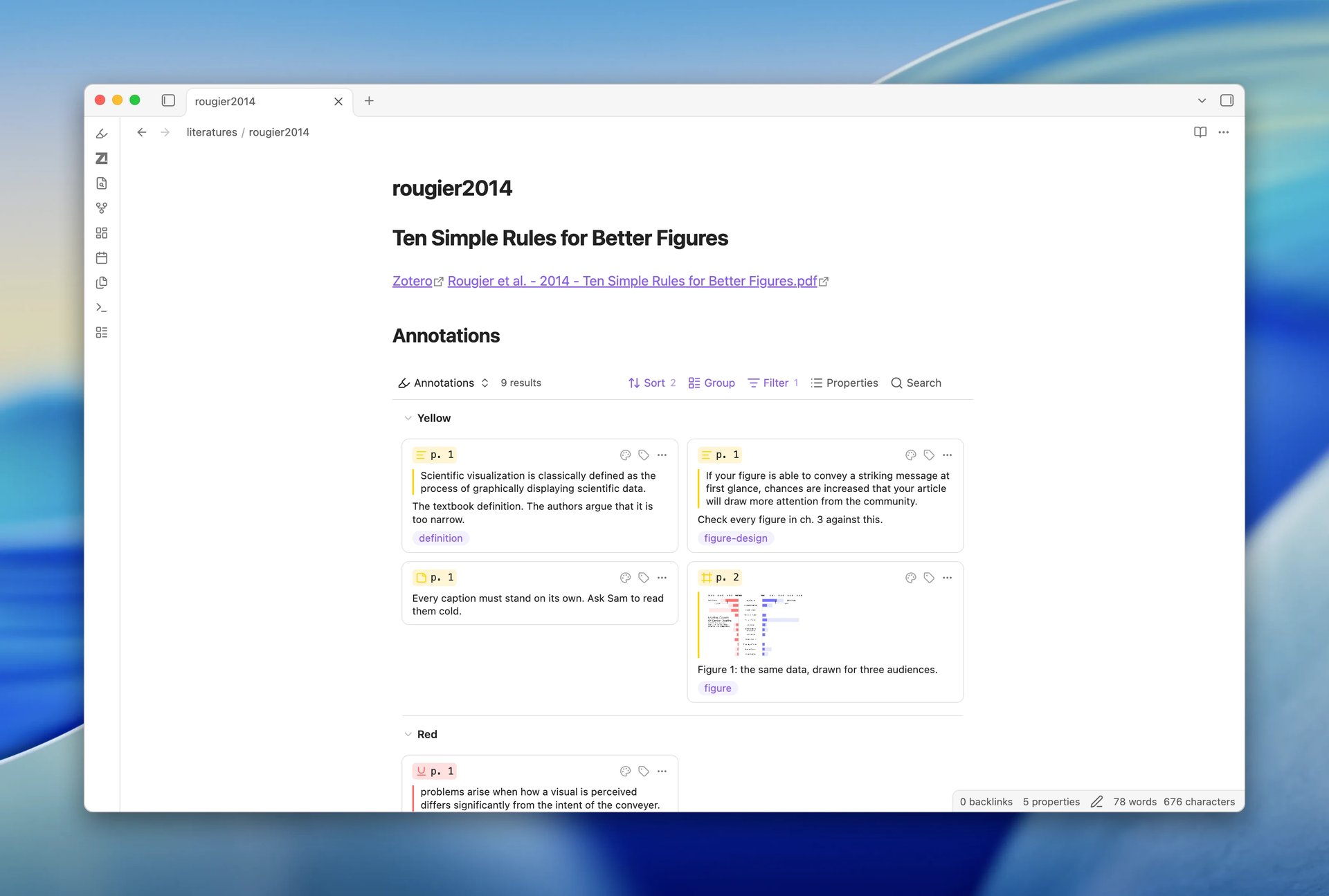
When ZotLit updates the note, it keeps the block text that the note holds, so a change you made in the block's toolbar stays. A Literature Note that you made with an earlier default template, and that still has its managed region, gets the block on its next update. A custom template stays as you wrote it.
A paper in the Zotero trash shows no annotations in this block. Default templates shows the template and how to list the annotations as text instead.
Properties from your Literature Notes
An items view can show the properties of each paper's Literature Note beside its Zotero fields, such as a reading-status property that you keep on the note. The view calls them vault properties and names them vault.<name>.
Your notes store the values, not Zotero. Obsidian's Properties panel and Bases read the same values. For a paper in a shared Zotero group library, your values stay in your vault and do not reach the other members. A paper without a Literature Note has no place to hold a value yet, so the first edit in the Table creates its note.
ZotLit Query reads the Zotero database and never reads your notes, so ZotLit answers vault properties itself. A view applies limit inside ZotLit Query, so ZotLit plans a sort or a filter on a vault property before the query runs:
- A sort reads up to 5,000 matching papers, sorts them, and then keeps
limitof them. - A filter becomes a list of papers, chosen by the values in your notes, which ZotLit Query reads with the rest of the filter.
In both cases limit counts the rows that you see. This is also why a vault condition must stand as its own entry under the top-level and of the filters. ADR 0070 records the design.
Track reading status in the Query View shows the steps. Vault properties lists the rules.
Live updates and reading
Views refresh when Zotero changes, and when you change the Library scope setting. A view reads the Zotero database, so it keeps showing rows while Zotero is closed. Edits on annotation cards wait for Zotero.
When a filter has an error, the view keeps the rows it showed last and shows The filter has an error. The view shows the last results. The condition with the error shows the reason in the filter editor.
ZotLit Query in the Obsidian CLI
ZotLit Query answers questions about your Zotero libraries from the Obsidian CLI. You, or an agent that works for you, run one command, zotlit:query, and receive the answer as JSON.
Three kinds of records
Your Zotero library holds three kinds of records that matter for research questions. ZotLit Query calls each kind a Query Dataset, and from selects one:
from | One record is | Examples |
|---|---|---|
items | A paper, book, or other work | A journal article, a thesis, a web page |
attachments | A file or link that belongs to it | A PDF, an EPUB, a saved snapshot |
annotations | A mark that you made in that file | A highlight, a note, an image, ink |
from=items is the default. Standalone files and records in the trash are outside all three datasets.
Each dataset connects to the others in both directions:
          attachments ──►              annotations ──►
  Paper ─────────────────────  File ─────────────────────  Mark
 (items)    ◄── item         (attachments)  ◄── attachment  (annotations)

  Paper ── annotations ──► every mark on all of its files
  Mark  ── item ─────────► the paper that the mark belongs to
A paper lists its files in attachments and all its marks in annotations. A file names its paper in item and lists its marks in annotations. A mark names its file in attachment and its paper in item. The lists, such as a paper's attachments, are called Relation Lists.
A paper also lists its Zotero child notes in notes, with the title and dates of each note. Notes are not a dataset of their own: you reach them from a paper. For example, !notes.isEmpty() finds the papers that have a child note.
Because the connections run both ways, choose the dataset by the record that you count:
- "Which papers have no PDF?" counts papers: start from
itemsand look at each paper's files. - "Which linked files are missing?" counts files: start from
attachments. - "Show my highlights on one paper" lists marks: start from
annotationsand select by their paper.
What a query does
Every query passes the same stages, in this order:
 Target Libraries ──► filter ──► sort ──► limit ──► fields ──► rows
 (where to look)    (which      (order)  (how     (which
records) many) values)librarynames the Target Libraries that the query reads:personalfor My Library,group:<groupID>for a group library, a list of them, orall. Withoutlibrary, it reads the libraries in the Library scope setting.filteris a condition such astags.contains("to-read"). A record joins the result when the condition is true for it. A condition can look through the Relation Lists, for example at the files of each paper.sortputs the records in order, such as-datefor the newest first.limitsets the most records to return. The default is 100, andlimit=allreturns every match.truncated: truein the answer tells you that more records matched.fieldsnames the values that each row returns, such astitle,date.year. A path with[]reads one value from each element of a list:attachments[].pathgives the location of every file of a paper.
Missing values and Error Values
A filter or a formula can meet two kinds of gaps on one record. ZotLit Query keeps them apart:
 number(volume)

 volume: "12"       ──►  12
 volume: (empty)    ──►  null                      missing data
 volume: "Spring"   ──►  { "kind": "error",        an Error Value
                           "code": "unparseable-text",
                           "message": "number() cannot read \"Spring\" as a number." }
null means that the record has no data there. A missing field gives null, and so does a calculation on null, such as date.year + 1 on a paper with no date. An empty text given to number(), date(), or duration() also gives null, and so does an index past the end of a list.
An Error Value means that the expression cannot compute a result for this record, although the data is there. These give an Error Value:
- A text that is not empty and that
number(),date(), orduration()cannot read - A comparison such as
<between two different types, such as a number and a text - A value of the wrong type in an operation, for example in a list that mixes texts and numbers
- A result that is not a finite number, such as a division by zero
- An argument out of range, or an index that is not a whole number
- Date arithmetic that leaves the range of dates
In a Query Row, an Error Value has kind: "error", a stable code, and a message. A query view shows a warning icon in the cell, with the message in a tooltip. Copy and CSV export write Error: and the message.
How a filter treats an Error Value
An Error Value passes through every operator, method, and function, so the result of a larger expression is the same error. Where a filter asks true or false, an Error Value is false:
- A filter never selects a record because of an Error Value.
!xis true whenxis null or an Error Value.- An Error Value equals no value, itself included, so
!=is true. isType("error")is true for an Error Value. For example,number(volume).isType("error")selects the papers whose volume is not a number.
A mistake that fails on every record, such as title * 2, stops the whole query before it reads any record. The answer is a failure that names the mistake.
this: a query relative to one paper
A filter can name one paper or one file as this.item or this.attachment. The paper or file is the Query Context: the query does not name it, the caller supplies it.
 zotlit:query from=annotations filter='item == this.item' this-item=ABCD2345
                                       └──────┬──────┘    └───────┬───────┘
                                    the same filter       the paper that
                                    for every paper       this.item means
On the command line, this-item and this-attachment supply the context. In Obsidian, a query file or query block takes it from the note that shows it, so one filter shows the marks of each Literature Note's own paper.
A filter that reads this without a context cannot run. The answer is a failure that names the missing value.
How grouping counts records
group puts the matching records into groups by one value and counts each group. A query that counts papers by year gives one group per year. Each group has its value, its count, and its first rows up to the limit. totalCount is the number of matching records.
A paper has one year, but it can have several tags. With [], as in group='tags[].name', a paper joins one group for each of its tags:
 Paper A  tags: methods, review  ──►  group "methods"  ◄──  Paper B  tags: methods
                                 ──►  group "review"
 Paper C  no tags                ──►  group null

 groups: methods 2, review 1, null 1      totalCount: 3
Paper A counts in two groups, so the group counts add up to more than totalCount. A paper with no tag joins the null group. The same rule applies to Collections (collections[]) and to file types (attachments[].fileType).
Exact names come first
Collection paths and Tag names in a filter must match Zotero exactly, including letter case. A Collection path starts at the top-level Collection and joins each level with /, such as Query thesis/Chapter 1.
zotlit:query-values lists the exact names, so a question runs in two steps:
 "my thesis collection"
          │
          ▼
 zotlit:query-values kind=collections match=thesis
          │   returns: "Query thesis", "Query thesis/Chapter 1"
          ▼
 zotlit:query filter='collections.within("Query thesis")'
When a filter names a Collection path that no Target Library holds, the query still runs, and no record matches that path. The answer carries an unknown-collection warning with the closest existing paths. When another library holds the path, the warning also suggests the library value that includes it.
Agents, the guide, and the schema
The zotlit-query agent skill teaches an AI agent how to turn a research question into these commands. The skill holds the research workflow. Before it builds a query, the agent reads the details from two live sources in ZotLit:
zotlit:query-guideprints the guide for the ZotLit version that you run. It explains filters, fields, sorting, grouping, results, and cancelling, with tested examples.zotlit:query-schemanames every field of each dataset, the custom fields of your library, and the default values.
Because the agent reads both sources at each start, its queries follow the ZotLit version installed in your vault.
See also
Last updated on