Customize your Zotero literature note template in Obsidian
Edit the Default profile to put Zotero fields, such as the journal name, in your literature notes, and check each change in a live preview.
To make a literature note before changing its template, start with Connect Zotero to Obsidian: your first literature note (about 12 minutes).
Open the Default profile, insert a Zotero field in the note text, and check the result in the live Note preview. Edits save by themselves and apply to new notes. Nothing here changes your Zotero library.
The thing you edit is a profile: one file in your template folder (templates by default), zotlit-profile.default.md for the Default profile. See How templates work.
Open the profile
In Obsidian, open Settings > ZotLit > Literature note profiles. On the Default row, select the pencil button, Edit profile.
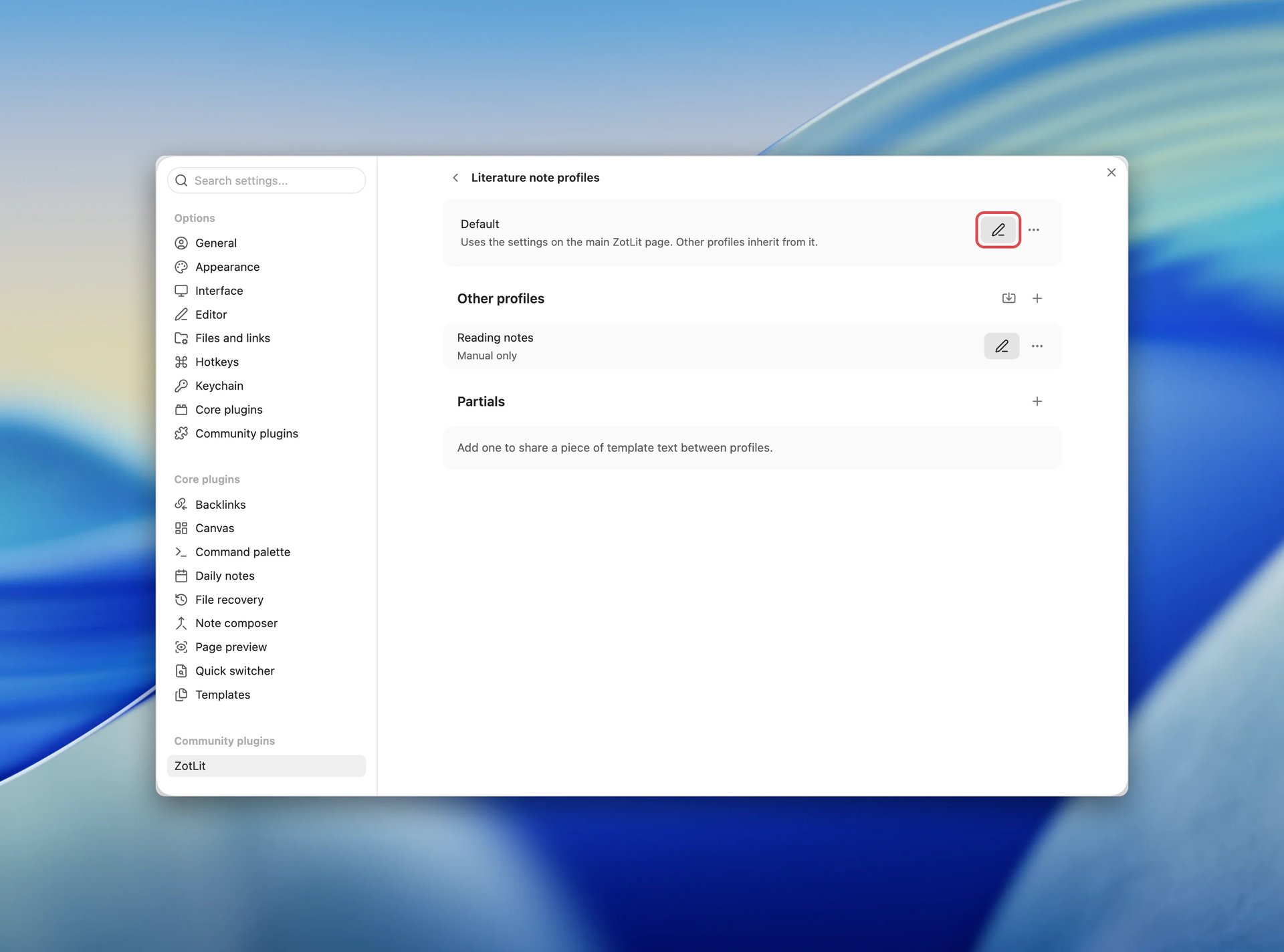
The Template Workbench opens as a new tab named Default · Profile, with the note text on the left and a Note preview on the right. The first time, ZotLit creates zotlit-profile.default.md in your template folder.
Choose a paper to preview
Select Choose item above the tabs, then select a paper under Recent, or search for one with Search Zotero….
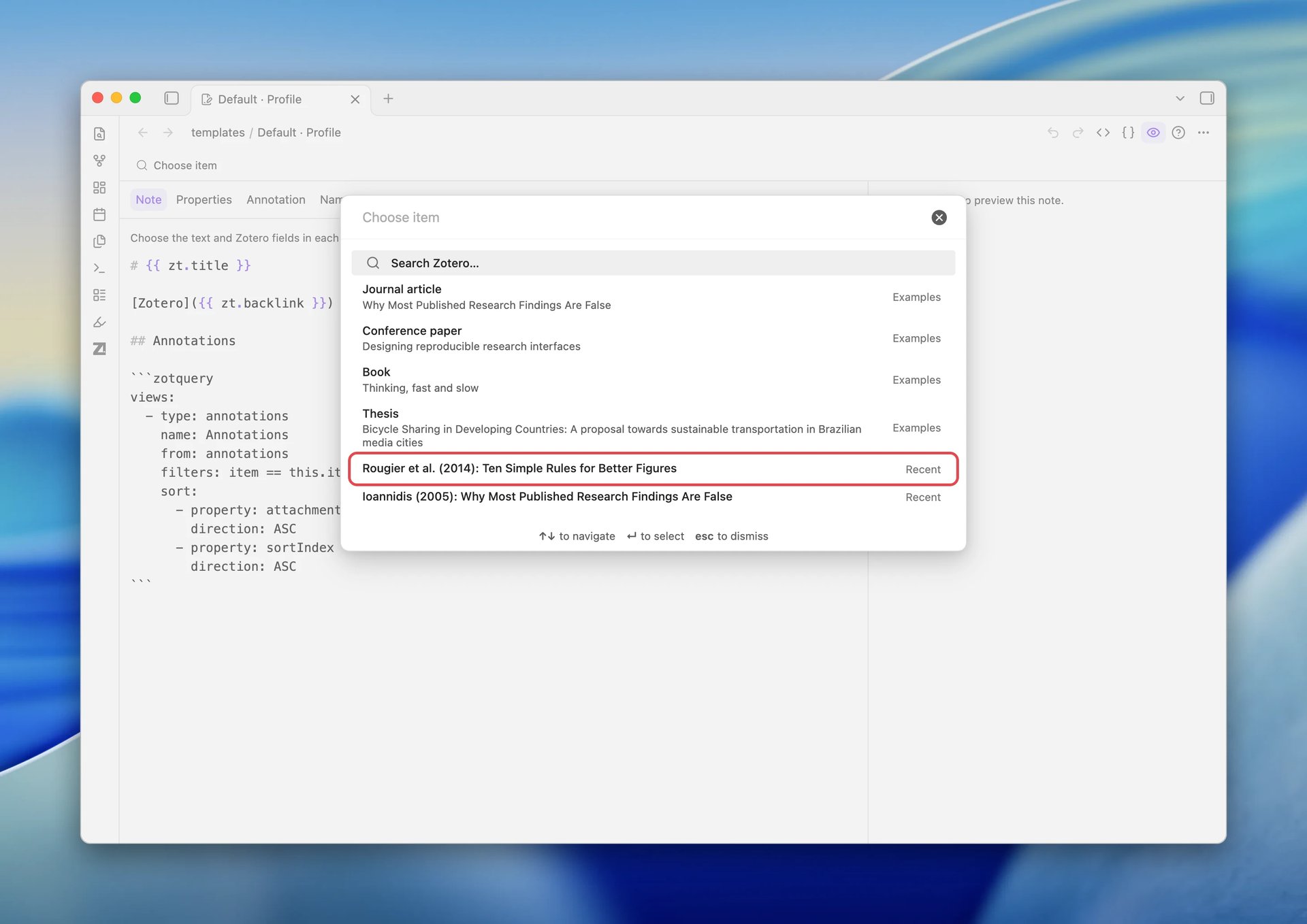
The line above the tabs names the paper, and the Note preview fills with that paper's properties, links, and annotations.
Open the Note tab
Select Note. Each tab edits one part of the profile: Note is the body of the note, Properties is covered in Configure frontmatter properties, and Name and folder and Match are covered in Use a different template for different notes.
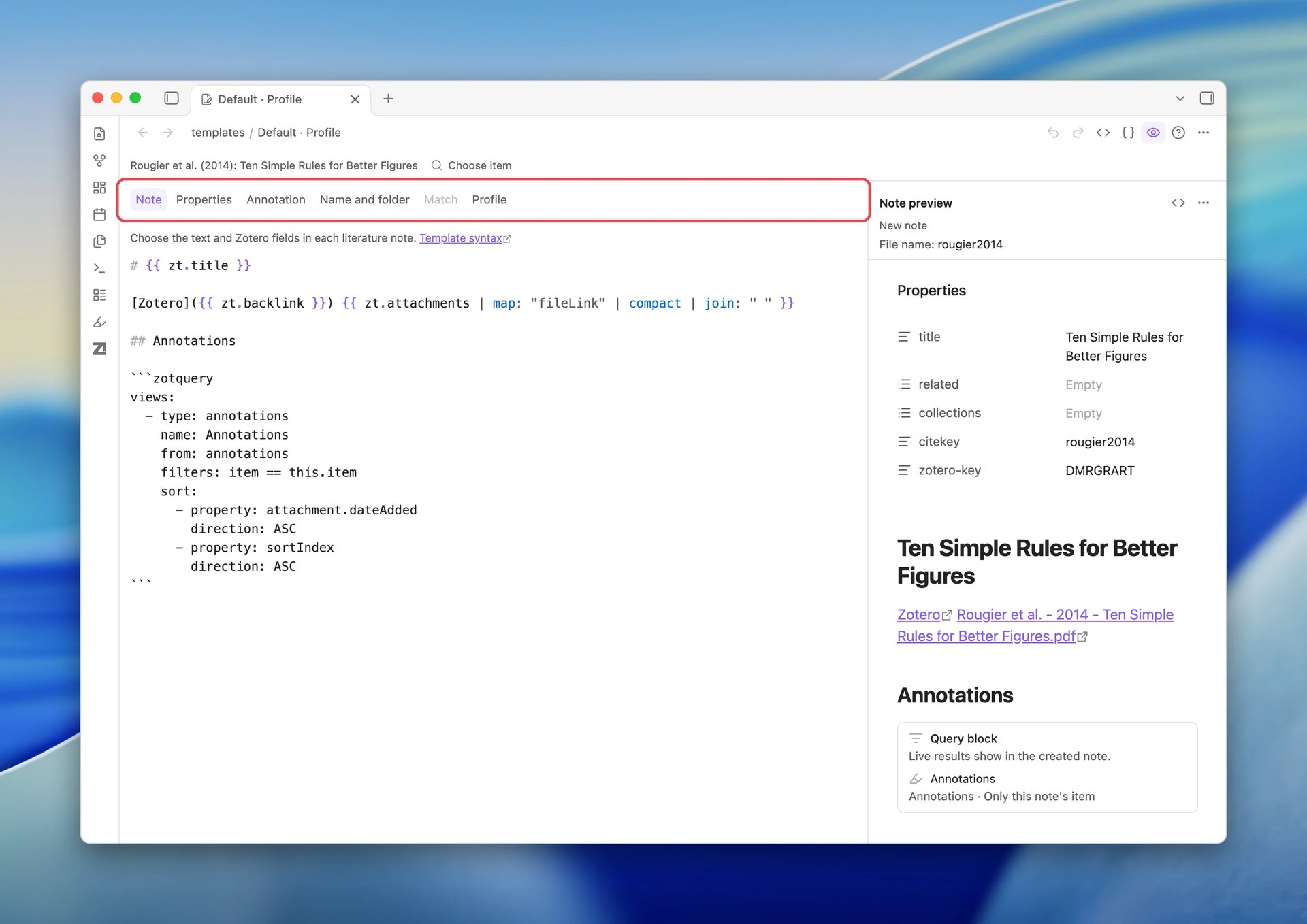
The editor shows the note text: a heading with the title, a line with links, and an Annotations section. The preview beside it shows the finished note for your paper.
Insert a Zotero field
In the note text, place the cursor where the value should go, for example after Published in: . Select Fields in the header, select the row Published in, and select Insert on the card that opens.
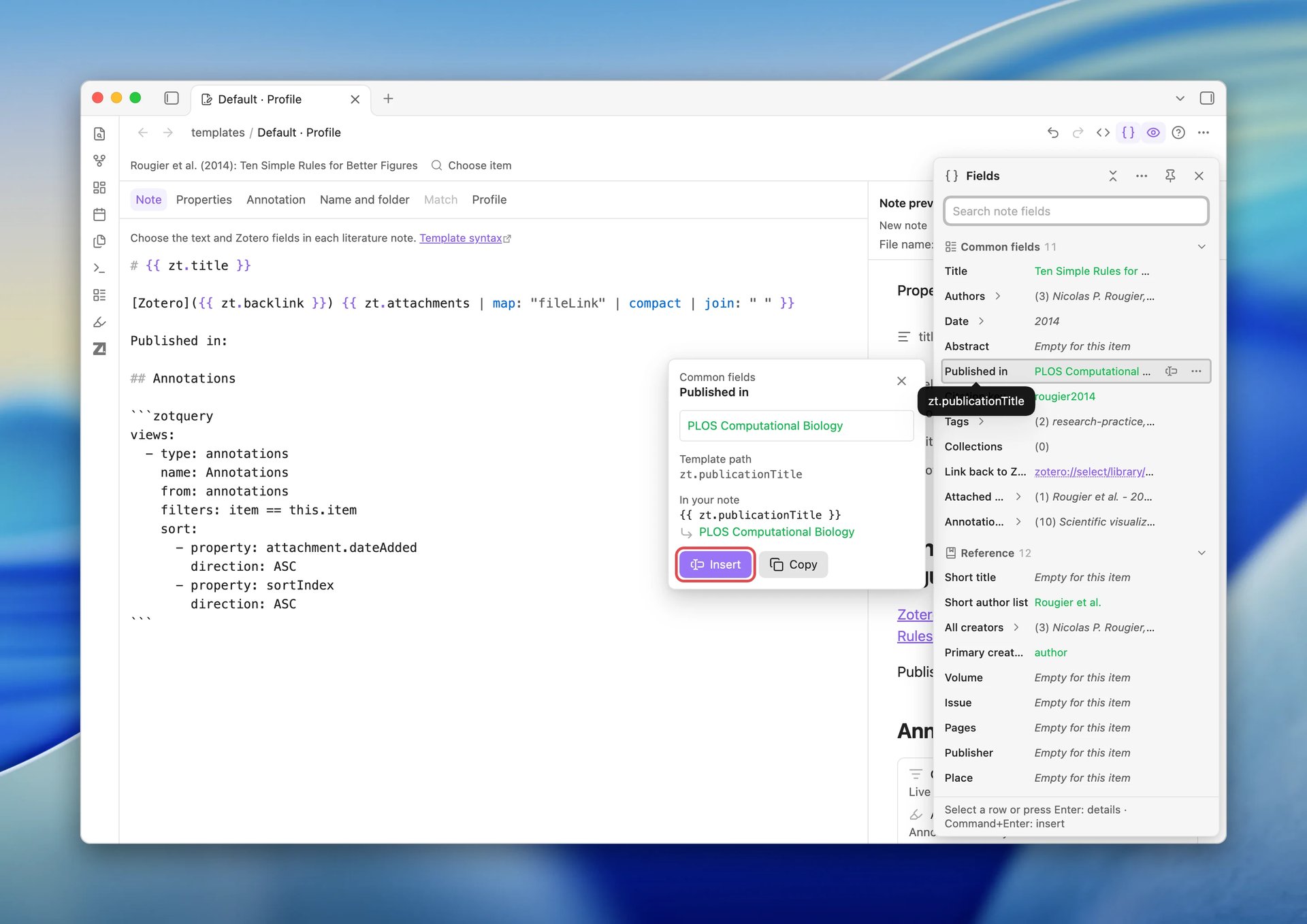
{{ zt.publicationTitle }} appears at the cursor and the list closes. ZotLit replaces each field in double braces with the paper's own value when it writes the note. To find a field before you open the editor, see Explore template data.
Check the preview
Look at the Note preview.
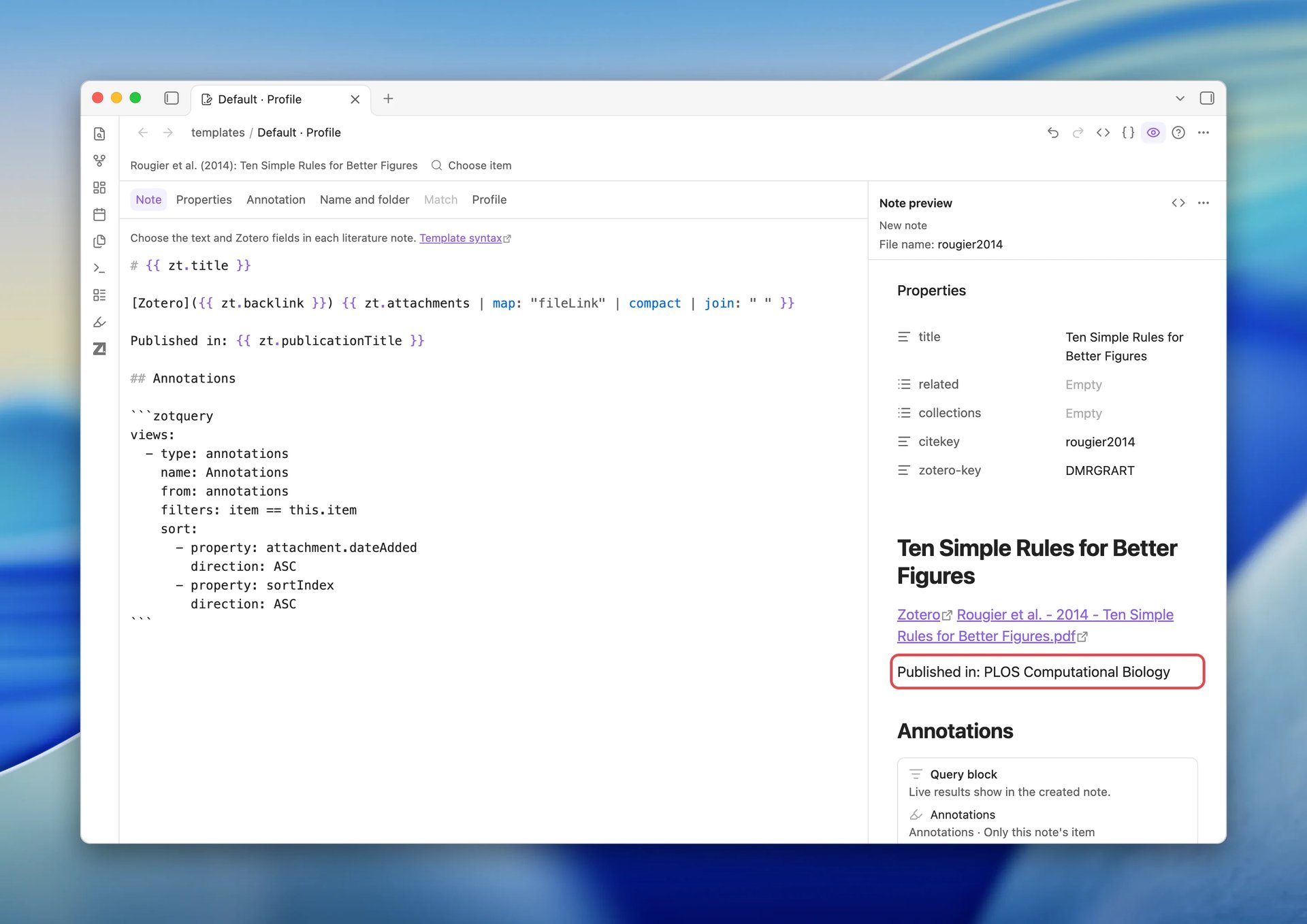
The note now reads Published in: PLOS Computational Biology. The preview updates as you type, and Obsidian's Undo and Redo work.
Update a note you already have
New notes use your edited profile at once. A note that already exists keeps its text until you update it. Open the note, open the command palette, and run ZotLit: Update literature note.
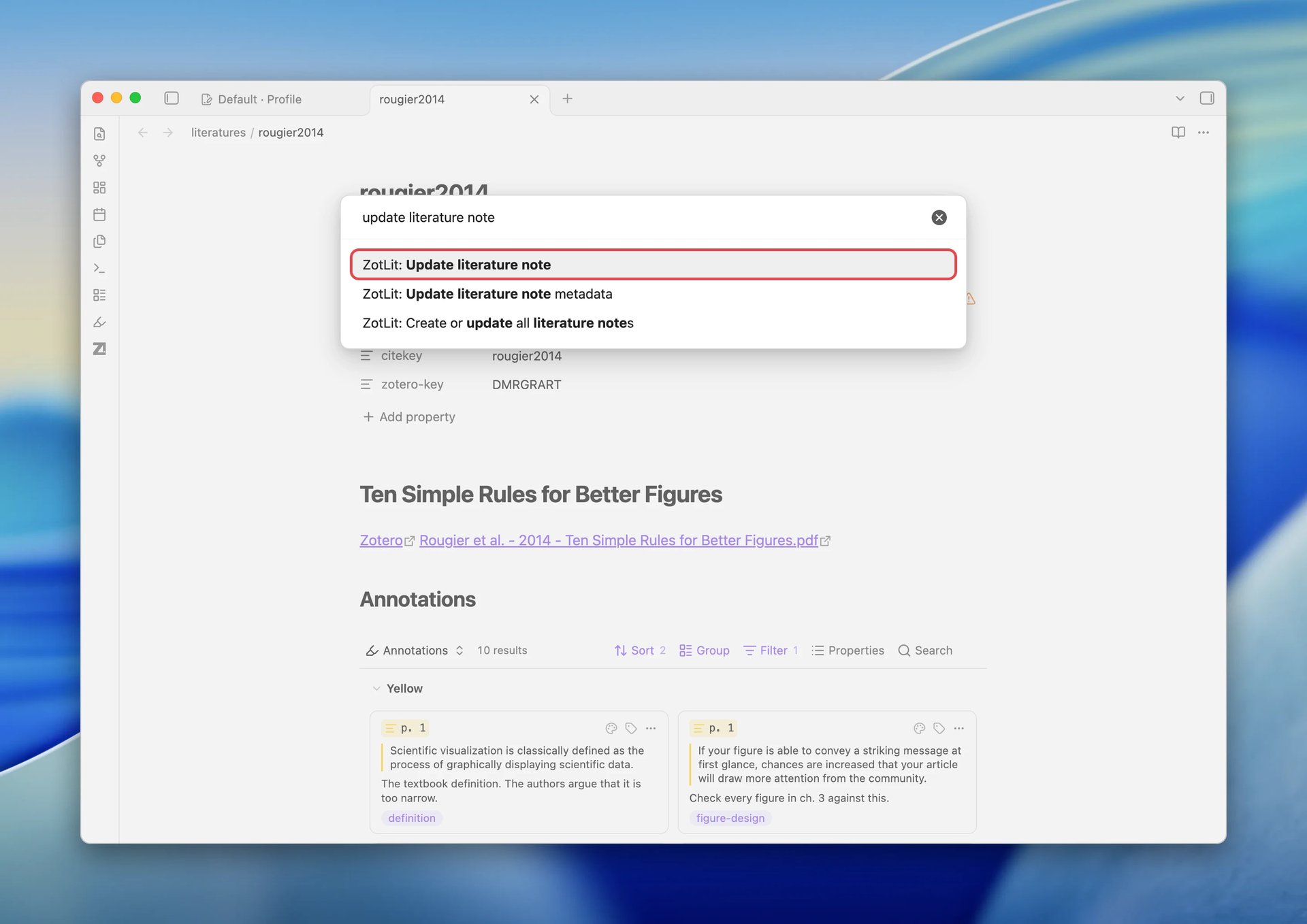
The notice Literature note updated. appears. ZotLit: Overwrite literature note replaces the whole note body after a confirmation.
- An error when ZotLit creates the file, the first time → select the retry action beside the error message.
- The preview is empty or shows no paper → select Choose item and choose a paper from your library or a built-in example.
- The preview fails → retry the preview or pick another paper with Choose item. You can keep editing.
- The Fields list says "Select a place in the template to insert a field." → select a place in the note text, then open Fields again.
- A note did not change after you edited the body → run ZotLit: Update literature note to refresh properties. If your profile has no managed block, ZotLit shows Properties updated. The profile document has no managed block, so the note body stayed unchanged. Body edits reach new notes; to rebuild an existing note's body, run ZotLit: Overwrite literature note.
- An Eta template does nothing → Eta templates require the JavaScript templates setting. Without it, Eta templates stay inert and do not fall back to built-in text. See Enable JavaScript templates.
- A partial's call is marked Missing → the partial was renamed or deleted. Edit the partial name in your template call or create the partial file again.
- A partial's fields come out empty → the Liquid call is missing its data argument; write
{% render "name" with zt as zt %}.
Open the literature note and run the command ZotLit: Open template workbench, or select Open template workbench from the note's file menu. The Template Workbench View opens with that note's paper already selected.
- Open Settings > ZotLit > Citations. On the Citation text row, select the pencil button, tooltip Open citation text (or run the command ZotLit: Customize citation text).
The file
zotlit-citation.mdopens on the Citation tab. (If you have not customized it before, the row reads Using the built-in default. and ZotLit creates the file from the built-in text first.) - The Citation preview shows how your citation will look. From the pane menu, choose Preview main citation or Preview alternate citation to test both types, or choose Use example to load built-in citation shapes.
- One template controls both main and alternate citations;
zt.variantidentifies which one was requested. See Fields a citation template reads. - Citations already in your notes are plain text and stay as written. Edits apply to the next citation you insert.
- To discard your changes, select the rotate button, tooltip Reset to default, on the Citation text row. Confirm Reset citation text? to move your file to Obsidian's trash.
- A partial is a reusable template file (
zotlit-partial.<name>.md) that any profile or citation template can call by name. - To create one, open Settings > ZotLit > Literature note profiles > Partials and select Add partial. Alternatively, select text inside the workbench editor, right-click it, and choose Extract to partial….
- Call the partial in Liquid using
{% render "authors" with zt as zt %}(typing{% render "lists your partials and inserts the arguments automatically). In Eta, call<%~ include("authors", zt) %>. - For details on naming and parameters, see Calling a partial.
On the Templates and properties row in Settings > ZotLit, select Restore built-in. Confirm Restore the built-in template?. ZotLit moves your profile file to Obsidian's trash, where you can recover it if needed. Existing notes keep their current content until updated.
Next
Work through the template recipes in this order.
Explore template data
Find the Zotero field you need before you edit.
Configure frontmatter properties
Set the properties at the top of each note on the Properties tab.
Use a different template for different notes
Add a second profile, for books for example.
Template Workbench View
Every panel, pin, and setting of the editor.
Last updated on