How to customize a template
Edit a literature note profile, the citation text, or a shared partial in the Template Workbench View, and preview the result.
Use the Template Workbench View to change a literature note's name, folder, properties, body, or annotation format, to change the text a citation inserts, or to share a piece of template text between profiles.
A profile is the document that authors one literature note. See Profiles for what a profile holds and how ZotLit chooses one. If your vault still holds 2.1 template files, Migrate from 2.1 templates folds them into profile documents first.
Edit a literature note profile
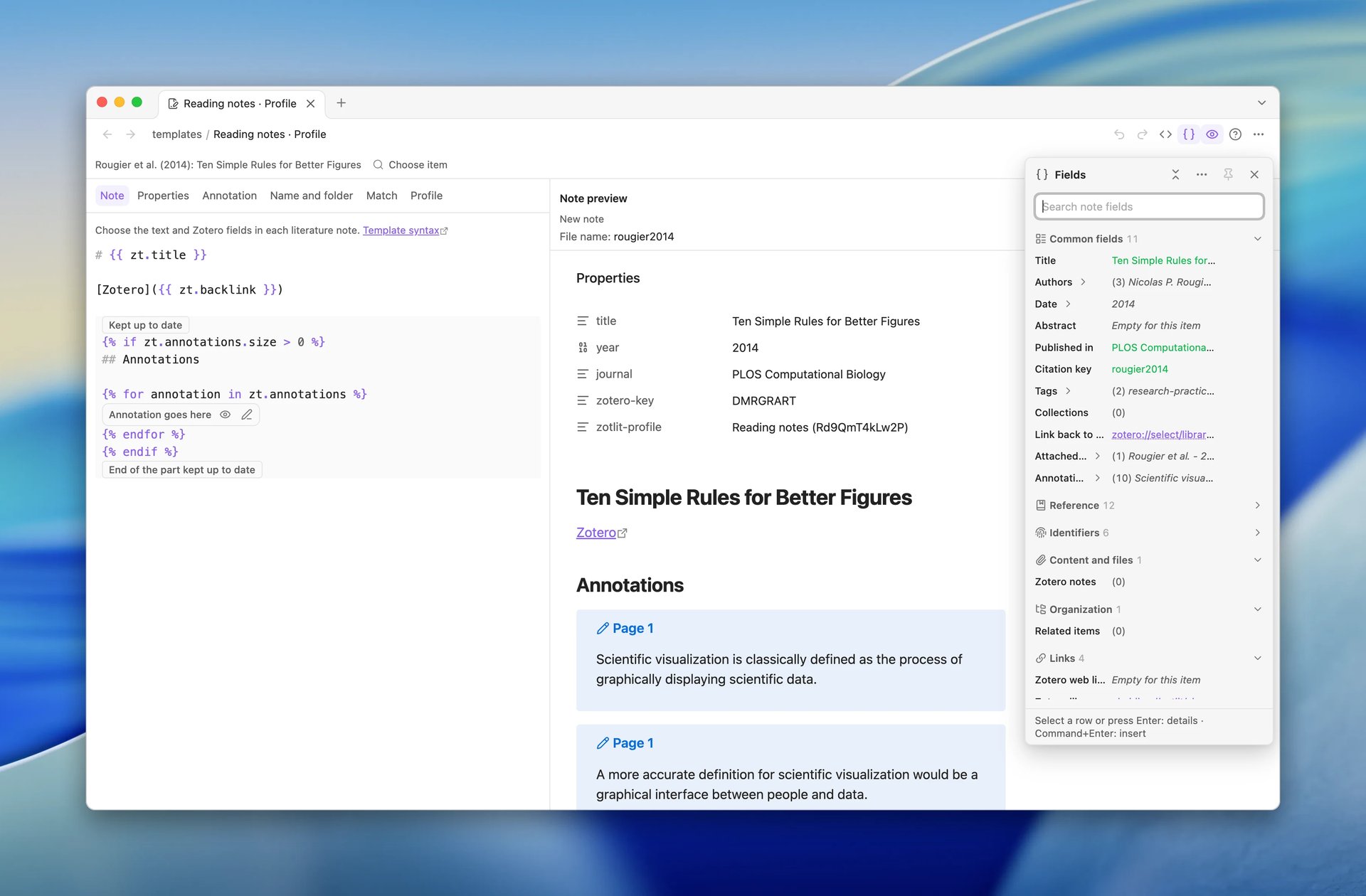
Open the profile
In Obsidian, open Settings > ZotLit. On the 模板文档 row, select its pencil button, tooltipped 编辑配置方案.
Customizing the built-in Default creates its document in the configured template folder before editing becomes available. If a custom document already exists, ZotLit opens it. If creation fails, use the retry action beside the error.
To edit the profile used by an existing literature note, open that note and run ZotLit: 打开模板工作台. The same action is in the note's file menu. ZotLit opens the Template Workbench View with that note's item selected.
Every way opens the view in its own Obsidian window, with the Preview panel shown. If that window is already open, ZotLit brings it to the front. Select 显示预览 in the view header to hide or show the Preview panel. Select 字段 in the view header to open the Fields popover. See The Preview and Fields panels.
Choose preview data
If no item is selected, choose one in the Fields panel, or with 选择条目 in the row above the panels. You can try a built-in journal article, conference paper, book, or thesis example.
Choose a library item under 最近, or select 搜索 Zotero… to search your Zotero library. The editor tabs, the Preview panel and the Fields panel then show that item, and the Fields panel lists its fields.
For annotation formatting, select 选择标注. Search annotations from the selected item or try a highlight, underline, note, text, image, or ink example. Annotation examples keep their own parent item data; the note preview keeps its selected item.
One view holds one chosen item and one chosen annotation, whichever surface you choose them from. A second Template Workbench View keeps its own choice.
Data used for the preview updates automatically. To load it again, select 重新加载预览数据 from the pane menu while the Preview panel is shown. In 按需 mode, select 运行 to render the preview.
Edit and preview
Use the 笔记, 属性, 标注, 匹配, and 名称和文件夹 tabs to edit the profile. The Default profile does not use 匹配 conditions.
Check the 笔记预览 in the Preview panel as you edit. To add a field, place your cursor in the template, select 字段, and select the insert button on a field's row, or open its row menu and select 插入字段. ZotLit puts the field at your cursor, closes the Fields popover, and returns the cursor to the editor. Hold Shift while you select the insert button to keep the Fields popover open for more fields, or pin the Fields panel to keep it beside the editor. For a list, such as the authors, select its row, choose 合为一行 or 每项一行, and select 插入. 源码 is a toggle: select it to edit the complete profile document as Markdown, and select it again to return to the tabs.
On the 名称和文件夹 tab, the 笔记路径 group holds the 文献笔记文件夹, the 笔记名称模板, and a 预览 of the full path the note gets, with .md. A slash (/) in the note name makes a subfolder in the folder. For the Default profile, change the folder in Settings > ZotLit. The 匹配 tab reports 匹配所选条目 or 不匹配所选条目 for the selected item.
If the preview fails, retry or choose another item. You can continue editing the profile.
Apply the changes
The Template Workbench View uses Obsidian's automatic saving for edits, Undo, and Redo. A profile with an error remains editable and saves with its diagnostics shown in the editor.
Existing notes keep their content until you update them. Open a literature note and run ZotLit: 更新文献笔记 to apply its profile.
The Template Workbench View supports Liquid, Eta, and JavaScript frontmatter fields. Eta and JavaScript fields require the JavaScript 模板 gate.
To return this template to its built-in form, select 恢复内置 on the same row. ZotLit moves the file to Obsidian's configured trash. You can recover it from there; existing notes keep their content until updated.
Customize the citation text
The citation text is one template document, zotlit-citation.md, that renders every citation you insert. It renders both the main and the alternate citation from one source: zt.variant tells it which gesture asked for the citation.
Open the citation text
Open Settings > ZotLit > 引文. Find the 引文文本 row and select its pencil button, tooltipped 打开引文文本.
The row's second line shows the document's vault path, or 使用内置默认值。 while your vault holds no file. With no file, that button writes zotlit-citation.md from the built-in text first, then opens it.
The command ZotLit: 自定义引文文本 opens the same document. The Template Workbench View's pane menu has the same entry.
Edit the source
The document opens in the Template Workbench View on one 引文 tab. That tab is the source of the whole document, and the view offers no 源码 toggle for it: the tab already shows everything the document holds. A caption above the editor names the document's language.
The template receives zt.variant, zt.citations, and zt.items. See Citation templates for the fields on each cited item.
Check the preview
引文预览 renders what you have typed, including bytes you have not saved.
Show the Preview panel to see it. While the panel is shown, the view's pane menu offers 使用示例 with six built-in citation shapes: 单个条目, 两个条目, 带页码的条目, 隐藏作者, 前缀与后缀, and 标注引文. It opens on 单个条目.
Select 选择条目 instead to preview one of your own Zotero items, by citation key alone. That clears the example.
Switch between 预览主引文 and 预览替代引文 from the same menu to check both branches of your template. The preview caption names the variant on show.
Edits take effect on the next citation you insert. Existing citations in your notes are plain text and stay as written.
Restore the built-in citation text
Once the document exists, the 引文文本 row also carries a rotate button, tooltipped 重置为默认值. It asks 重置引文文本? and then moves your document to Obsidian's configured trash, where you can recover it. New citations use the built-in text again.
Share a piece of template text between profiles
A partial is a template document that any other template renders by name. Write a line once, in zotlit-partial.<name>.md, and call it from every profile and from the citation text.
Create a partial
Three ways, all of which name the file for you:
- Open Settings > ZotLit > 文献笔记配置方案 > 片段 and select 添加片段.
- Type
{% render "or{% include "in a Liquid template, orinclude("in an Eta one. The completion lists every partial in your vault and ends with 新建片段…. The new document opens in a split beside what you were editing. - Select some template text, right-click it, and choose 提取为片段…. ZotLit moves the selection into the new document, leaves the matching call behind, and opens the new document in a split. In the template you extracted from, that is one undo step.
Name a partial with letters, digits, and hyphens. ZotLit trims the name, turns each run of spaces into a hyphen, and lowercases it, so Journal line becomes journal-line. Names are one flat list for your whole vault, and two partials cannot share a name regardless of case.
Five names belong to other ZotLit templates and are refused: filename, note, annotation, content, and citation. A file that takes one anyway registers nothing and gets a 片段名称已被占用 row in settings.
Call a partial
In Liquid:
{% render "authors" with zt as zt %}In Eta:
<%~ include("authors", zt) %>In Liquid, the with zt as zt clause is not optional. The render tag opens an isolated scope, so a bare {% render "authors" %} cannot see the caller's zt: every zt output in the partial comes out empty, and only its literal text survives. Accepting a name from the completion list writes the clause for you.
Liquid's {% include %} tag renders a partial with access to the caller's variables, and needs no with clause. Use render when you want the partial's scope kept separate. See Calling a partial for the complete rule, and the Eta form for an Eta document.
Preview and edit a partial
In a profile's tabs, with 源码 off, a call with a plain quoted name (Liquid render or include, Eta include(...)) is drawn as a Partial Placeholder: a compact control carrying the partial's name, the rest of the arguments as written, 预览片段, and 编辑片段. The preview arrow opens a read-only render of that partial below the line, using the data of the slice the call sits in. Put your cursor in the call and the placeholder turns back into plain source, so you can edit the arguments.
The five reserved names are never partial names, so none of them draws one: {% render "annotation" %} draws the annotation placeholder for the profile's annotation section, and a call on filename, note, content, or citation draws nothing. A call inside a fenced code block is prose about a call, and draws nothing either.
A partial has no data of its own, so its own editor asks you which caller to render as: 按笔记调用预览, 按标注调用预览, or 按引文调用预览, from the view's pane menu while the Preview panel is shown. It opens on Note and remembers your choice for that file.
Rename or delete a partial
Renaming is an ordinary Obsidian file rename. ZotLit has no rename action and rewrites no calls, so every template that called the old name then marks its placeholder 缺失. Select that marker to read the problem in the editor's 问题 area, then edit the call or create the partial yourself.
To delete, open the partial's row at Settings > ZotLit > 文献笔记配置方案 > 片段, open its 更多操作 menu, and select 删除片段. ZotLit moves the file to Obsidian's configured trash and rewrites no callers.
A note that ZotLit writes through a template calling a partial your vault no longer holds is not written at all. ZotLit says which partial is missing and offers 打开模板工作台 to open the document holding the failing call.
See also
Install the ZotLit skills
Let an agent edit and test templates in this vault.
How templates work
The three kinds of template document, languages, and filename matching.
Explore template data
Browse available fields and copy paths into your template.
Configure frontmatter properties
Add custom YAML properties derived from Zotero data.
Customize your annotations
Tutorial: guided worked example with before/after results.
Last updated on