Customize your annotations
Change the annotation format in a template, then insert annotations into your literature note as quote callouts with their highlight color.
Change how an annotation looks when you insert it into your first literature note. You will use the Template Workbench View in Obsidian. This tutorial continues from Create your first literature note.
Before you start
Use the literature note from the first tutorial. Its paper needs at least one highlight in Zotero. If it has none, add one in the Zotero PDF reader. It appears in the note's Annotations section without any other step.
Change the callout type
The built-in annotation format uses [!note] as the Obsidian callout type. You will change it to [!quote], then insert an annotation into your note to see the result.
Open the Template Workbench View
Open the literature note in Obsidian. Run ZotLit: 打开模板工作台.
ZotLit opens the template document used by this note in a new window and selects its paper for the preview. When you customize the built-in template, ZotLit saves an editable copy in your template folder. The copy remains if you close the window without changes.
Read the shared-template guidance above the editor: The Annotation tab changes annotations you insert from now on, in every note that uses this template. Annotations you inserted earlier stay as they are.
The window shows one view with the editor on the left and the Preview panel on the right. The Fields popover stays closed until you select 字段 in the view header.
Open the annotation format
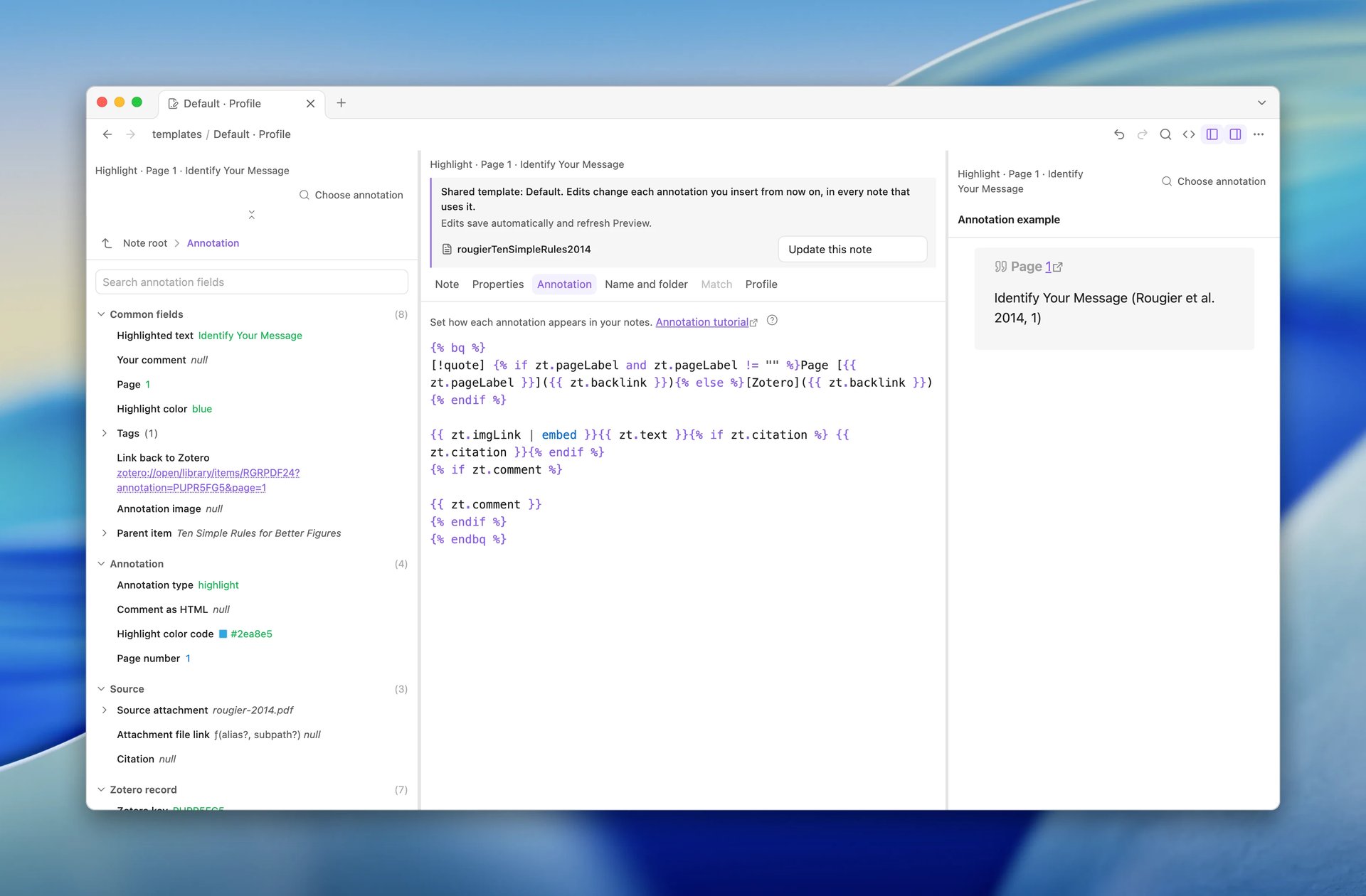
Select the 标注 tab. The editor shows the format used for one annotation.
The first annotation may be an ink drawing with no text, so the preview can look nearly empty. Select the search icon (选择标注) in the header above the editor and pick a highlight, such as Highlight: Identify Your Message. The preview shows it under 标注示例.
Change the callout type
Find [!note] in the annotation format and change it to [!quote].
ZotLit saves the template document automatically. Check that the highlight now appears in a quote callout in the preview.
Insert the annotation into your note
Go back to the literature note in the main Obsidian window. Click in the note below the Annotations section, so the cursor sits there.
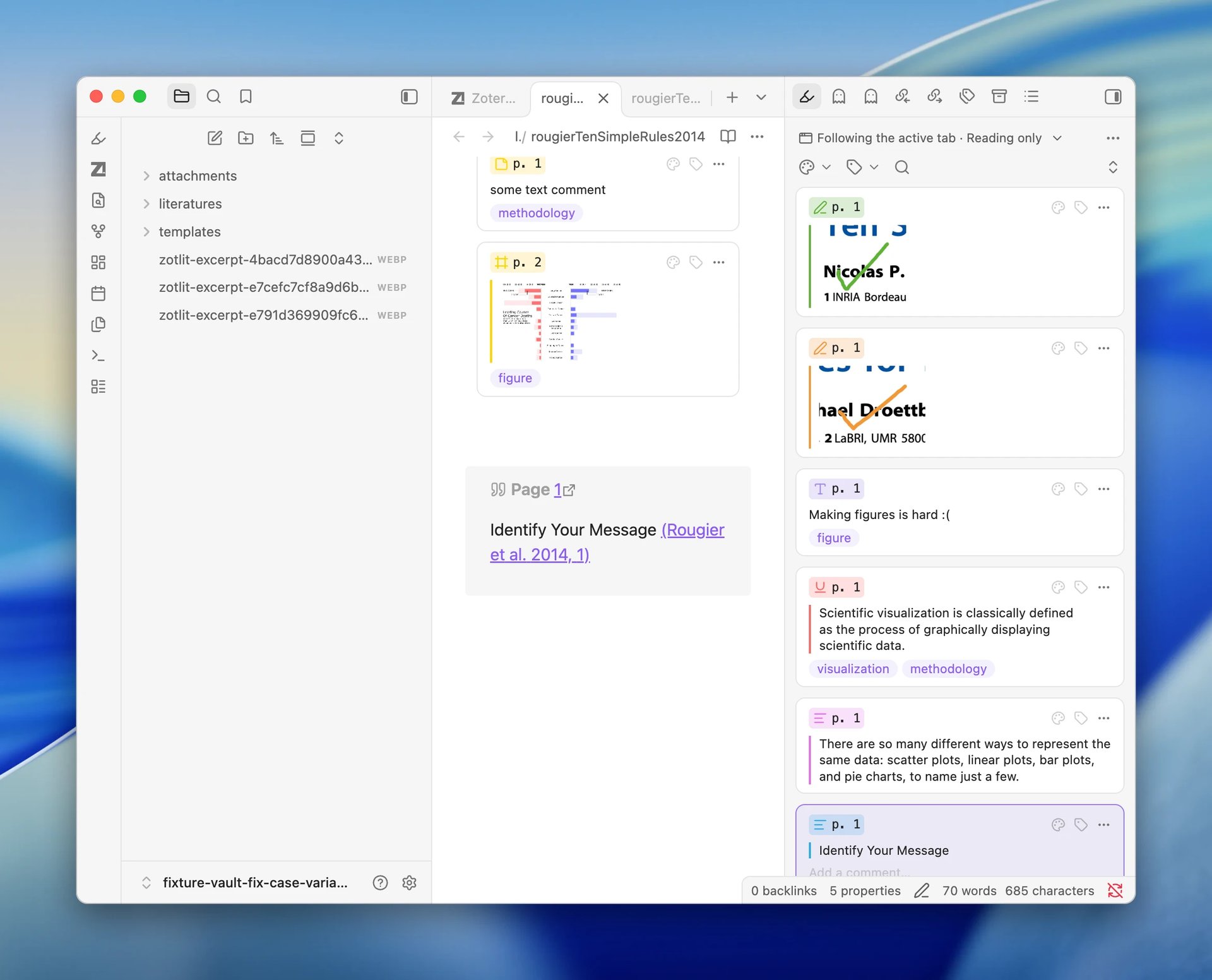
The Zotero 标注 view in the sidebar follows the active note and lists its annotations as cards. If the view is closed, run ZotLit: 打开 Zotero 标注.
Right-click a highlight's card and select 插入到笔记. ZotLit inserts the annotation at the cursor as a quote callout, with the highlighted text and a citation.
Why the Annotations section looks the same
The live cards in the Annotations section do not use this format. It applies when you insert an annotation into a note, by the menu or by a drag, and the inserted copy stays as written. To have every annotation as text in the note, read Default templates.
Add the highlight color
Template fields insert data from Zotero. You will add the annotation's colorName field to the callout title.
Return to the annotation format
Go back to the Workbench window and stay on the 标注 tab. If you closed the window, run ZotLit: 打开模板工作台 from the literature note and select the tab again.
Insert the color field
Place the cursor at the end of the callout title line, after {% endif %}. Add a comma and a space, then type {{ to open the template field list. Until you pick a field, the Workbench reports a syntax problem. It clears once the field is in place.
Select colorName. The line now contains:
[!quote] {% if zt.pageLabel and zt.pageLabel != "" %}Page [{{ zt.pageLabel }}]({{ zt.backlink }}){% else %}[Zotero]({{ zt.backlink }}){% endif %}, {{ zt.colorName }}Check the preview
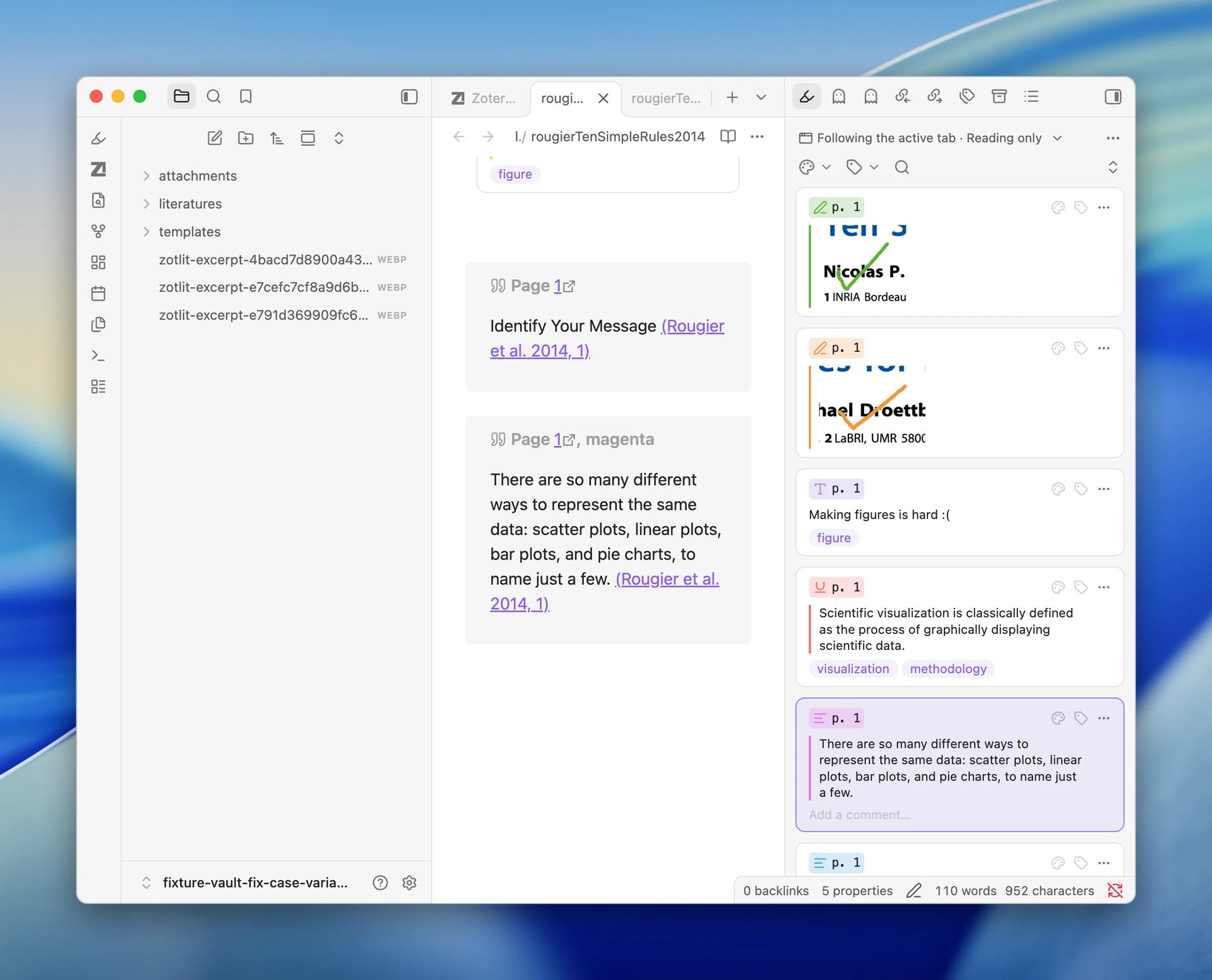
The preview title now ends with the annotation's highlight color, such as Page 1, blue.
Insert another annotation
Back in the note, click below the callout you inserted. Right-click another card and select 插入到笔记.
The new callout's title now includes its highlight color. Annotations you inserted earlier keep their old title.
Restore the built-in profile
To remove these changes from the Default profile, open Settings > ZotLit. Select 恢复内置 on the 模板文档 row, then confirm with 恢复内置模板.
ZotLit moves the custom profile document to Obsidian's configured trash. New insertions then use the built-in format, and text you already inserted stays as it is.
What's next
Last updated on