Use query files and query blocks
Create a query file, filter, sort, and group its views, add formulas, embed it in notes, and save the annotation sidebar as a query file.
A query file shows live annotations, files, or papers from your Zotero library in a tab or in a note. This page shows how to create one, change its views, and embed it. Query files and query blocks explains the ideas behind them.
Create a query file
Use one of these:
- Open the command palette and run ZotLit: 新建查询文件. The file goes in the folder where Obsidian puts new notes.
- In the file explorer, right-click a folder, or a file in that folder, and select 新建查询文件.
ZotLit creates a file named Untitled.zotquery and opens it in a tab. Hold Ctrl (Windows and Linux) or Command (macOS) when you select the menu item to open it in a new tab. Rename the file as you rename any note.
The new file has two views:
- 条目 is the default view. It is a Table of the papers in your whole library, newest first by date modified, at most 100 at a time. It shows the 标题, 创建者, 年份, and 文献笔记 columns.
- 标注 shows the annotations of your whole library, grouped by paper, at most 100 at a time.
To see the annotations, select the view menu and select 标注. See Switch, add, and arrange views.
Work with views
The toolbar at the top of the file has these controls, from left to right:
| Control | What it does |
|---|---|
| The view menu | Shows the view on screen. Switch, add, and configure views here. |
| The result count | Shows how many records match. Opens the 结果 menu. |
| 筛选 | Chooses which records the view shows. |
| 排序 | Sets the order of the rows. |
| 分组 | Collects the rows under headings. |
| 属性 | Chooses the values that each row shows. |
| 搜索 | Finds text in the rows on screen. |
On a narrow pane, the toolbar shows icons without labels.
Switch, add, and arrange views
Select the view menu to see the views of the file. Type in 搜索视图… to find a view by name, then select it.
- To add a view, select 添加视图. ZotLit opens 配置视图 so that you can name it.
- To change the order of the views, drag a view in the list.
- To make a view the default, open its 配置视图 page, select 更多选项 (…), and select 默认视图. The default view moves to the top of the list. An embed without a view name shows it.
- To copy or remove a view, open its 配置视图 page, select 更多选项 (…), and select 复制视图 or 删除视图.
Configure a view
Select the view menu. On the row of a view, select the chevron button, tooltipped 配置视图. You can also right-click the row, or right-click the view menu button to configure the view on screen. The 配置视图 page opens in the same menu. Each change saves at once. The view name saves when you leave the field.
| Setting | What it does |
|---|---|
| 视图名称 | The name in the view menu and after # in an embed. |
| 行 | What each row is: one annotation, one attachment, or one item. |
| 布局 | How the view draws the rows. The list offers only the layouts that can show the chosen records. |
When you change the rows, the sort, grouping, and properties stay in the file. The view ignores the ones that the new rows do not have. 排序, 分组, and 属性 mark each of them 未使用, and a note under the toolbar names them. When you switch back to rows that have them, the view uses them again.
Each layout adds its own options:
| Layout | Options |
|---|---|
| 标注 | 卡片宽度, 显示评论, 显示标签, 显示页码 |
| 列表 | 标记, 缩进属性, 属性分隔符 |
| 卡片 | 卡片大小 |
| 表格 | Column order and widths are adjusted directly on table headers (see Use the Table layout). |
Filter the rows
Select 筛选. The filter editor has two parts:
- 所有视图: conditions for every view of the file that shows the same kind of rows as the first view.
- 此视图: conditions for the view on screen only.
Add a condition
Select 添加条件. A new row reads 空 and filters nothing until it has a value. Choose a property, an operator, and a value. For example, choose 颜色, 是, and 黄色 to find key highlights. In an items view, choose 年份, 不早于, and enter 2020 to find recent publications.
The property list holds every Zotero field of the view's records, with the most common ones first. To find a property, type in the list's search field. Common words find a property too, in English or Chinese: journal or 期刊 finds the Publication field, and summary finds the abstract. These words only help you find the property. The filter saves the property's own name, such as publicationTitle.
Combine conditions
Choose 满足以下全部条件 to show records that match every condition, 满足以下任一条件 to show records that match at least one, or 不满足以下任一条件 to hide records that match any condition in the group. Select 添加分组 to nest a group of conditions inside another group (for example, to find yellow highlights that also have either the tag #theory or #method).
Arrange conditions
Drag the handle (拖动以调整顺序) on any condition or group to move it up or down. You can drag a condition within a group, into a nested group, or out to a parent group. You can also select the handle and press Alt+Arrow Up or Alt+Arrow Down to move the row.
To remove a condition, delete its row. When you delete the last row of a nested group, the group goes too. When you delete the last row of the filter, the filter goes too.
Check the result
The view refreshes as you edit. The result count shows the new number of records.
The properties depend on the records of the view. An annotations view offers the color, Tags, comment, text, page, and dates of each annotation. Every view offers the paper's title, creators, first author, year, item type, Collection, and library. Annotations and attachments views also offer the file's title and file type. An items view also offers the properties of your Literature Notes, as Track reading status shows.
To write a condition as a Filter Expression, select 以表达式编辑 on its row. The filter expression editor colors field names, functions, numbers, and strings. As you type, autocompletion suggests available fields and functions (press Tab or Enter to insert), parameter hints show expected arguments, and wavy underlines flag syntax errors immediately. Select 可视化编辑 to return to the visual condition row.
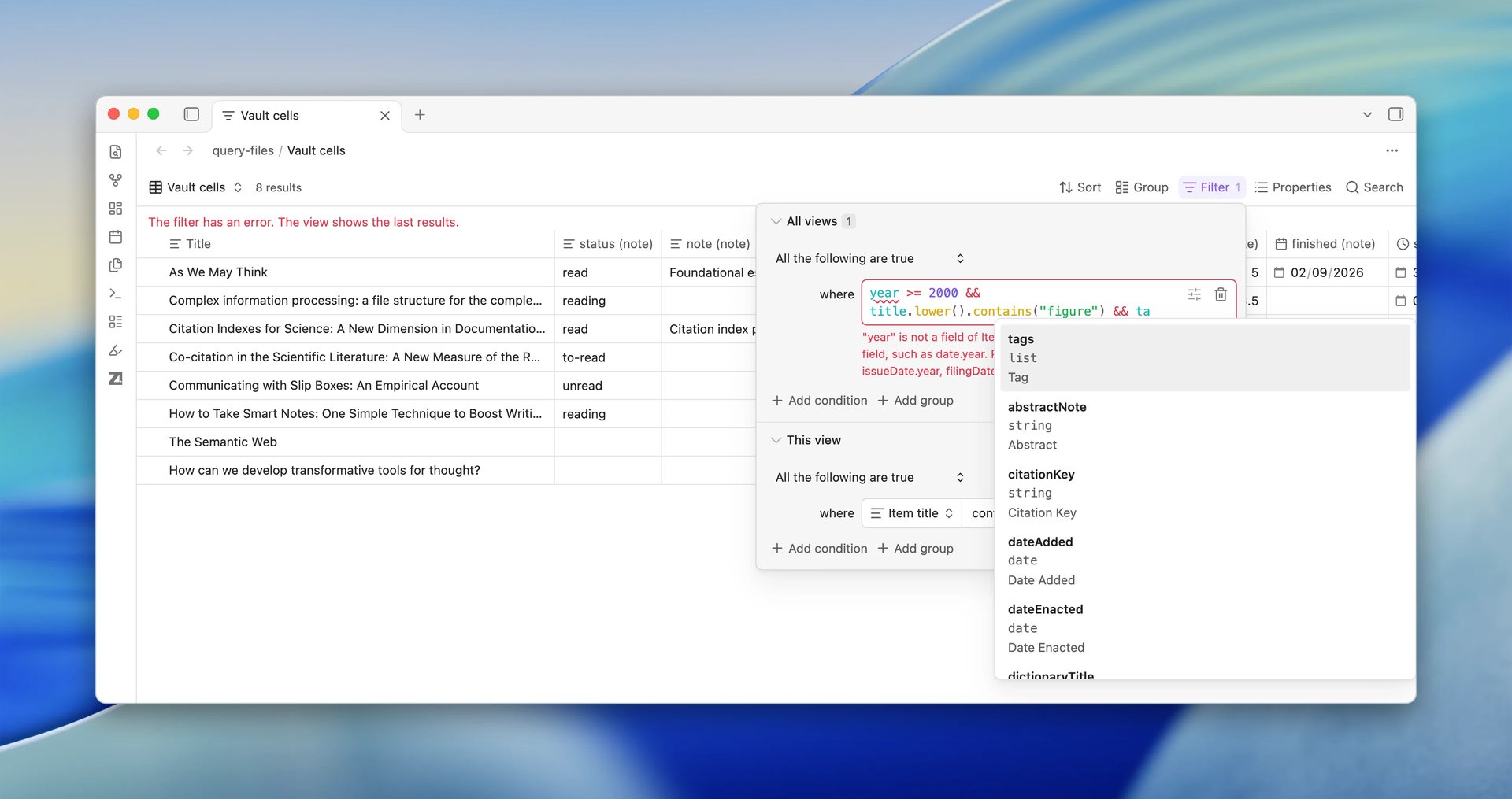
When a condition has an error, its row shows the reason. The view keeps the rows it showed last and shows 筛选条件有错误。视图显示上一次的结果。
Sort and group the rows
Sort
Select 排序, then 添加排序. Choose a property and a direction, such as 从新到旧 for dates. Add more properties to break ties. Drag a property to change its priority: the first property sorts first.
The properties depend on the records of the view:
| Rows | Sort properties |
|---|---|
| Annotations | Position in the file, page, dates, color, annotation type, and the paper's title, first author, and dates, and the file's title and date added |
| Attachments | Title, dates, and the paper's title, first author, and date |
| Items | Title, first author, date, dates added and modified, item type, and the properties of your Literature Notes |
Group
Select 分组, then choose a property in 分组依据:
| Rows | Group properties |
|---|---|
| Annotations | 条目, 附件, 颜色, 标签, 分类 |
| Attachments | 条目, 标签, 分类 |
| Items | 条目类型, 标签, 分类 |
Then choose the order of the groups:
- A → Z or Z → A sorts the groups by their value.
- 手动 lists the groups. Select the checkbox of a group to show or hide it, and drag a group to change its place. For example, show only the yellow and red groups for one writing task.
A record with several Tags or Collections shows in the group of each one. Records with no value show under 无值. In the Annotations, List, and Cards layouts, select a group heading to collapse its rows.
Choose the properties
Select 属性. Select the checkbox of a property to show or hide it, and drag a property to change its place. Type in 查找或创建… to find a property. To add a property that the list does not have, type its path, such as item.citationKey, and select the row that adds it. In an items view, the menu also offers to add a property of your Literature Notes. See Track reading status.
Select the chevron button on any property row (or press the Right arrow key) to open its settings page, where you can set a display name or edit a formula.
The Table, List, and Cards layouts show these properties in this order. Copy and CSV export use them as columns.
Add a formula
A formula is a property that ZotLit computes for each row from other properties. It uses the same Filter Expression language as a filter condition. For example, a formula can show the year of each paper, or the number of its authors.
To show the year of each paper in an items view:
Open the formula page
Select 属性, then 添加公式. The page for the new formula opens in the same menu.
Name the formula
In 名称, type year. A name has letters, digits, and underscores, and starts with a letter or an underscore. Letter case counts. The view names the property formula.year.
Write the expression
In 公式, type date.year. A check mark next to the label shows that the text has no syntax errors. When the text has a syntax error, a warning icon shows in its place and the reason shows under the field.
Save
Select 保存. The view shows the new property after its other properties, with the year of each paper. The page changes to the page of the new formula.
The file saves the formula under its top-level formulas key, and every view of the file can show it. To filter by a formula, select 以表达式编辑 on a condition in the filter editor and type, for example, formula.year >= 2020. One formula can also use another, for example formula.year + 1.
To change a formula, select 属性. On its row, select the chevron button, tooltipped 编辑属性, or press the Right arrow key. The page of the formula opens in the same menu. Change the text in 公式. The text saves shortly after you stop typing, when it has no syntax errors. The name stays as it is: to use a new name, remove the formula and add it again. Select 返回 to return to the list.
To remove a formula, open its page, select 更多选项 (…), and select 移除公式. ZotLit removes the formula from every view of the file and returns to the list. A filter condition that still uses it shows an error until you change it.
When a formula has a mistake
A formula that ZotLit Query cannot run, such as title * 2, shows a warning icon on its row in 属性 and on its column header in the Table layout. Hover over the icon to read the reason. The other properties of the view stay on screen. A formula that uses the wrong one shows the name of the formula with the mistake. When a filter condition of the view uses the wrong formula, the view shows the error and no rows until you correct it.
A formula can work for most rows and fail on one row. For example, number(volume) fails on a paper whose volume is text, such as "Spring". That row shows a warning icon in its cell, with the reason in a tooltip. Copy and CSV export write Error: and the reason in that cell. A paper with no volume shows an empty cell. Error Values explains the difference.
Rename a property
A display name replaces the path of a property in the view. For example, the property formula.year can show as "Year of source".
Open the property page
Select 属性. On the row of formula.year, select the chevron button, tooltipped 编辑属性.
Type the name
In 显示名称, type Year of source. The name saves when you leave the field, press Enter, select 返回, or close the menu.
The Table header, the Cards labels, the rows in 属性, and the header row of copy and CSV export show "Year of source". The display name applies to every view of the file. For a new formula, you can also set it in 显示名称 when you add the formula.
To return to the default name, clear the field. Without a display name, a property shows its field name, such as Title, or its path.
Limit, copy, and export the results
Select the result count to open the 结果 menu:
- 限制结果数量: sets the maximum number of rows to show. Clear the field or select 显示全部(250) to show every match. When more records match than the view shows, the result count displays both numbers, such as 100 / 250 条结果.
- 复制到剪贴板: copies the visible columns of the shown rows to your clipboard as a table. Paste it into an Obsidian note as a Markdown table, or into spreadsheets such as Microsoft Excel, Google Sheets, or Apple Numbers.
- 导出 CSV…: saves the visible columns of the shown rows as a CSV file. The file uses UTF-8 encoding with a byte order mark so Excel and statistical software such as R or SPSS open international titles and author names cleanly.
Both copy and CSV export include only the properties shown in the view, in their visible order. Interface buttons, such as the 文献笔记 column, are omitted.
Search the rows
Select 搜索 and type. The view shows only the rows on screen that contain the text. Search does not change the file. Clear the field to see every row again.
Use the Table layout
The Table layout displays papers in a grid, similar to the main item list in Zotero. To use it, set the rows to items in 配置视图, then choose 表格.
View files, notes, and annotations
Select 展开 on any paper to reveal its attached files, child notes, and annotations. Expand an attachment to see its individual annotations.
Attachment titles and annotation text in table cells are clickable links:
- Select a PDF attachment to open the file in Obsidian's PDF viewer.
- Select an annotation to open the PDF directly to that page and highlight the mark.
- Select any other file type to open it in Zotero.
Hold Ctrl (Windows and Linux) or Command (macOS) while selecting a link to open it in a new tab.
Arrange and resize columns
You can adjust table columns directly in the view:
- Drag a column header left or right to change column order.
- Drag the boundary between two headers to resize a column width.
- Double-click the boundary between two headers to return the column to its automatic width.
- Select or right-click any column header to open its menu. The menu offers 左移, 右移, and 重置列宽.
Resized column widths save automatically in the query file.
Literature note column
The 文献笔记 column opens the paper's Literature Note in Obsidian. When the paper does not have a Literature Note yet, select 创建 to create one.
This column behaves like any other property: you can show, hide, move, or rename it in 属性. Copy and CSV export leave this column out.
Embed a query file in a note
Type an embed link in any note:
![[Figures.zotquery]]The embed shows the default view. To show another view, add its name after #:
![[Figures.zotquery#Yellow highlights]]The embed has the same toolbar as the tab. A change in the embed saves to the query file, so every note that embeds the file shows it. Select 打开查询文件 to open the file in a tab. Embeds work in Reading view, Live Preview, and hover popovers.
To show the annotations of the note's own paper, use this.item in the filter of the view:
filters: item == this.itemIn a Literature Note, this.item is the paper that the note's zotero-key property names. When that paper's library is outside your 文库范围 setting, the embed shows 此条目的文库不在文库范围内,因此视图无法显示它。请在 ZotLit 设置中将该文库加入文库范围。 See this: the paper of the note.
When a view uses this.item or this.attachment without an active context (for example, in a standalone query file tab or an unlinked note), the view displays a suggestion explaining where to open it.
Add a query block to a note
A query block keeps a live view inside one note without creating a separate file. Type a code block with the language zotquery:
```zotquery
views:
  - type: annotations
    name: Yellow highlights
    from: annotations
    filters: item == this.item && colorName == "yellow"
```
The block shows the view and its toolbar. Any change you make in the toolbar, such as changing sort order, adding filters, or selecting properties, rewrites the block text in your note automatically. This also works when the block shows through a section embed or a hover popover. When the note text changed in the meantime, the block shows 无法保存查询块。笔记中的块文本已更改;请重新打开笔记后再试。 Reopen the note to refresh the view.
Query file format lists every key that you can write.
The block in Literature Notes
The default Literature Note template puts a query block under the Annotations heading. The block shows the annotations of the note's paper. A Literature Note that you made with an earlier version gets the block on its next update. A paper in the Zotero trash shows no annotations there. See Default templates.
Save the annotation sidebar as a query file
The sidebar Zotero 标注 has more view controls in its 更多选项 menu (⋮):
| Menu item | What it does |
|---|---|
| 排序 | Sorts the cards by one property of the annotation, in either direction. |
| 分组依据 | Groups the cards by color or Tag, or 无. |
| 筛选… | Opens the filter editor for the sidebar. |
| 另存为查询文件… | Saves what the sidebar shows as a new query file. Available while the sidebar shows an item. |
To keep a sidebar filter as a file:
Open the dialog
In the sidebar, open 更多选项 and select 另存为查询文件….
Name the file
Type a 名称 and choose a 文件夹.
Choose which annotations the file shows
Under 显示以下条目的标注, choose one:
- 仅此条目: the annotations of the attachment that the sidebar shows. When the sidebar shows an item with no attachment chosen, the file shows the annotations of that item.
- 显示它的笔记所对应的条目: the annotations of the paper of each note that embeds the file. Use this for a file that you embed in many Literature Notes.
Save
Select 保存. ZotLit creates the file and opens it in a tab. The file keeps the sidebar's sort, grouping, and filters, including the colors, Tags, and search text that you chose in the sidebar.
See also
Last updated on