Open an item's PDF in Obsidian
Open a Zotero PDF attachment in Obsidian's own PDF reader, from a literature note, the quick switcher, or Zotero.
Read a Zotero item's PDF in an Obsidian tab instead of switching to Zotero.
ZotLit opens the PDF in Obsidian's own PDF reader, whether the file sits inside your vault or in Zotero's storage folder. Only PDF attachments open this way; EPUBs, web snapshots, and other file types stay in Zotero.
You need Obsidian 1.14.5 or later, which ZotLit 2.2 requires.
From a literature note
With the literature note open in Obsidian:
- Open the command palette and run ZotLit: 打开 PDF.
- Or right-click the note's tab and choose 打开 PDF from the zotlit section of the file menu.
From the annotation view
Open the view's pane menu and choose 打开 PDF. This opens the attachment the view shows. The menu leaves the entry out while the view follows that PDF's tab in Obsidian.
From the Library View
In the Library View, double-click a paper's row, or select it and press Shift+Enter. To keep the library in view, right-click the row and choose 在右侧打开 PDF. The Reading Card's 打开 PDF button opens it too.
From the quick switcher
Run ZotLit: 打开文献笔记快速切换器, search for the item, and press Shift+Enter on the result. The PDF opens without the literature note. See Use the quick switcher for every chord a result takes.
From Zotero
These entry points need ZotLit Companion, the Zotero add-on, at the version released with ZotLit 2.2. Install ZotLit Companion has the current version.
- In the library, select one PDF attachment, or one item that has a PDF, and choose 在 Obsidian 中打开 PDF from the top-level context menu.
- While reading a PDF in Zotero, right-click inside the page and choose 在 Obsidian 中打开 PDF. This opens the PDF you are reading.
From a link in a note
Each annotation ZotLit writes into a note links back to Zotero with a durable link. Click one and the PDF opens in Obsidian, with that annotation selected and scrolled into view. The link works on every computer: when this one does not hold the PDF, Zotero opens the annotation instead. An annotation Zotero no longer has still opens the PDF on its page. See Zotero open links for every case.
A literature note's fileLink writes a link straight to the attachment file, and a click opens that PDF in Obsidian. Notes from an earlier ZotLit link each annotation to the file as well. Those links keep opening in Obsidian on the annotation.
File links work for any link in your vault that points at a PDF in your Zotero library, however the link got there. A link to any other file — an EPUB, a web snapshot, a PDF Zotero does not know about — opens in your system app as before.
To open one link in your system app anyway, right-click it and choose Open in default browser. An annotation link then opens in Zotero. To turn the whole behavior off, clear 在 Obsidian 中打开 PDF 文件链接 in Settings → ZotLit → Reader.
To send annotation links alone to Zotero, clear Settings > ZotLit > 阅读器 > 在 ZotLit 阅读器中打开标注链接. Hovering an annotation link still shows the annotation.
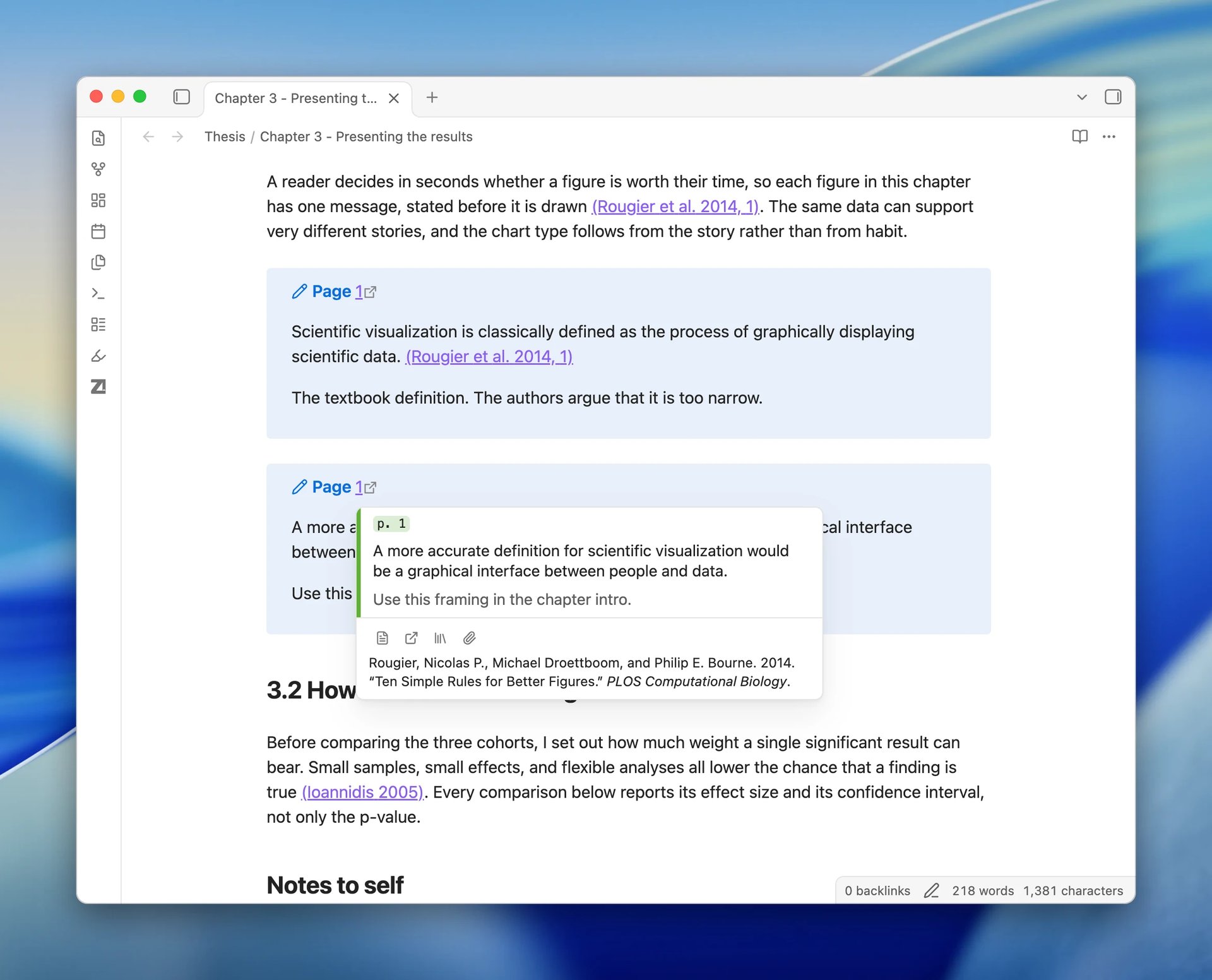
Hover over an annotation link in Live Preview, Source mode, or Reading view to see a popover preview. It shows the quoted text, your comment, the page number, and the highlight color. For an image or ink annotation, it displays the visual excerpt. Below the annotation, the popover shows the bibliography entry of the annotation's item, with the same actions as a citation popover. An annotation on a standalone PDF has no item, so its popover shows the annotation alone. The preview shows on every hover, whatever the citation hover settings are.
What you get
When the item has one PDF, it opens straight away. When it has several, ZotLit asks which one to open; the picker lists them by file name and its search box reads 选择要打开的 PDF.
When the item has no PDF, ZotLit shows 此条目没有 PDF 附件。 When the file is no longer on disk, it shows PDF 文件缺失。 In neither case does ZotLit open the file in Zotero instead.
The annotation view comes forward in the sidebar with the PDF, so the item's highlights appear beside it. While the view is in 活动标签页 mode, it follows the PDF tab.
To keep your sidebar as it is, turn off Settings > ZotLit > 阅读器 > 显示标注视图. See Settings.
Keep the read time in Zotero
If you already granted Write Authorization with 允许编辑 and Always Allow, reading a PDF from My Library in Obsidian updates its last-read time in Zotero. The paper then appears in Zotero's Recently Read list, and the read time syncs through Zotero.
ZotLit does not ask for Write Authorization while you read. Without it, with Zotero closed, or if the update fails, the read still counts on this device and no notice appears. Reads of group-library PDFs in Obsidian also stay on this device.
See also
How to edit PDF annotations in Obsidian
Create or change Zotero annotations while reading in Obsidian.
Use the annotation view
Browse an item's highlights beside the PDF and drag them into your notes.
Create and open literature notes
Open or create a literature note from the quick switcher, a citation, or Zotero.
Commands
Every ZotLit command, with the entry points that reach it.
Last updated on