Template Workbench View
How the Template Workbench View edits a profile, the citation text, or a partial, and previews each one in Obsidian.
The Template Workbench View edits one template document and shows its output against data from your Zotero library.
One view, three kinds of document
The view opens all three kinds of template document. The kind decides the tabs, the tab title, and what the preview renders.
| Document | Tab title | Tabs | Preview |
|---|---|---|---|
| Profile | The profile's name, then Profile | Six | A literature note for one paper |
| Citation text | 引文文本 | One, 引文 | One inserted citation |
| Partial | The partial's name, then Partial | One, 片段 | The partial as one template calls it |
Everything you type is previewed, including bytes you have not saved yet. Editing uses Obsidian's automatic saving, with its Undo and Redo. A document with an error stays editable and saves with its diagnostics shown in the editor.
The native Markdown view keeps working on the same file. Select 以 Markdown 打开 to open the document as Markdown, and right-click a template document in the file explorer for 打开模板工作台.
Select 帮助 in the view header for 模板指南, 模板语法, 模板数据参考, and 向社区求助. The web Workbench has the same 帮助 menu in its header.
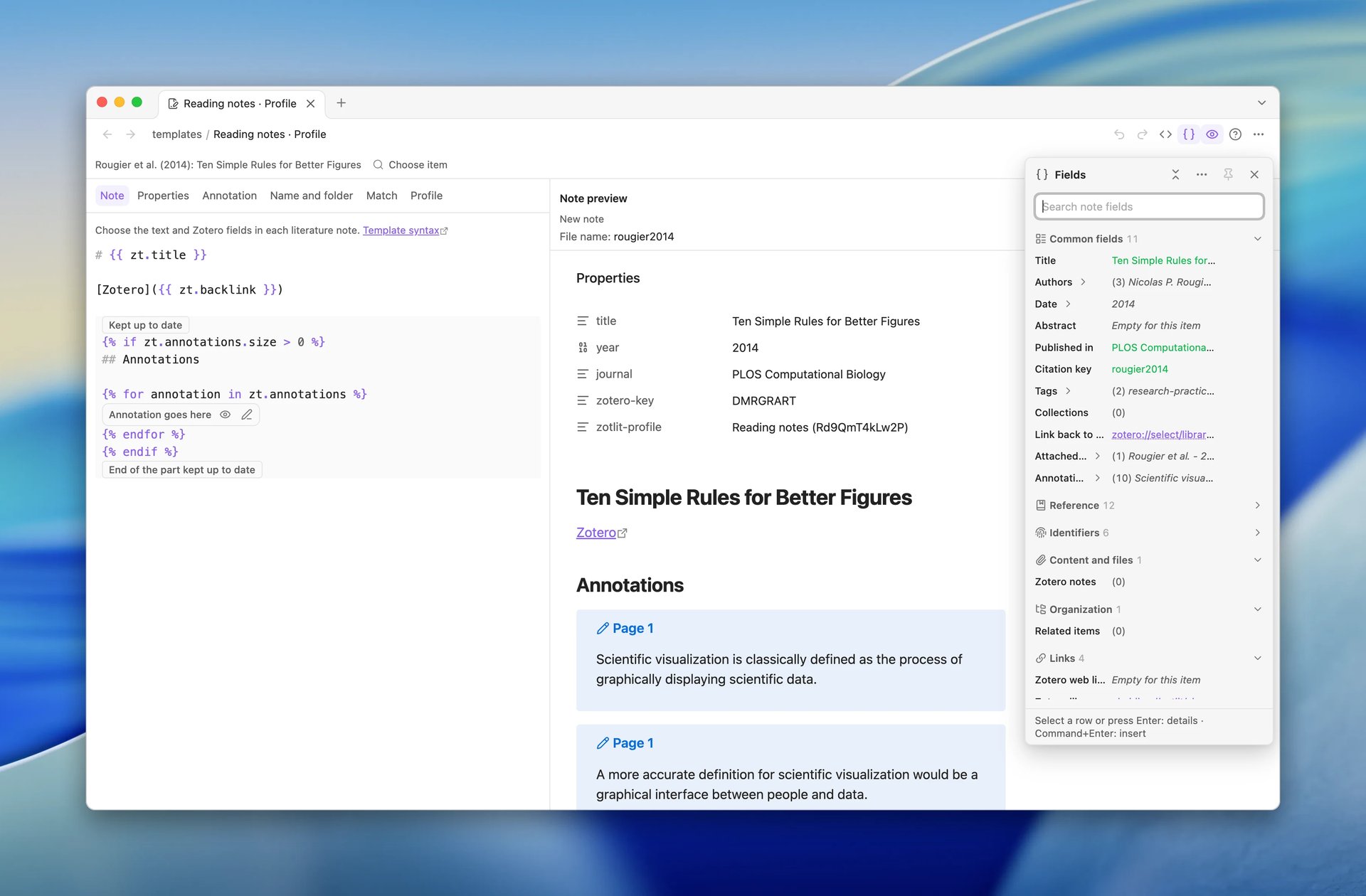
The Preview and Fields panels
The view has two panels beside the editor. The Preview panel shows what the document produces for the chosen paper. The Fields panel lists the template data for that paper. It opens as the Fields popover over the editor, or you can pin it as a column beside the editor. Both panels are available for a profile, the citation text, and a partial.
The editor tabs, the Preview panel and the Fields panel use one chosen item and one chosen annotation. The row above the panels names that item, or the annotation while you edit an annotation template, and holds 选择条目 to change it. The pane menu has the same entry. The web Workbench names the item in the same row, with its own example chooser.
Show or hide the panels
Select 显示预览 in the view header to show the Preview panel. The action looks pressed while the panel is shown. Select it again to hide the panel. The same entry is in the view's pane menu, with a check mark while the panel is shown. The web Workbench has the same action in its header, and the same entry in its 视图 menu.
Select 字段 in the view header to open the Fields popover, and select it again to close it. While the Fields panel is pinned, the same action hides and shows it. The pane menu entry 显示字段 and the web Workbench's 视图 entry of the same name do the same, with a check mark while the panel is open. See The Fields panel.
Hiding the Preview panel keeps your chosen item and annotation. The panel shows them again when you bring it back.
Resize the Preview panel
Drag the edge between the Preview panel and the editor to make the panel wider or narrower. The panel is at least 240 pixels wide. It can grow until the editor has 360 pixels left, so you can read a wide note beside its template.
The edge also works from the keyboard. Press Tab to focus it; a screen reader names it 调整预览大小.
| Key | Effect |
|---|---|
| Left Arrow or Right Arrow | Moves the edge 16 pixels in that direction |
| Shift and an Arrow key | Moves the edge 64 pixels in that direction |
| Home | Makes the panel as narrow as it can be |
| End | Makes the panel as wide as it can be |
Double-click the edge to give the panel its default width again.
In the web Workbench, you can also size the panel without the edge. In the 视图 menu, point to 调整预览大小, and select 加宽, 变窄, or 重置宽度. Each step is 64 pixels, and the menu stays open so you can take several steps. After each step, a screen reader reads the panel and its new size, such as "Preview: 464 pixels".
Panels in a narrow view
The Preview panel stands beside the editor in a view at least 896 pixels wide (56rem), so you can compare the template with its result as you edit.
In a view narrower than 896 pixels, the Preview moves under the editor. It takes 40% of the view's height at first. Drag the edge above it, or focus the edge and press Up Arrow or Down Arrow, to give it more or less height; Home and End set its smallest and largest share. Double-click the edge to give it 40% again. In the web Workbench's 视图 menu, 调整预览大小 then offers 加高, 变矮, and 重置高度, in steps of 10%. The editor always keeps room for its toolbar, its tabs and at least five lines of your template; the Preview gets shorter first. Each step starts from the height you see. When the editor needs more room, it scrolls.
The Fields popover works the same at every width. A pinned Fields panel docks only where the view has room for it; see Pin the Fields panel.
Making the view narrower or wider moves the Preview and changes nothing else: the panel stays shown, and it gets its width back when the view is wide enough again. A popover you opened stays open, and a closed popover stays closed. The Preview keeps your place as it moves: the control you were on and the scroll position stay. A view you move to another window follows that window's width.
What the view remembers
Obsidian saves whether the Preview panel is shown, how wide it is, and its height under the editor, with the view. It also saves whether the Fields panel is pinned, whether you hid it, and how wide it is. After a restart, the view opens the way you left it. The Fields popover is not saved: it is closed when the view opens. The web Workbench keeps the pin and the width while the page is open.
Every way to open a template document opens it in the Workbench window and shows the Preview panel. When the window already shows the document, ZotLit brings it to the front. The Fields popover stays closed until you select 字段. These entry points open the Workbench:
- 打开模板工作台, from the command palette, the file menu of a template document or a literature note, or the header of a template document open as Markdown.
- 自定义 on the built-in Default profile.
- The 编辑配置方案 button beside a profile in ZotLit settings.
- ZotLit: 自定义引文文本, for the citation text.
A partial or the citation text that you open from the view's pane menu opens in a new tab of the same window.
The Fields panel
The Fields panel is the Template Data Explorer inside the view. It has the same filter, sections, roots, and copy actions. It opens in the Fields popover, or you can pin it beside the editor. Its content is the same in both places. Each section has a header with its icon, its name, and the number of fields in it. The header stays at the top while you scroll through its section. Select a header to close or open its section. The 折叠所有分组 button in the panel's header closes every section at once, and 展开所有分组 opens them again. When you type in the filter, every section with a matching field opens. Each row has an insert button, and its row menu has 插入字段. Both put the field into the editor at your cursor.
Each row shows the field's name and the chosen paper's value on one line. A value that is too long ends with "…". The fields inside a list or another field stand a little in, behind a thin line. Select a row to see its details, and select it again to hide them. The details show the full value, the template path, and, under 在笔记中, the text that goes into the template and what it writes for this paper. Use 插入 or 复制 to put that text into the editor or on the clipboard. Both close the details. In a view 600 pixels wide or wider, the details open beside the panel, level with the row. In a narrower view, they open in a bar at the foot of the panel, so the list does not move. Pointing at a row opens nothing.
A list field, such as the authors or the annotations, shows how many items it has and all of them on one line. When the items have their own fields, a chevron after the list's name opens one row for each of those fields, with its value for every item: the authors open to their first and last names, and the tags to their name and type. A list goes into your note with every item, so a note for a paper with three authors names all three. The details of a list show its values one per line, numbered. Under 在笔记中, choose 合为一行 to write the items on one line, separated by commas, or 每项一行 to write each item on its own Markdown list line. 插入字段 on the row uses the first of these choices.
You can also use the keyboard in the filter. Press Down Arrow or Up Arrow to select a row, Enter to show its details, and Ctrl+Enter (Command+Enter on macOS) to insert it. When Enter opens the details, focus moves into them, so Tab reaches the form choice, 插入, 复制 and 关闭详情. Ctrl+Enter there inserts the form you chose. Escape closes the details and moves focus back to the filter.
Select a place outside the details, or press Escape, to close them. Escape first closes the details, then clears the filter, and then closes the popover. In the pinned panel, Escape stops after it clears the filter, because the panel stays.
The panel opens on the same root as the editor, such as the note fields or the annotation fields. The citation text shows citation fields, and a partial shows the fields of the caller you preview it as. You can move the panel to another root, for example to an annotation. When the editor's root or the chosen item changes, the panel follows the editor again.
While the Fields panel is open, 将模板数据保存为 JSON in the pane menu saves the data of the root the panel shows. Otherwise it saves the data of the editor's root.
The 更多选项 button in the Fields panel's header has 选择条目, 将模板数据保存为 JSON for the root the panel shows, and 复制 Zotero 标识符 (or the annotation's key, on the annotation root).
The Fields popover
The Fields panel opens in the Fields popover until you pin it. The popover opens at the right edge of the view and fills its height. It looks the same at every width. The editor and the Preview panel stay usable while it is open, so you can read the preview and write in the template beside it.
Close the popover in any of these ways:
- Select 字段 again.
- Select a place outside the popover.
- Select the popover's 关闭字段 button.
- Press Escape.
The focus goes back to 字段.
查看问题 in the Preview panel also closes the popover. The editor then shows the problem, with the focus on it.
Place your cursor in the template before you insert a field. Until you do, the panel shows 在模板中选择插入字段的位置。. Inserting puts the field at the cursor, closes the popover, and puts the cursor back in the editor after the field. To insert several fields in a row, hold Shift while you select the insert button, or press Shift and Enter on it. The popover then stays open.
Pin the Fields panel
Pin the Fields panel to keep your paper's data in view while you write. Select 固定到侧边 in the popover's header. The popover closes, and the Fields panel stands as a column at the left edge of the view, before the editor (the right edge in a right-to-left language). The editor gets narrower to make room.
The pinned panel stays open while you type and insert fields. Inserting puts the cursor back in the editor after the field, and the panel stays where it is.
- Select 字段 to hide the pinned panel and give its room to the editor. Select it again to show the panel. The pin stays.
- Drag the edge between the panel and the editor to resize the panel, from 240 to 480 pixels. The edge works from the keyboard as the Preview's edge does, and the pane menu has 调整字段宽度.
- Select 取消固定 to unpin the panel. It opens in the Fields popover again.
The pinned panel needs a view that keeps the editor at least 360 pixels wide beside a panel of 240 pixels, after the Preview panel takes its column. In a narrower view, the pin is disabled with the tooltip 加宽视图以固定, and 字段 opens the Fields popover. A pinned panel shows the note 已固定 · 在窄视图中浮于编辑器上方 there. When the view is wide again, the panel docks again. A view that gets narrow never opens the popover over your editor by itself.
The Preview panel
The Preview panel's header row names the preview, such as 笔记预览, and the note's 文件名. The row stays at the top while you scroll through a long preview, so you always see which note you are reading.
Two buttons sit at the end of the header row. The first switches the preview between reading view and Markdown source; its tooltip names the mode it switches to, 显示 Markdown or 显示阅读视图. The second, 更多选项, opens the preview choices below.
While the Preview panel is shown, the view's pane menu also adds the choices that shape the preview. For a profile, these are:
- 预览为新笔记, 预览为更新后的笔记, or 仅预览更新的部分.
- 自动刷新预览. Turn it off to render only when you select 运行.
- 显示 Markdown, to read the note as Markdown source.
- 重新加载预览数据, to load the item's data again.
The citation text and a partial add their own preview choices, described below. When you hide the Preview panel, these entries leave the pane menu, and the preview keeps your choices for the next time you show it.
A problem that the preview finds appears in the editor's 问题 area.
A profile document
A profile controls the name, folder, properties, and body of a literature note. It can also define how annotations appear and which Zotero items use the profile automatically.
The view groups these parts into six tabs:
- 笔记 edits the literature note body.
- 属性 edits the YAML properties that ZotLit manages.
- 标注 edits the format of one annotation.
- 名称和文件夹 edits the note path, citation style, imported note settings, and template language. Its 笔记路径 group joins the literature note folder and the note name template, and previews the full path.
- 匹配 selects the Zotero items that use an added profile automatically.
- 配置方案 edits the profile's own name, description, and version.
源码 is a toggle in the view header. Select it to show the whole profile document as Markdown source in place of the tabs, and select it again to return to the tabs. A citation text or a partial shows its source in its one tab, so the toggle is offered for a profile document only.
Preview data
The preview uses a Zotero item or built-in example. Opening the view from a literature note selects that note's item. The pane menu offers 选择条目 to change the preview data.
The preview changes as you edit. A database or citation-style warning can limit the preview, but you can continue editing the profile.
Saving changes
The built-in Default profile is read-only. You can read and select its values without creating a document. 自定义 creates its document in the configured template folder before editing becomes available, or opens the existing custom document.
If creation fails, the built-in values remain readable and an inline error offers a retry. Closing an untouched customization keeps the created document.
Existing literature notes keep their current content. Run ZotLit: 更新文献笔记 to apply the edited profile to the active note.
Edit the Markdown document
Select 以 Markdown 打开 to open an existing profile document as Markdown. Customizing the built-in Default creates its document before editing becomes available.
The citation text
The citation text opens on one 引文 tab. Its tab title is the fixed 引文文本.
The preview, headed 引文预览, renders one citation. Its caption names the variant being previewed, 主要 or 替代. While the Preview panel is shown, the view's pane menu picks that variant. It also offers 使用示例 for a set of built-in citation shapes or 选择条目 for one of your own Zotero items.
The Preview panel uses the variant and example you pick. See Customize the citation text for the steps.
A partial
A partial opens on one 片段 tab. Its tab title is the partial's name, then Partial.
A partial has no data of its own: it renders with the data of whichever template calls it. So its preview, headed 片段预览, asks you which caller to render as. While the Preview panel is shown, the view's pane menu offers 按笔记调用预览, 按标注调用预览, and 按引文调用预览. It opens on Note, and remembers your choice per file. ZotLit never guesses the caller from the templates that call the partial.
While your vault holds a profile besides Default, the same part of the pane menu offers 使用配置方案 to preview against that profile's data. Saving a partial re-renders every open preview that uses it.
The document's language
Above the editor of a citation text or a partial, a caption names the document's language, Liquid or Eta (JavaScript). The caption reports; it does not switch.
The pane menu carries 更改语言, the switch between the two languages. ZotLit rewrites the manifest key alone and translates no source. See How templates work.
A profile document sets its language on the 名称和文件夹 tab instead, under 模板语言.
Open the view
A view edits one template document, and each kind opens from the place that holds it:
- A profile, from its row at Settings > ZotLit > 文献笔记配置方案, or from the 模板文档 row at Settings > ZotLit.
- The citation text, from the 引文文本 row at Settings > ZotLit > 引文.
- A partial, from its row under 片段 at Settings > ZotLit > 文献笔记配置方案.
The profile a literature note already uses opens from that note.
Each of those rows carries its own control, and Customize a template names it and walks the steps.
See also
Customize a template
Edit a profile, the citation text, or a partial, and preview the result.
How templates work
The three kinds of template document and the two template languages.
Configure frontmatter properties
Add and edit YAML properties managed by a profile.
Template Workbench CLI
Let an agent inspect and test templates through the Obsidian CLI.
Last updated on