Use the annotation view
Open the annotation sidebar, choose what it follows, and pull highlights into your notes.
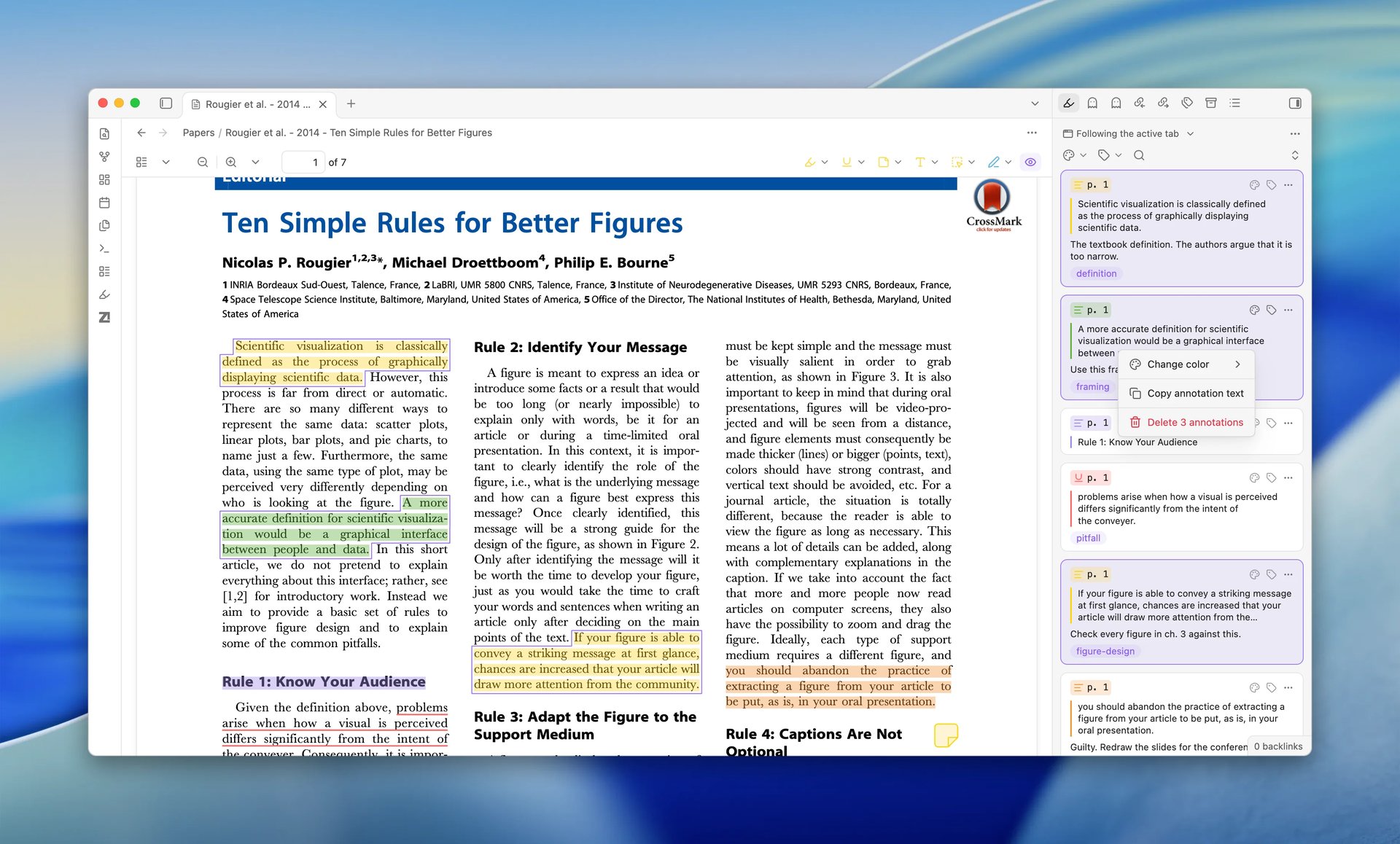
The annotation view is a sidebar panel that lists a Zotero item's annotations. You can browse highlights, drag them into your notes, and choose whether the view follows your active tab, the Zotero reader, or one item you pin.
Open the annotation view
Open the command palette and run:
ZotLit: 打开 Zotero 标注The Zotero 标注 panel opens in the right sidebar. A ribbon icon (highlighter) also opens the view.
By default, the view follows your active tab. When that tab is neither a literature note nor a Zotero PDF, it shows 打开一篇文献笔记或一个 Zotero PDF 即可查看标注。
To open a Zotero PDF in an Obsidian tab, see Open an item's PDF in Obsidian.
Choose what the view follows
The annotation view has three follow modes:
| Mode | Behavior |
|---|---|
| 活动标签页 (default) | Follows your active tab: the item of a literature note, or the attachment of a Zotero PDF. |
| Zotero 阅读器 | Follows the attachment open in Zotero's reader. Needs live updates. |
| 已固定 | Stays on one item you chose, with its attachment remembered. |
Select the mode button at the start of the view's toolbar to switch. The same three switches are in the view's pane menu, and each has a command of its own.
The view keeps the mode you chose until you choose another one. When its source cannot answer, the view says so in place instead of switching for you.
Follow the Zotero reader
Select Zotero 阅读器 from the mode button. When you open or switch items in the Zotero reader, the view updates to show that attachment's annotations.
This mode needs live updates, which carry the reader's position from Zotero to Obsidian. While live updates is off, the view offers 开启实时更新 in place of the list. See Set up live updates.
Closing the reader in Zotero leaves the last attachment on screen under Zotero 阅读器已关闭。正在显示它此前打开的附件。
Pin one item
Select 固定当前条目 to pin the item the view already shows, or 选择条目… to search Zotero for another one.
Pinning from a Zotero PDF tab releases that tab's hold on the attachment, so you can switch between the item's attachments while the pin stands.
Select 取消固定 to return to the mode you were in before the pin.
A PDF that Zotero stores with no parent item cannot be pinned, and the control says so.
Choose an attachment
When the item has more than one attachment, a picker under the toolbar names the one on screen with its annotation count, and remembers your choice per item.
A Zotero PDF tab and the Zotero reader each choose the attachment themselves, so the picker stands down while one of them does.
To read the attachment on screen in Obsidian, select the mode button, then select 打开 PDF. The same item is in the view's pane menu. It is not shown when an Obsidian PDF tab already shows that attachment.
Filter the list
The toolbar has two filters. Each opens as a small popover under its button.
- 按标签筛选: lists the tags on the annotations. Type in the search field to find a tag, then select one or more tags.
- 按颜色筛选: lists the colors of the annotations. Select one or more colors.
The list shows the annotations that have any of the selected tags and any of the selected colors. After you select a tag or a color, the button shows your choice. To clear it, open the popover and select 清除已选标签 or 清除已选颜色.
Sort, group, and save the view
The view's 更多选项 menu (⋮) has 排序, 分组依据, and 筛选… for the cards. 另存为查询文件… keeps what the view shows as a query file that you can open in a tab or embed in notes. See Save the annotation sidebar as a query file.
Select several cards
Select a card to select it alone. To select more than one card:
| Action | Result |
|---|---|
Ctrl-click (Windows and Linux) or Command-click (macOS) | Adds a card to the selection, or removes it. |
Shift-click | Selects all cards from the last card you selected to this one. |
Ctrl+A (Windows and Linux) or Command+A (macOS) | Selects all cards that the list shows. |
You can also press Shift+Up or Shift+Down to extend the selection one card at a time. Press Escape to clear the selection.
With the cards selected, you can:
- Delete them: press
DeleteorBackspace, then confirm. You can also right-click a selected card and select the delete item, which shows the number of cards. - Change their color: press a key from
1to8. The keys follow the order of Zotero's color palette. You can also right-click a selected card and select 更改颜色. - Copy their text: press
Ctrl+C(Windows and Linux) orCommand+C(macOS), or right-click a selected card and select 复制标注文本. ZotLit copies the quoted text of each card, or its comment when it has no quoted text, with a blank line between cards.
Deleting and changing colors are edits, so editing must be enabled. One undo reverses the change on all the cards. See How to edit PDF annotations in Obsidian for undo and for the other edits.
Locked annotations
A lock icon beside a card's page number marks an annotation that ZotLit cannot change. Point to the icon to see the reason. For example, Zotero imported the annotation from the PDF file, or another member of a group library created it. See How to edit PDF annotations in Obsidian for what you can still do with a locked annotation.
Pull annotations into a note
- Open the note where you want to insert the annotation.
- Drag an annotation row from the sidebar to the required editor position.
- Wait for the insertion to complete. Image and ink excerpts are prepared before their links are inserted.
To insert without dragging, put the cursor in the note where you want the annotation. Then right-click the annotation card, or open its 更多选项 menu, and select 插入到笔记. ZotLit inserts the same text that a drag inserts. The item is not available when no note editor is active.
ZotLit uses the profile of the annotation item's literature note, or the Default profile when that item has no note. Edits made while you wait move the insertion position with the text. Press Escape to cancel a pending insertion. After insertion, one Undo removes the inserted content.
With 导入附件 enabled, inserted excerpts are saved as image files in the vault. With it disabled, new excerpts use an unavailable-image explanation and source link. Viewing cards or selecting a target note creates no saved image files.
You can view and insert excerpt images with both PDF readers closed. A failed image request produces fallback text or a preserved image, and the operation reports uncertain or unavailable results in one summary.
Context menu actions
Right-click an annotation row, or open its 更多选项 menu, for additional options:
- 编辑引用文本: opens an editor for the quoted text of a highlight or underline. See Edit the quoted text.
- 复制反向链接: copies a link back to the annotation's location in the PDF.
- 复制标注文本: copies the quoted text, or the comment when the annotation has no quoted text.
- 复制引用: copies a formatted citation for the annotation's parent item.
- 复制标注标识符: copies the annotation's Zotero key.
- 插入到笔记: inserts the annotation at the cursor in the active note, as a drag does.
- 探索模板数据: opens the Template Data Explorer with the annotation's data.
- 删除标注: deletes the annotation from Zotero after you confirm. See Delete an annotation.
When several cards are selected, the menu has only the items that act on all of them. See Select several cards.
See also
How to edit PDF annotations in Obsidian
Create every annotation type, edit colors, comments, tags, and quoted text, or delete annotations.
Import Zotero notes
Import child notes from Zotero as standalone Markdown files.
Set up live updates
Enable automatic push from Zotero to Obsidian.
Keep notes up to date
Update literature notes when your Zotero data changes.
Last updated on